
Open Reader or Acrobat.
Last updated on
Nov 21, 2023
|
Also applies to Acrobat Reader, Reader
Solutions to common issues viewing PDFs from a website.
Common issues with viewing PDFs
- A blank page in the web browser
- A red X icon
- A broken-link indicator, such as a red square, a blue triangle, or a blue circle
- Error: "The Adobe Acrobat/Reader that is running cannot be used to view PDF files in a web browser. Adobe Acrobat/Reader version 8 or 9 is required. Please exit and try again."
To solve common PDF-display issues, follow the instructions in the order they appear: Update Reader or Acrobat, fix PDF issues, check browser settings, and repair or reinstall Reader or Acrobat.
Update Reader or Acrobat
Adobe releases free security updates quarterly. Make sure you update your version of Reader or Acrobat to the latest release. The updates often include fixes to common problems. Download the latest free update.
-
-
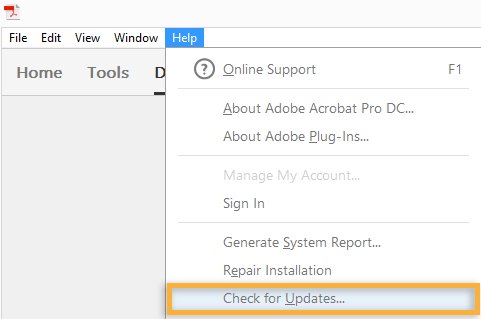
Choose Help > Check for Updates.
Acrobat 9 and earlier: If a new update is available it installs automatically.
Acrobat X and XI: Click Update and then click Install.
Acrobat: Continue to the next step.

-
When the Updater dialog box appears, click Download.

-
After download is complete, click the Acrobat install icon. In the Acrobat Updater window, click Install.

-
After installation is complete, restart your computer, and test the PDF again to see if you can view it.


PDF solutions
Refresh or reload the page
Often, just refreshing the page in your browser allows the PDF to load fully.
- Hold down the Shift key and press the
 Refresh or
  Reload button in the browser.
Try to view a different PDF
Try viewing a different PDF. For example, see if this sample form displays in your browser. If Acrobat or Reader can open the sample form, then the other PDF could be damaged or the web server could be having problems. If possible, contact the individual or company who manages the website.
Try to view a PDF on your hard drive
Determine if your web browser can open a PDF from your local hard drive rather than from the web. For this test, you need a PDF saved on your computer.
-
In your web browser, do one of the following:
- Mac OS: Choose File > Open (or Open File).
- Windows: Press Control+O.
-
Click Browse.
-
(Windows only) From the Files Of Type menu, choose All Files.

-
Locate a PDF on your computer, select it, and then click Open.
If the PDF opens, the website you were viewing could have a problem. Contact the individual or company who manages the website.

Browser and browser-settings solutions
Use a different web browser
Certain conditions on your computer, such as security settings or browser cookies, can prevent you from viewing a PDF. Often, the fastest solution is to try to open the page using a different browser. Try any of the following browsers that you have not already tried:
 Google Chrome
 Mozilla Firefox
 Microsoft Internet Explorer
 Apple Safari
For a list of compatible browsers for Reader and Acrobat, see Compatible web browsers.
Switch to Compatibility View (Internet Explorer)
Some websites display better in the Compatibility View of Internet Explorer. The Compatibility View displays a page as if it were in an earlier version of the browser.
For instructions on how to switch to this view, see Fix site display problems with Compatibility View.
Restart your computer and try opening the PDF again
Restart your computer, then open the web page again. Restarting clears the computer memory and memory cache. Simply restarting your computer frequently resolves display issues.
Delete temporary Internet files (Internet Explorer, Firefox, and Chrome)
Clear the browser cache (sometimes called temporary Internet files) to ensure that you're viewing a fresh version of the page.
Be careful when selecting the options. Clear only the browser cache. If you clear all temporary Internet files, you could delete the cookies that contain login information and preferences. Most browsers let you choose the type of content you want to delete.

For instructions on clearing the browser cache, refer to these articles:
Firefox: Delete browsing, search, and download history
Chrome: Delete your cache, history, and other browser data
Internet Explorer 8 through 11: Viewing and deleting your browser history
Internet Explorer 7: Delete web page history
Reset the Display PDF In Browser preference (Acrobat/Reader X or earlier)
Try resetting the display preference in your browser to clear up the viewing issue.
-
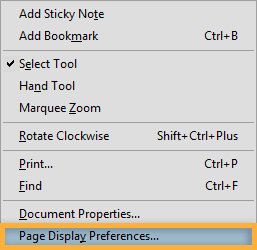
In Reader or Acrobat, right-click the document window, and choose Page Display Preferences.

-
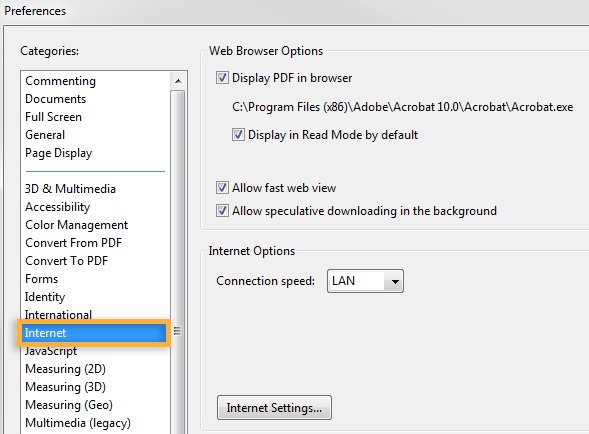
From the list at left, select Internet.

-
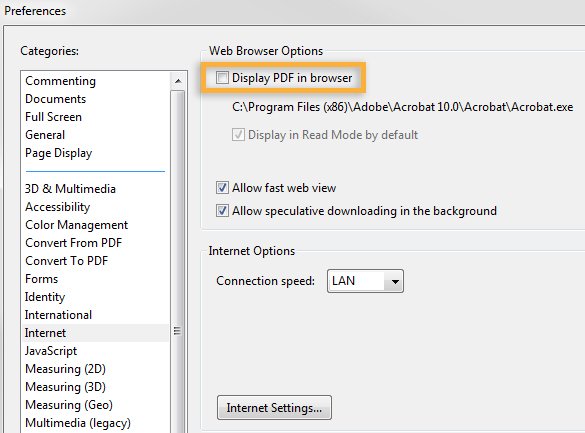
Deselect Display PDF in browser, and then click OK.

-
Try to open the PDF again from the website.
View PDF in 32-bit version of Internet Explorer or Safari (Windows Vista only)
This procedure applies only to Windows Vista users with Internet Explorer 9 or earlier.
Acrobat and Reader are 32-bit applications on Windows. If you try to open a PDF in a 64-bit version of Internet Explorer, the PDF opens in stand-alone Acrobat or Reader, not in Internet Explorer.
Note
Only Reader 10.1 or Acrobat 10.1 and later support Internet Explorer 9.
To make sure you're using a 32-bit version of Internet Explorer, follow these steps:
-
In Internet Explorer, choose Help > About Internet Explorer. (In some versions of Internet Explorer, select the question mark in the upper-right corner to select About Internet Explorer.)

If you see "64-bit Edition" next to the version, then go on to step 2.

-
To switch to the 32-bit Internet Explorer, first exit 64-bit Internet Explorer. Then double-click the program icon for the 32-bit version:
C:\Program Files (x86)\Internet Explorer\iexplore.exe


Reader and Acrobat solutions
Reader or Acrobat could be damaged. Repairing the installation is a quick troubleshooting safeguard.
Repair from within Reader or Acrobat
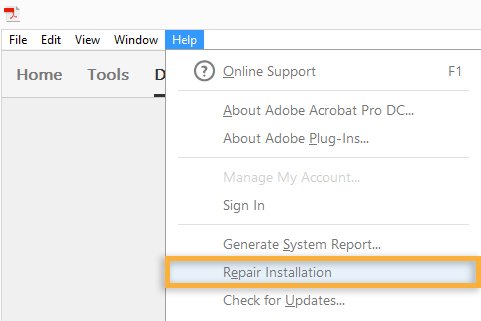
Choose Help > Repair Installation.
Repair using Control Panel (Windows)
You can also repair your Acrobat or Reader installation using the Windows Control Panel.
-
Close Reader or Acrobat.
-
Click Start > Control Panel.

-
Do one of the following in Control Panel, depending on your version of Windows:
- (Windows 8/7/Vista) Click Programs, and then click Programs and Features.
- (Windows XP) Double-click Add or Remove Programs.
-
In the list of programs, select Adobe Reader or Adobe Acrobat.
-
Click Change and follow the instructions to repair the application.

-
When the process is complete, click Finish.


Advanced solutions
If none of the solutions in the previous sections solve the issue with viewing PDFs, you can try the following advanced steps.
Enable the Adobe PDF browser add-on (Internet Explorer 8 and later)
Make sure that the Adobe PDF browser add-on is enabled.
-
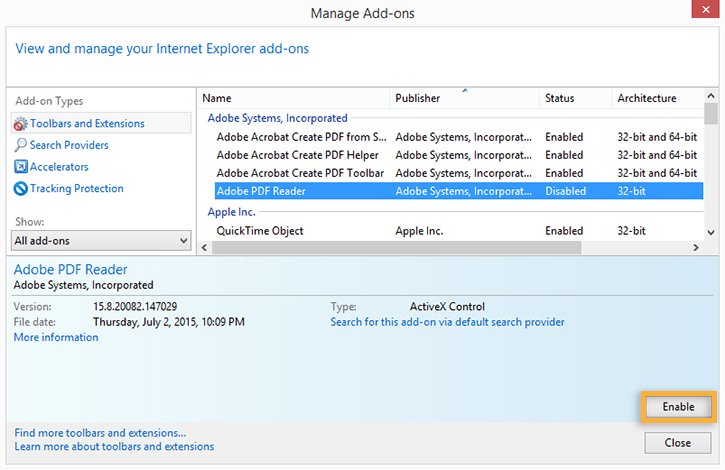
Open Internet Explorer and choose Tools > Manage Add-ons.
-
Under Add-on Types, select Toolbars and Extensions.
-
In the Show menu, choose All add-ons.

-
In the list of add-ons, select Adobe PDF Reader.
NoteIf you don't see the Adobe PDF Reader add-on, try the other options on the menu. For example, on some systems, the add-on appears when you select Run Without Permission.
-
Click the Enable button.
NoteIf the button says Disable, then the add-on is already enabled. This button toggles between Enable and Disable, depending on the status of the selected add-on.
Enable sets the Adobe PDF Reader add-on to open PDFs in the browser.
Disable turns off the add-on so it does not open PDFs in the browser.


Enable the Adobe PDF browser add-on (Firefox)
Make sure that the Adobe PDF browser add-on (nppdf32.dll) is enabled.
-
In the Firefox address bar, type about:plugins
-
Scroll down to a section named Adobe Acrobat.

-
Make sure that File reads "nppdf32.dll" and "Adobe Acrobat Plug-In for Netscape."
If this entry is not available, install the latest version of Reader or Acrobat.

Run Acrobat or Reader in a new local administrator account
Create a user account that has the same permissions as the account you use when the problem occurs. Or create a local administrator account. If the problem doesn't recur when you log on to the new account, then the original user account could be damaged.
For information on setting up a user account, refer to the following resources or contact your network administrator:
Windows XP: To add a user to the computer
Windows Vista/7/8: Create a user account
Mac OS X: Set up users on your Mac
Optimize large PDF files
If the PDF file is 4 MB or larger, ask the provider to optimize the PDF file. For information about optimizing PDF files, see Optimizing PDFs.
Check the registry path for Acrobat or Reader (Windows)
Disclaimer: The registry contains system-related information that is critical to your computer and applications. Before modifying the registry, be sure to make a backup copy of it. Adobe doesn't provide a resolution to problems that arise from improperly modifying the registry. Adobe strongly recommends that you gain experience editing system files before you modify the registry. For more information about the registry, see the Windows documentation or contact Microsoft.
-
Go to Start > Run.
-
Type regedit and click OK.
-
Browse to the key HKEY_CLASSES_ROOT\Software\Adobe\Acrobat\Exe.
-
Make sure that the (Default) value is set for the path where Acrobat or Reader is installed.
- The default path for Reader is "C:\Program Files (x86)\Adobe\Acrobat Reader\Reader\AcroRd32.exe".
- The default path for Acrobat is "C:\Program Files (x86)\Adobe\Acrobat\Acrobat\Acrobat.exe".
NoteIf Acrobat or Reader isn't installed in the default path, make sure that the key's (Default) value points to the actual location.
For a video demonstration of the procedure, see Check the correct registry path.
If the above registry item doesn't exist on the system, do the following:
-
Go to Start > Run.
-
Type regedit and click OK.
-
Back up your current Registry file:
- In the Registry Editor dialog box, choose File > Export.
- Type a name for the file and choose the location.
- For Export Range, choose All.
- Click Save.
-
Go to Edit > New > Key and create the missing HKEY_CLASSES_ROOT\Software\Adobe\Acrobat\Exe.
-
Go to Edit > New > String Value and name this key (Default).
-
Select (Default), and then go to Edit > Modify. Type the default path (listed above) in the "Value data" for your product.
-
Restart your computer.
Repair the HKCR\AcroExch.Document registry key (Windows)
It is possible that this key is damaged, is pointing to an obsolete version of Acrobat or Reader, or is pointing to a third-party PDF viewer.
Disclaimer: The registry contains system-related information that is critical to your computer and applications. Before modifying the registry, be sure to make a backup copy of it. Adobe doesn't resolve problems that can arise from improperly modifying the registry. Adobe strongly recommends that you gain experience editing system files before you modify the registry. For more information about the registry, see the Windows documentation or contact Microsoft.
-
Choose Start > Run, type regedit in the Open text field of the Run dialog box, and then click OK.
-
Back up your current Registry file:
- In the Registry Editor dialog box, choose File > Export.
- Type a name for the file and choose the location.
- For Export Range, choose All.
- Click Save.
-
Navigate to HKEY_CLASSES_ROOT\AcroExch.Document.
-
Right-click AcroExch.Document and choose Delete; make sure that you have the correct key, and click Yes on any prompts.
-
Right-click AcroExch.Document.7 and choose Delete; make sure that you have the correct key, and click Yes on any prompts.
-
This video demonstrates the steps.
Change the content-type header on the web server (Web administrators)
If you are a webmaster or have administrative rights to a website, configure the web server to send content-type headers of 'application/pdf' for PDF files. For instructions, see the documentation that came with the web server, or see this Microsoft support article.
