Photoshop Elements Help
Generate Image in Photoshop Elements
Insert Object in Photoshop Elements
Download Photoshop Elements
Redeem and Activate your Elements software
Install Photoshop Elements
Basic Troubleshooting steps
Install Adobe Camera Raw plugin
Troubleshoot system errors, freezes and crashes
In Adobe Photoshop Elements, you can transform layers by using a number of different tools and techniques to rotate, scale, and skew items in your image.
Learn to use Combine Photos in Photoshop Elements.
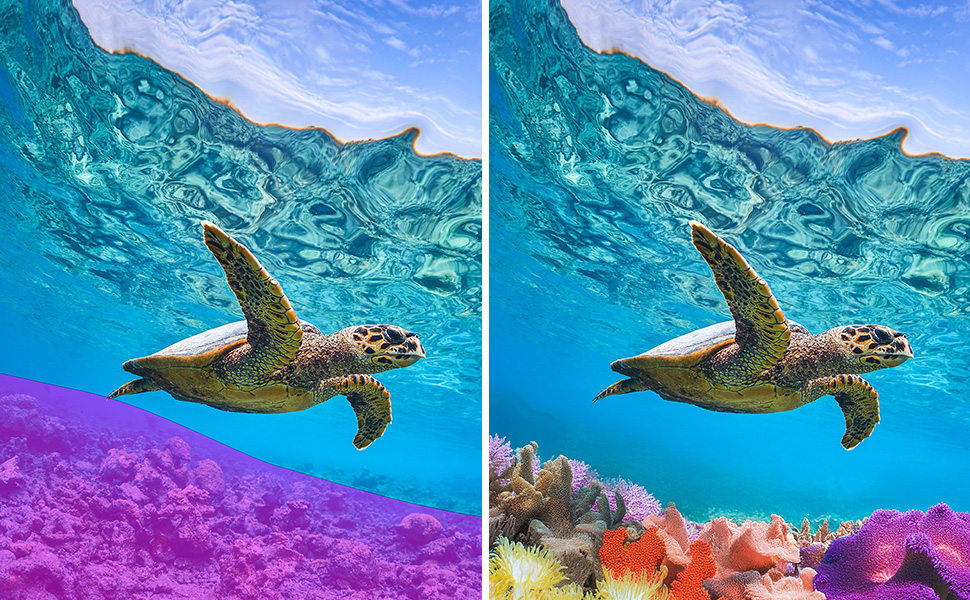
Learn how to generate unique images using AI-powered tools in Photoshop Elements. Create custom visuals, explore creative ideas, and enhance your projects with ease.
Learn how to insert objects into your photos in Photoshop Elements. Add, position, resize, and blend objects seamlessly to create realistic and creative compositions.
Learn how to use layers in Adobe Photoshop Elements. With layers, you can add components to your image and work on them one at a time without changing your original image.
In Adobe Photoshop Elements, you can easily edit layers in your images. You can select, show or hide, lock or unlock, rename, and delete layers.
In Adobe Photoshop Elements, learn more about creating photo projects, such as photo books, photo calendars, photo collages, greeting cards, and CD/DVD jackets and labels
Acrobat
Stock
Firefly
Photoshop
Illustrator
All apps
Popular
Adobe Express
Lightroom
InDesign
After Effects
Premiere
Creativity & design
Aero
Animate
Audition
Behance
Bridge
Capture
Character Animator
Creative Cloud
Creative Cloud for iOS & Android
Creative Cloud Market
Dimension
Dreamweaver
Frame.io
Fonts
Fresco
InCopy
Lightroom Classic
Media Encoder
Photoshop Elements
Photoshop Express
Portfolio
Premiere Elements
Premiere Rush
Substance 3D Painter
Substance 3D Designer
Substance 3D Sampler
Substance 3D Modeler
Substance 3D Stager
XD
PDF & E signatures
Reader
Acrobat Export PDF
Document Cloud
Scan
Send & Track
Sign
eLearning
Captivate
Connect
Learning Manager
Technical communication
FrameMaker
Robohelp
Robohelp Server
Technical Communication Suite
Web application development
ColdFusion
Language Navigation
Choose a region
Selecting a region changes the language and/or content on Adobe.com.
Americas
Asia Pacific
Europe, Middle East and Africa