某些 Creative Cloud 应用程序、服务和功能在中国不可用。

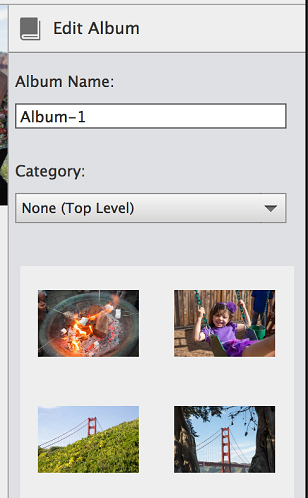
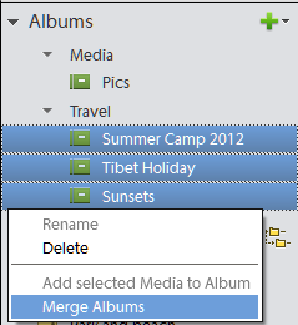
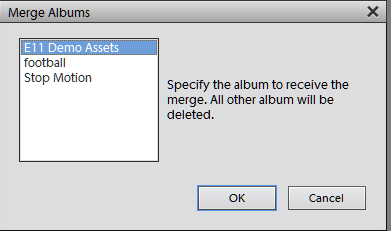
You can merge multiple albums into a single album, the album created contains all the photos in the merged albums. For example, if you create a “Cars” album, and then later inadvertently create an “Automobiles” album for the same photos, you can merge both albums into one. When you merge albums, all photos are placed into one album and the other albums are removed. Photos are placed in the order they appear in the Albums panel. You can rearrange the order before or after you merge.
Deleting an album or album category removes the album, album category, and any albums in the category, but not the photos in them. Note that you cannot delete an album category and an album in another category at the same time.
By default, top‑level albums are listed in alphabetical order followed by album categories in alphabetical order. You can change their order, but you can’t place albums after album categories.
-
Note
You can’t move a lower-level album or album category to the top level by dragging. Instead, change its group to Top level in the Edit Album or Edit Album Category dialog box.
Like albums, keyword tags provide a way of organizing photos and other media files. Keyword tags as well as albums can be associated with the same item. You can apply a keyword tag to a photo even when you are viewing that photo in its album.