
Learn what's new in the latest release of Adobe Camera Raw.
September 2026 (version 18.7)

Browse photos in Grid view
Cull and compare large shoots faster. Grid view lays out your photos in a 2D grid of thumbnails instead of showing them one at a time, so you can spot the shots you want, rate them, and select multiple photos at once.
Learn how to browse photos in Grid view >

Match exposure across photos
Get a consistent look across a shoot without hand-adjusting every photo. Match exposure reads each photo's capture metadata and normalizes exposure across your selection for you.
Learn how to match exposure across photos >

Undock Histogram and Vectorscope
Keep an eye on your photo's Histogram and Vectorscope wherever they're most useful to you. Histogram and Vectorscope can now be detached into a resizable floating panel, separate from the main window.
Learn how to view the color distribution of photos >
Edit photos from newly supported cameras
Find the newly added cameras in the supported camera profile list.
View the list of supported cameras >

Explore support for new lenses
Find the newly added lenses in the supported lens profile list.
View the list of supported lenses >

Release notes
Review a summary of updates and fixed issues for previous Adobe Camera Raw releases.

August 2026 (version 18.6)

Add a luminous glow to your photos
Create a soft, dreamy glow that spreads light from the brightest areas of your image using the new Glow feature.
Learn how to add glow to your photos >

Trim your photo to a transparent cutout
Transform your image to exactly the area you've cropped and make everything outside it transparent. Use Trim in the Crop & Expand panel to create clean cutouts for composites or export with transparency.
Learn how to trim your photos >

View photo details in the Metadata Info Panel
Get a quick summary of your selected photo without leaving the Camera Raw workspace. View capture settings, camera, and file details in the new Info panel.
Explore your photo metadata in the Info panel >

Edit photos from newly supported cameras
Find the newly added cameras in the supported camera profile list.
View the list of supported cameras >

Explore support for new lenses
Find the newly added lenses in the list of supported lens profiles.
View the list of supported lenses >
August 2026 (version 18.5)
Remove skin blemishes from photos
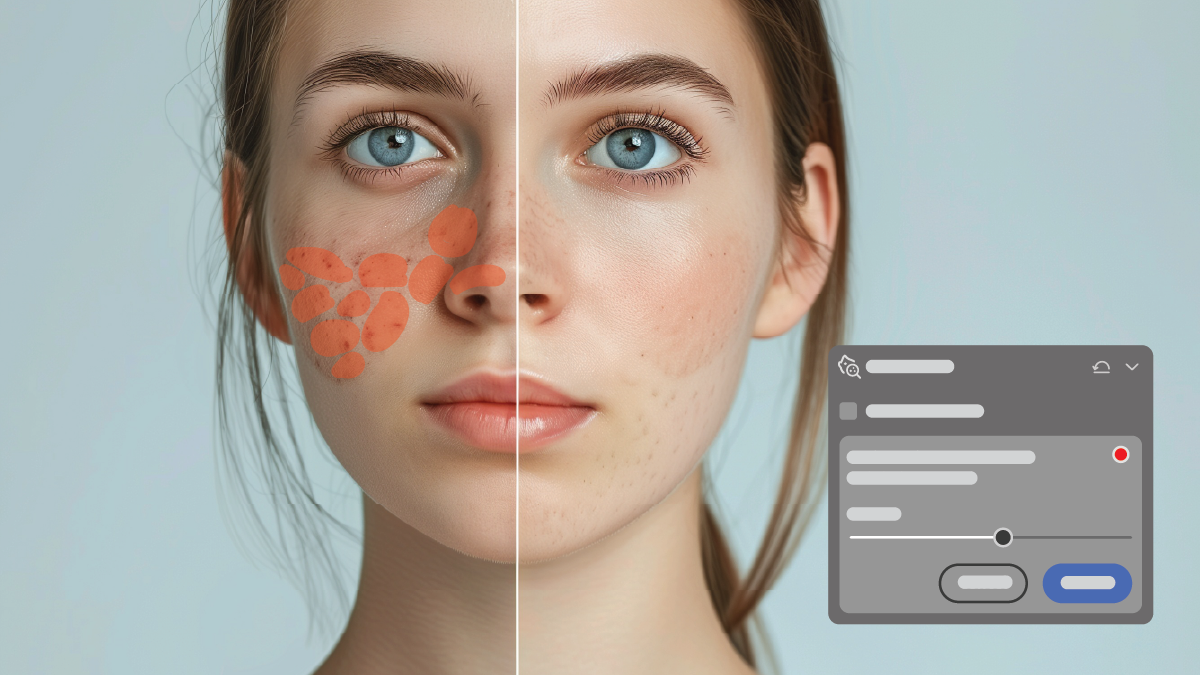
Eliminate blemishes, spots, moles, and freckles with the AI-powered Blemishes option. Control how prominent each element appears, and then fine-tune individual spots to remove or restore them.
Learn how to remove blemishes from your photos >

Turn Generative AI features on or off in Camera Raw
Choose whether Generative AI features like Generative Expand or Generative Remove are available while editing photos. Modify your preferences if you'd rather work without generative AI features.
Learn how to change your Generative AI preferences >
Discover the latest Vectorscope display options.
Customize how you read the Vectorscope so red aligns to a more familiar reference point, and display precise Lab values alongside the scope for exact numeric color readings.
Learn how to apply the new options in Vectorscope >

Create rendered DNG files of your photos
Save photos as new DNG files with all current edits permanently applied using the Render to DNG option, giving you a non-raw file to build on when you want a clean starting point.
Learn how you can access the Render to DNG option >
July 2026 (version 18.4.1)

Extend your photo's canvas using Generative Expand
Expand your photo and fill the new areas with content that blends naturally with the original photo using Generative Expand.
Learn more about how to use Generative Expand >

Present your photos in the new Fullscreen Presentation mode
Showcase photos in a presentation view, move through them with the arrow keys, and customize the background color and layout to suit your presentation.
?$png$&jpegSize=200&wid=1200)
View Autofocus Points of your photos
Visualize your camera's autofocus points directly on the photo preview for supported Canon, Nikon, and Sony raw files.
Learn how to view the focus points on your photos >

Explore support for new lenses
Find the newly added lenses in the supported lens profile list.
View the list of supported lenses >
Previous releases

Select subjects with more precision when masking
Separate subjects from busy backgrounds with enhanced subject detection and more accurate selections for faster, cleaner masks.
Learn more about how to mask your subjects >
View hue and saturation with Vectorscope
Visualize the hue and saturation distributions in your photos using a Vectorscope to make accurate tonal adjustments, standardize skin tones, and perform color grading.
Learn how to view Vectorscope to analyze the color distribution of your images >

Apply targeted adjustments with Bidirectional gradient
Create two-sided gradient masks for smoother transitions and more precise adjustments when masking.
Learn how to use Bidirectional gradient for masking >

Edit photos from newly supported cameras
Find the newly added cameras in the supported camera profile list.
View the list of supported cameras >
Explore support for new lenses
Find the newly added lenses in the supported lens profile list.
View the list of supported lenses >

Refine Masking with new controls
Try the new Feather and Edge sliders with AI Masks for more control, better creative effects, and smoother transitions.
Learn how to use Feather and Edge sliders to refine Masking>

Explore Color Grading in Masking
Use three-way color wheels inside Masking to create playful shifts and complex color effects with precision.
Learn how to use Color Grading when masking photos >
Improved White balance
Lower the Temperature slider to 1500 Kelvin for finer control when editing candlelit scenes.
Learn how to use the Temperature slider in the Color panel >
Edit photos from newly supported cameras
Find the newly added cameras in the supported camera profile list.
View the list of supported cameras >
Explore support for new lenses
Find the newly added lenses in the supported lens profile list.
View the list of supported lenses >
Film-Inspired Presets
Try out over 12 new film-inspired presets in the Style presets group.
Learn more about presets >

Anamorphic Desqueeze
Fix the aspect ratio of photos captured using anamorphic lenses. Supports squeeze factors up to 2.0.
Learn more about the crop tools >

Projection correction
Fix stretched faces near edges and corners of wide-angle group photos, including selfies.
Learn more about the Geometry tool >

Depth range mask
Apply Range mask to any photo to select regions by depth.
Learn more about masking in Camera Raw >
Supported cameras
Find the newly added camera models.
Learn more about supported camera models >
Supported lenses
Find the newly added lens profiles.
Learn more about supported lens profiles >

WebP file format support
You can now import, edit, and sync WebP files.
Learn more about supported file formats >

Remove dust spots in a photo
Automatically detect and remove unwanted dust spots caused by the camera's sensor or lens dust.

Quickly select and edit Snow with Landscape Masking
Snow is now available as a landscape element in the Masking panel. You can also access 7 new Landscape Presets in Adobe Camera Raw.

Fine-tune color in a photo with Variance
The Variance slider lets you fine-tune the color and tone of an image to achieve tonal consistency.
