
某些 Creative Cloud 应用程序、服务和功能在中国不可用。

Note
From Elements Organizer 14 onwards, this feature has been replaced with the Import in bulk feature.
You can quickly find photos and videos by searching. Import by searching helps you search for media in specific locations on your computer. While searching for media files, you can specify search criteria such as exclude files smaller than a specific file size for example, 100 kb.
Import by searching saves considerable time as you can skip system and program folders. You can then import folders from your hard drive to Organizer.
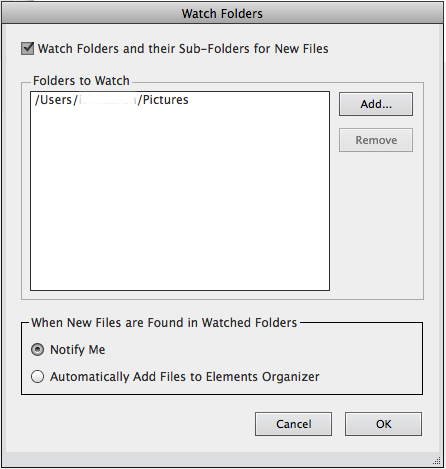
Elements Organizer automatically detects media files being added to any of its watch folders. By default, the following folders is watched: Pictures
You can add additional folders to the watch list of Elements Organizer.
You can choose to have media files that are added to a watch folder automatically added to a catalog. Or, you can opt to be asked before new media files are added to a catalog. When asked, either click Yes to add the media files to your catalog, or click No to leave them out. Whether or not media files are brought into Elements Organizer, they remain in their folders unless you delete them.
Note
Elements Organizer notifies when media files are added to any of its watch folders, only when it is launched.
Note
To quickly add watch folders, in the My folders panel, right-click a folder and choose Add To Watched Folders.
-
Choose one of the following options:
- Watch Folders and their Sub-Folders for New Files: This checkbox has to be selected to activate the watching folders feature.
- Notify Me: to choose whether files are added to your catalog.
- Automatically Add Files To Elements Organizer: to have the media files added to your catalog as soon as they are detected.
When you import photos from removable drive/CD/DVD/Network, you can choose to download to your computer full-resolution copies of the master photos (default) or low-resolution copies, called preview files. Preview files appear in your catalog as space-saving copies of the high-resolution originals. When you perform an operation that requires the original photo, you are asked to insert the disc containing the offline photo. You can then decide whether to use the preview file or bring in a full-resolution copy of the photo.
If you choose to use preview files, you need to assign an Offline Volume Name to the CD or DVD containing the master files. Ensure that you write the Offline Volume Name on the CD or DVD. This helps when Elements Organizer requests the master disc (it provides the reference name for you), you can insert the correct disc.
You can copy photos from a CD or DVD onto your hard disk and into the Elements Organizer. You can make full-resolution copies, as you might for editing purposes, or, to save disk space, low-resolution offline copies called preview files.
You can capture frames from your digital videos if they are saved in a file format that Elements Organizer can open, including AVI, MPEG, and MPG. Captured photos are saved with the name of the video file plus a number (for example, videoclip01, videoclip02, and so forth).
Note
To create photos from the broadest range of video formats, install the latest version of standard video software, such as QuickTime.
-
To get a frame of the video as a still image, click Grab Frame or press the spacebar when the frame is visible on the screen. You can move forward and backward in the video to capture additional frames.
Note
Some video formats don’t support rewinding or fast-forwarding. In these cases, the Rewind
 and
Fast Forward
and
Fast Forward  buttons
are not available.
buttons
are not available.
 .
.