If you have a question to ask or an idea to share, come and participate in Adobe Illustrator Community. We'd love to hear from you!
Last updated on
Jul 17, 2024
Learn how to create and modify paths and shapes in Adobe Illustrator.

Try it in the app
Use the Anchor Point tool to modify paths and shapes in a few simple steps.
What is a path?
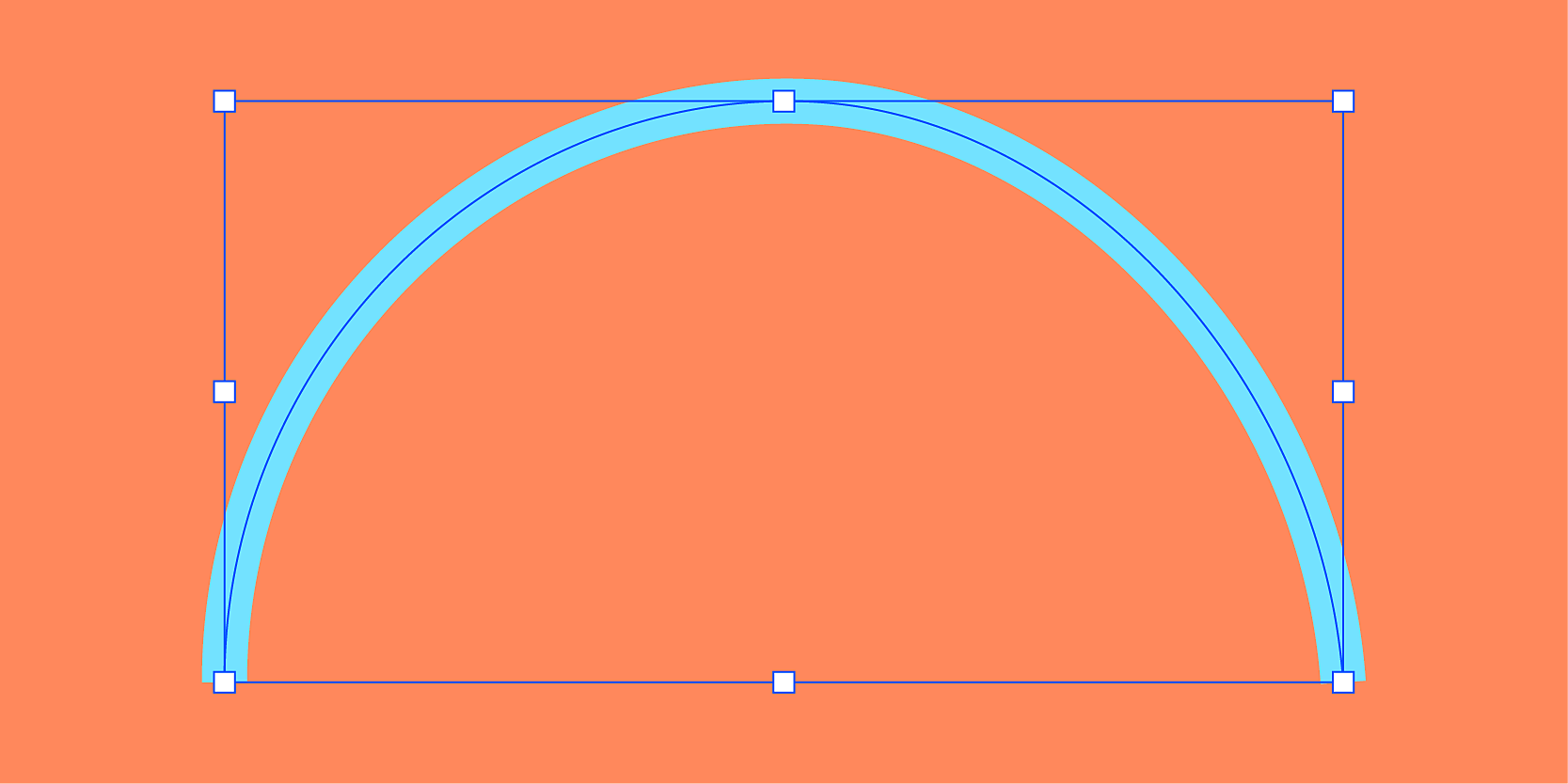
A path contains one or more straight or curved line segments that you draw on canvas using the Pen, Pencil, or Curvature tool.
Types of path:
- Open: A connected series of line segments where the start and end points are not joined with each other.
- Closed: A connected series of line segments where the start and end points are joined together to form a shape.
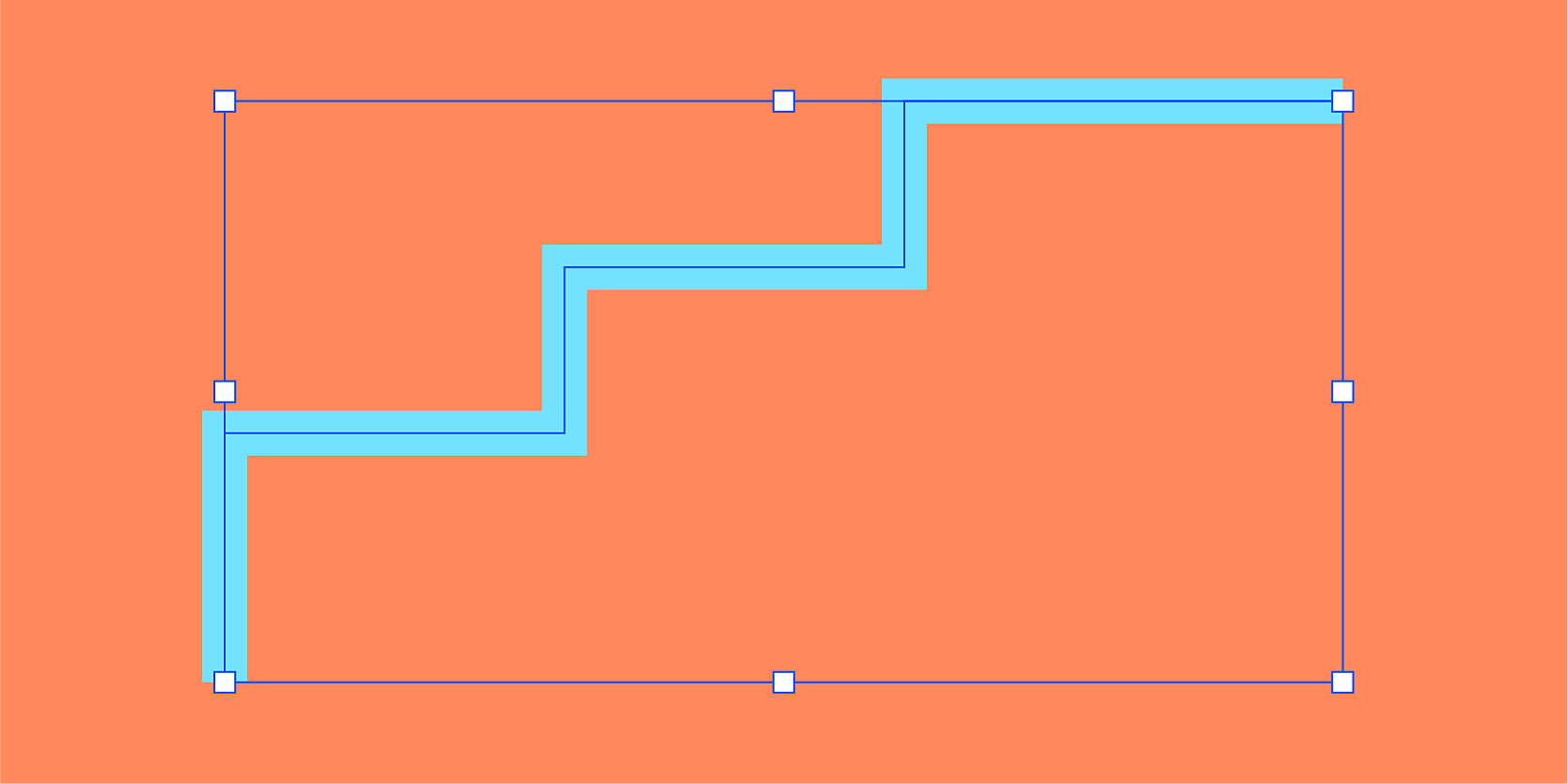
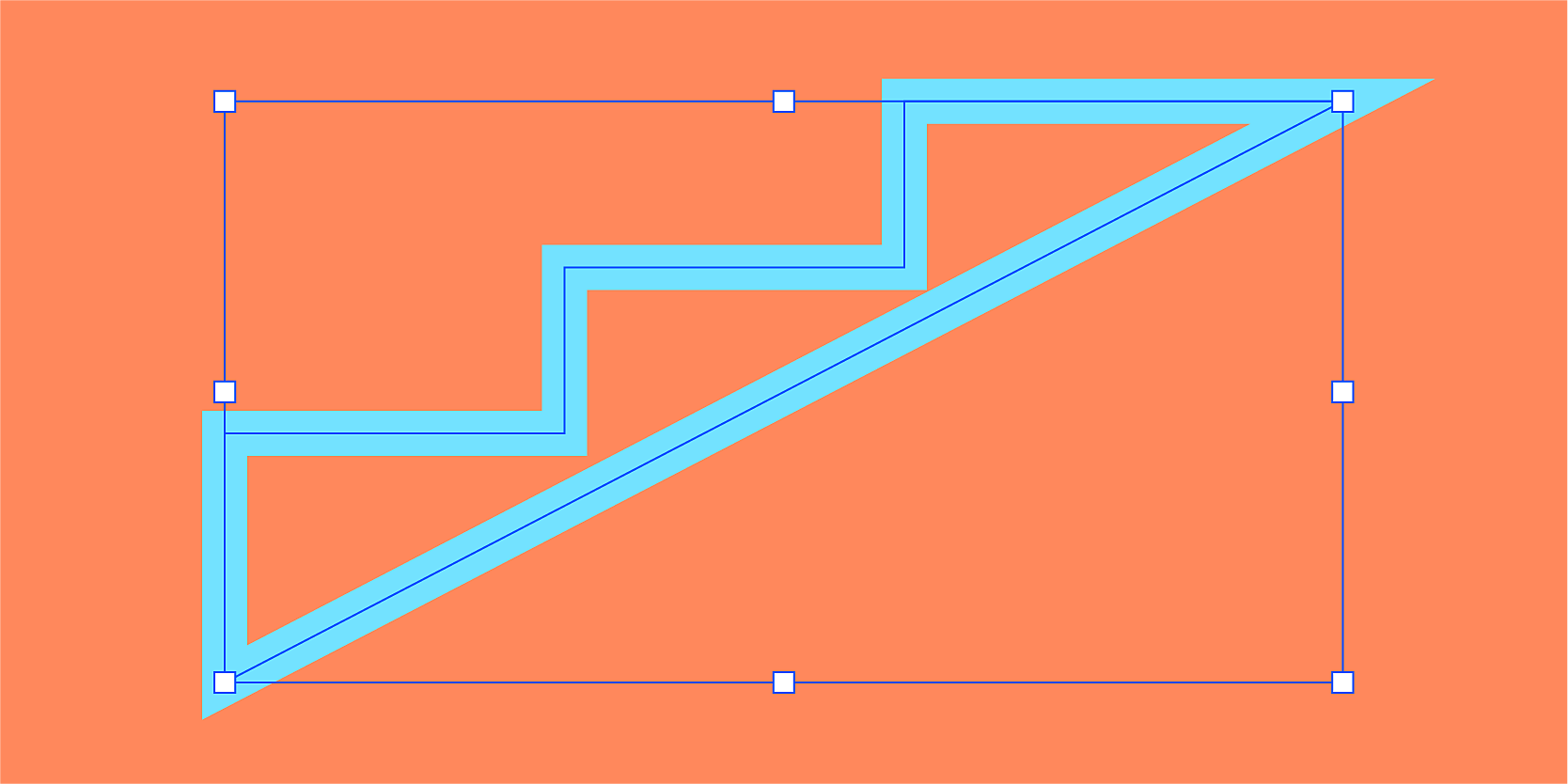

What is an anchor point?
Anchor points are the points on a path that control the shape and the direction of that path. The anchor points on the end points of a path are called control handles or corner points. Corner points can be straight or curved points, depending upon the shape they join.

How to create and modify a path?
Use the tools available in the toolbar to create a path: Pen, Pencil, and Curvature. To learn more about paths and their components, read this article.

A quick tour to Shape Builder tools
You can create basic shapes using the Shape Builder tools. Press and hold the Rectangle tool from the toolbar to choose a shape tool from the drop-down list. For more details, see Draw simple lines and shapes.

Move corner points to experiment with shapes

To view corner points, select the shape using the Direct Selection tool. Now, you can change the corner points and try out new shapes.
Play with outline and fill colors
You can use Fill and Stroke tools available in the toolbar to add a color.
Fill adds the color in the entire shape, while stroke provides color only to the outline of the shape. You can also select a weight for the stroke color using the Stroke drop-down in the Control panel.

Try it yourself
It's time to explore your creativity! Let's design a simple artwork using the features we learned from this article.
Need inspiration? Check out the Design a flower in 5 easy steps article.
Have a question or an idea?