On the iPad Home screen, tap on Import and open, then select a Photoshop file (.psd).
Last updated on
11 Sep 2026
Learn how to seamlessly work in Adobe Fresco and Photoshop.
You can draw using Fresco on an iPad when you are on the go, access the same artwork from Photoshop on your desktop, and open the artwork anywhere from your iPad in Photoshop to enhance your drawing. Any artwork you create in Photoshop on iPad or Fresco is auto-saved as a cloud document when you are connected to a network.
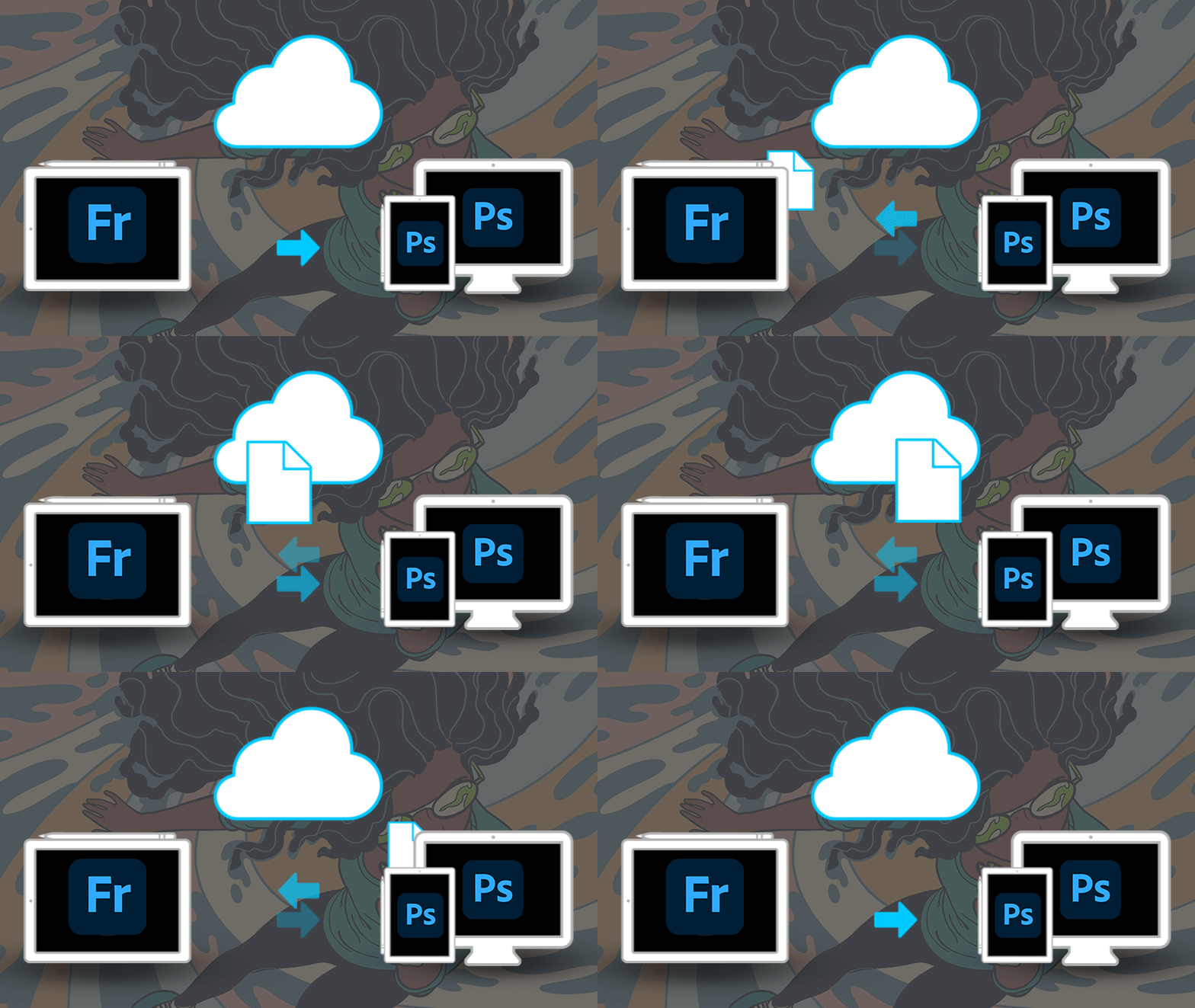

You can have seamless access to your artwork from Adobe Fresco, Photoshop on desktop, and Photoshop on iPad. Simply go to the Cloud documents section of the home screen of these apps, and you will find your artwork there, ready to use. In Fresco, tap Your files in the home screen to access Fresco cloud documents.
When you are online and work on an artwork in Fresco, and then move to Photoshop on iPad or edit the same file in Photoshop on desktop, the artwork is instantly available in all three apps in cloud documents at the Home screen. For example, Flying Orange is a cloud document that appears in Fresco, Photoshop on iPad, and Photoshop on desktop.

Note
If you are creating an artwork in Photoshop on desktop, you need to save the artwork as a cloud document so the artwork becomes seamlessly available in all the three apps.
In case you go offline or lose the Internet connection on your device while working with the artwork as a cloud document, you won't lose any of your works. When you are back online, the changes are seamlessly synced with the cloud version of the document.
For more information, see Why can’t I see my cloud documents offline?
Want to work offline?
In Fresco, you can work on your artworks even when you are offline. Similarly, you can work offline in Photoshop on iPad and Photoshop on desktop as well. All the changes you made to the cloud documents in Fresco and Photoshop will sync to the Creative Cloud when you are back online.
Let's take an example: You create this artwork, Flying Orange, offline in Fresco and edit it to add a few strokes. Then, you open this cloud document in Photoshop on iPad to add a bit of blurring. When you are back online, Flying Orange will have the strokes added in Fresco and the blurring done in Photoshop.
If all the changes cannot be synced for any reason, you will not lose your work. Fresco creates a conflict file (backup file) from which you can recover your changes. To access the conflict file, tap your cloud document with the  icon in your Home screen. You will see the conflict file with the icon
  and your main file with the icon
  .
.


If you need to bring any content from the conflict file (back up file), to your artwork, you can do so by opening and copying those layers. You may have similar experience when you work offline in Photoshop on desktop and Fresco on iPad and go online.
For more information, see Prepare to work offline with cloud documents.
Import and export PSD files
Select the file you want to import. The imported file is automatically saved as a cloud document.
You can export your artwork as a PSD file.
Note
Alternatively, you can send your artwork directly to Photoshop without manually exporting or importing a PSD file.

Draw and paint with Fresco
Use thousands of brush types to bring your digital art to life.
