
某些 Creative Cloud 应用程序、服务和功能在中国不可用。

A layer’s opacity determines the degree to which it obscures or reveals the layer beneath it. A layer with 1% opacity is nearly transparent, while a layer with 100% opacity is opaque. Transparent areas remain transparent regardless of the opacity setting.
You use layer blending modes to determine how a layer blends with the pixels in layers beneath it. Using blending modes, you can create various special effects.
A layer’s opacity and blending mode interact with the opacity and blending mode of painting tools. For example, a layer uses Dissolve mode at 50% opacity. You paint on this layer with the Paintbrush tool set to Normal mode at 100% opacity. The paint appears in Dissolve mode at 50% opacity. Similarly, if a layer uses Normal mode at 100% opacity, and you use the Eraser tool at 50% opacity, only 50% of the paint disappears from the layer as you erase.
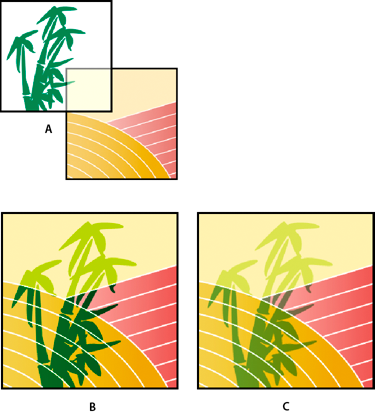
A. Bamboo layer and Borders layer B. Bamboo layer with 100% opacity and Color Burn mode C. Bamboo layer with 50% opacity and Color Burn mode
You can quickly select all the opaque areas in a layer. This procedure is useful when you want to exclude transparent areas from a selection.