Если вы еще не расположили медиаданные на дорожке V1, нажмите значок  , чтобы импортировать мультимедийный клип на дорожку V1, которая является основной на таймлайне.
Последнее обновление
4 сент. 2025 г.
Узнайте, как в Adobe Premiere Rush создать эффект «картинка в картинке» в видео.
Примечание
В связи с выходом нового поколения мобильных приложений Adobe Premiere мы прекращаем поддержку Adobe Premiere Rush. С 30 сентября 2025 года приложение Premiere Rush больше не будет доступно на Adobe.com. В качестве альтернативы мы рекомендуемPremiere на iPhone; версия для Android в настоящее время также находится в разработке. Для получения более подробной информации посетите страницуЧасто задаваемые вопросы о прекращении поддержки Premiere Rush.
Эффект «картинка в картинке» — это одновременный показ двух видео или изображений таким образом, чтобы меньшее видео или изображение отображалось поверх большего. С помощью эффекта «картинка в картинке» можно вставить дополнительное видео или изображение в основной ролик, чтобы подчеркнуть или лучше проиллюстрировать определенные части сюжета.
Посмотрите это видео, чтобы узнать, как быстро создавать эффекты «картинка в картинке» в Premiere Rush.
Время просмотра: 45 секунд
Добавление эффекта «картинка в картинке»:
Снова нажмите значок , чтобы импортировать изображение или видео (которое, согласно вашему замыслу, должно быть меньше и отображаться поверх), и разместите его на дорожке над клипом на основной дорожке V1. Для этого нажмите клип на таймлайне и перетащите его выше основной дорожки V1.
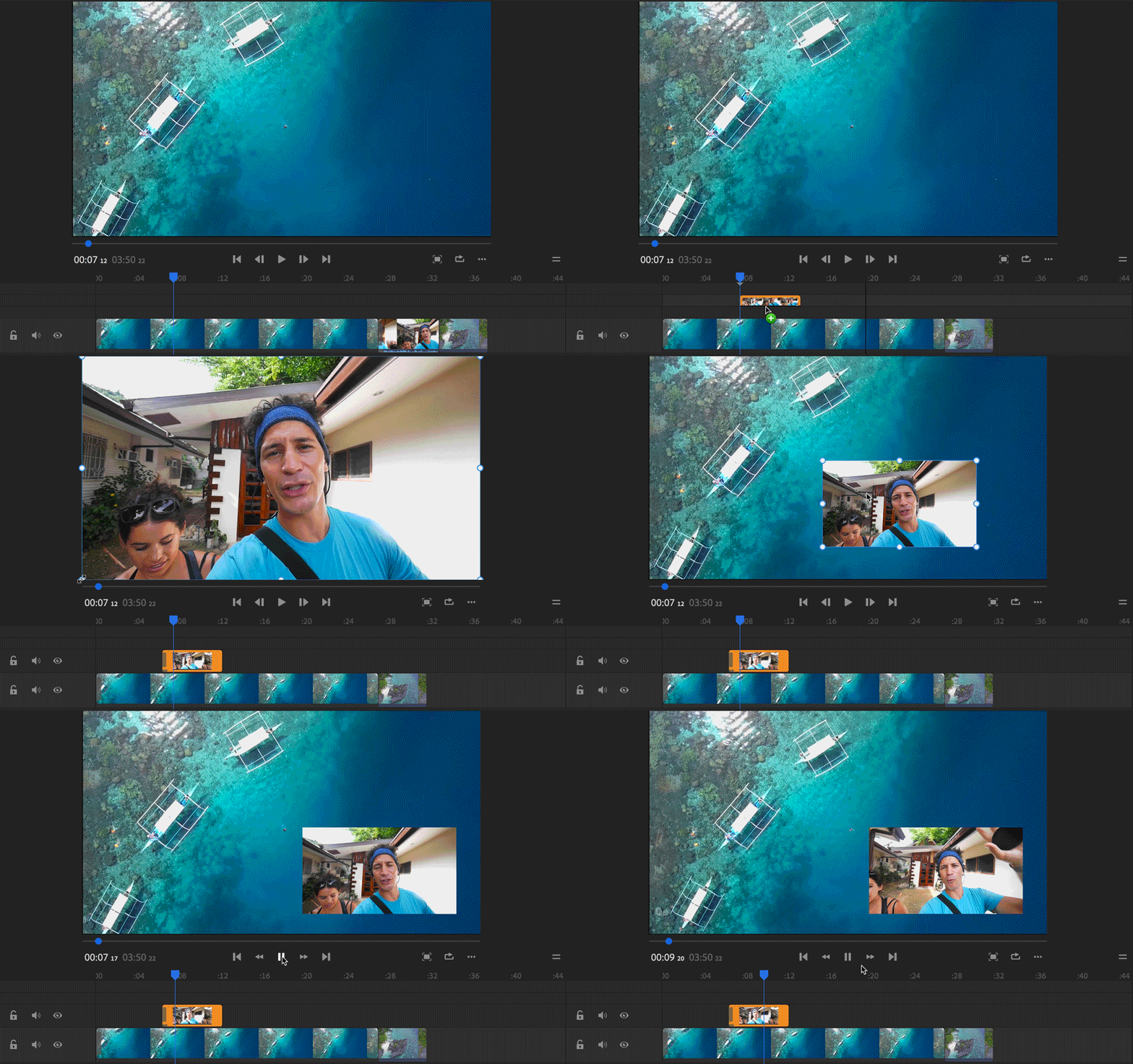
Выберите клип на дополнительной дорожке и отредактируйте этот клип или измените его размер, действуя так же, как при обработке любого другого видеоклипа. Вот несколько изменений, которые можно внести:
- Перемещение клипа «картинка в картинке»: перетащите окно «картинка в картинке» на мониторе предварительного просмотра.
- Изменение размера клипа «картинка в картинке»: потяните любой угол клипа на мониторе предварительного просмотра.
- Добавление эффектных переходов к клипу «картинка в картинке»: откройте меню «Переход» и выберите любой из доступных переходов. Например, можно сделать так, чтобы меньшее изображение или видео постепенно появлялось и исчезало, добавив к клипу переход «Перекрестный наплыв».
Дополнительные сведения об изменении свойств клипа см. в разделе Преобразование свойств клипа.

Простое редактирование видео для соцсетей с помощью Premiere Rush
С легкостью редактируйте, корректируйте цвета, добавляйте аудио и используйте шаблоны для создания интересного контента для соцсетей.
