Applies to:
Adobe Acrobat Sign

某些 Creative Cloud 应用程序、服务和功能在中国不可用。

-
Sign in to Adobe Document Cloud at https://documentcloud.adobe.com with your Adobe ID and password, or with your social (Facebook or Google) account.
-
Select a file you want to comment by doing one of the following:
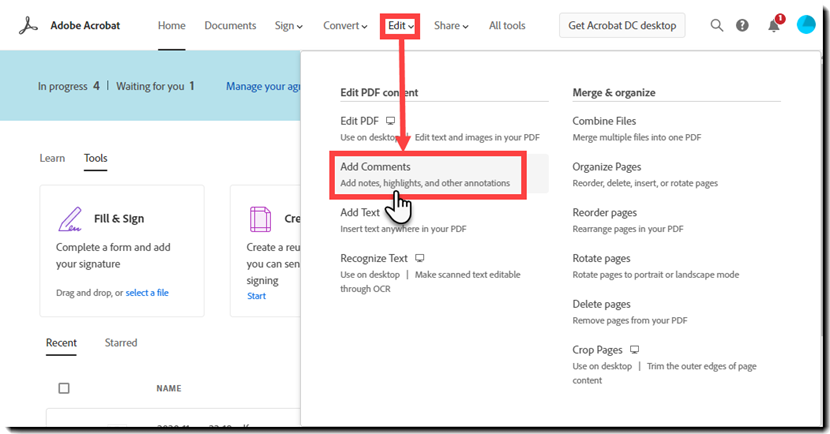
- In the top navigation bar, click Edit > Add Comments. In the file explorer window,
- Choose files from the Recent or Documents list
- Add files from your computer or drag-and-drop the files onto the highlighted area
- Choose files from the Recent or Documents list
Click Documents > Your Documents in Adobe Acrobat home. All your files saved in your Adobe Document Cloud account are displayed. Comment the file in one of the following ways:
- Click the options menu (...), and choose Add Comments
- Select a file you want to comment, and click Add Comments in the right pane
- In the top navigation bar, click Edit > Add Comments. In the file explorer window,
-
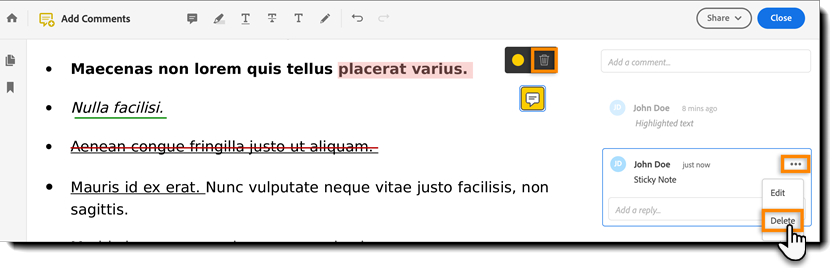
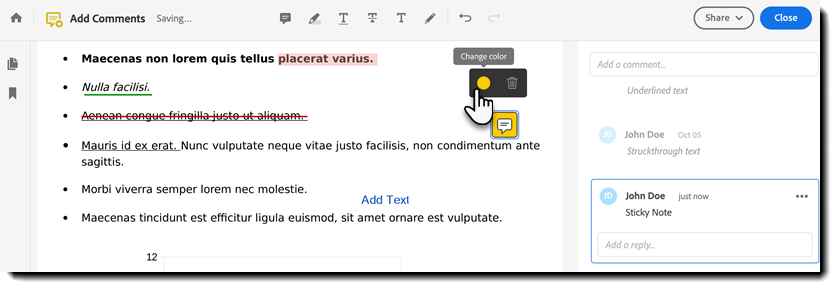
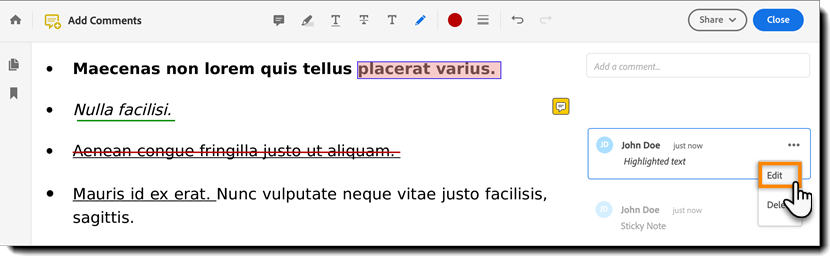
The selected PDF file is displayed in the browser window with the Add Comment toolbar. Select the desired annotation tool, and click where you want to place in the PDF. The following comment types are available for use:
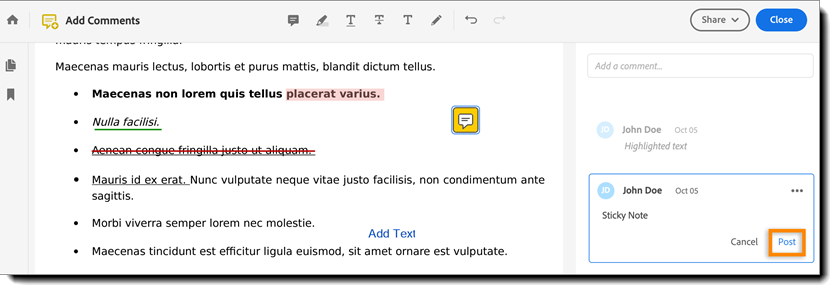
- Sticky Note: Click at the location where you want to place a note.
- Highlight Text: Select the text to highlight it.
- Underline Text: Select the text to underline it.
- Strikethrough Text: Select the text to strikethrough.
- Add Text Comment: Click and type where you want to add text in the PDF.
- Drawing Tool: Use it to add mark-ups in the PDF.
All the comments that you add to the PDF are displayed in the right pane.
A. Add Sticky Note B. Highlight Text C. Underline Text D. Strikethrough Text E. Add Text Comment F. Use Drawing Tool G. Change Color H. Undo comment I. Redo comment

 icon.
icon.