Quick Actions
Perform popular image and video edits with Adobe Express Quick Actions such as Remove Background, Trim Video, Convert to SVG, Convert to GIF, and more - all in just a few clicks.
Explore the new and enhanced features in the latest releases of Adobe Bridge.
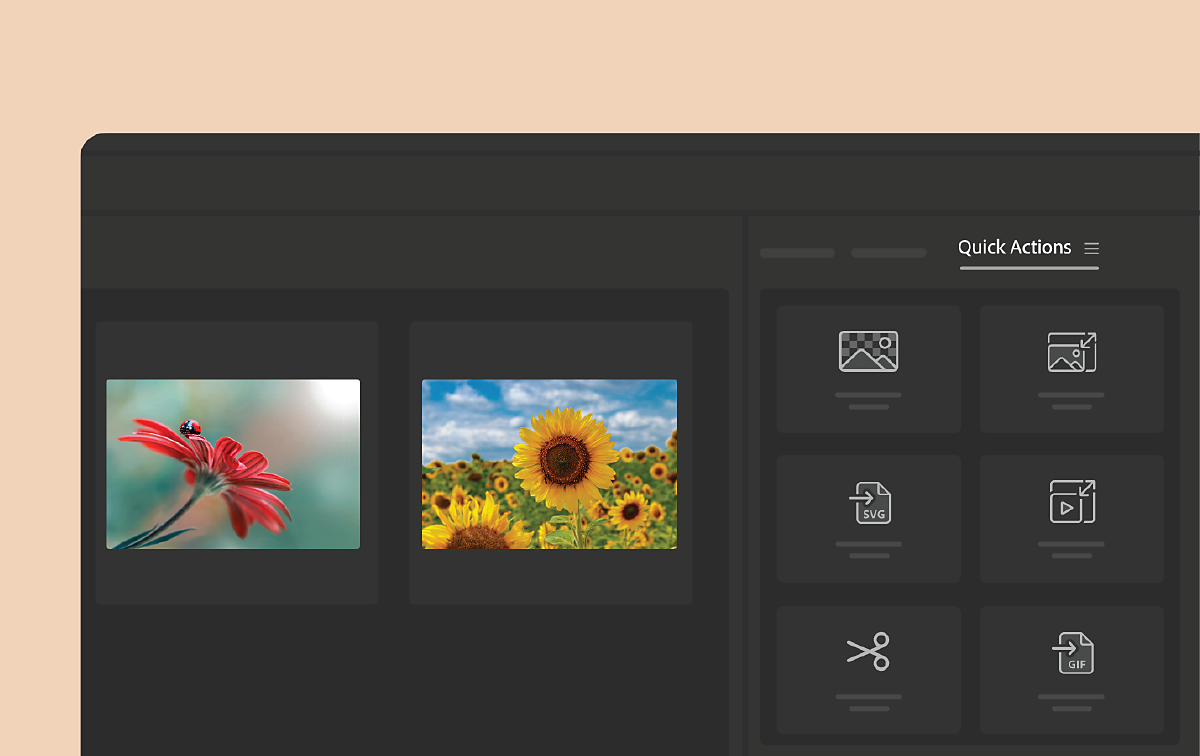
Quick Actions
Perform popular image and video edits with Adobe Express Quick Actions such as Remove Background, Trim Video, Convert to SVG, Convert to GIF, and more - all in just a few clicks.
Content Credentials
Protect your assets with tamper-evident metadata by adding extra information about yourself and your creative process directly to your assets.
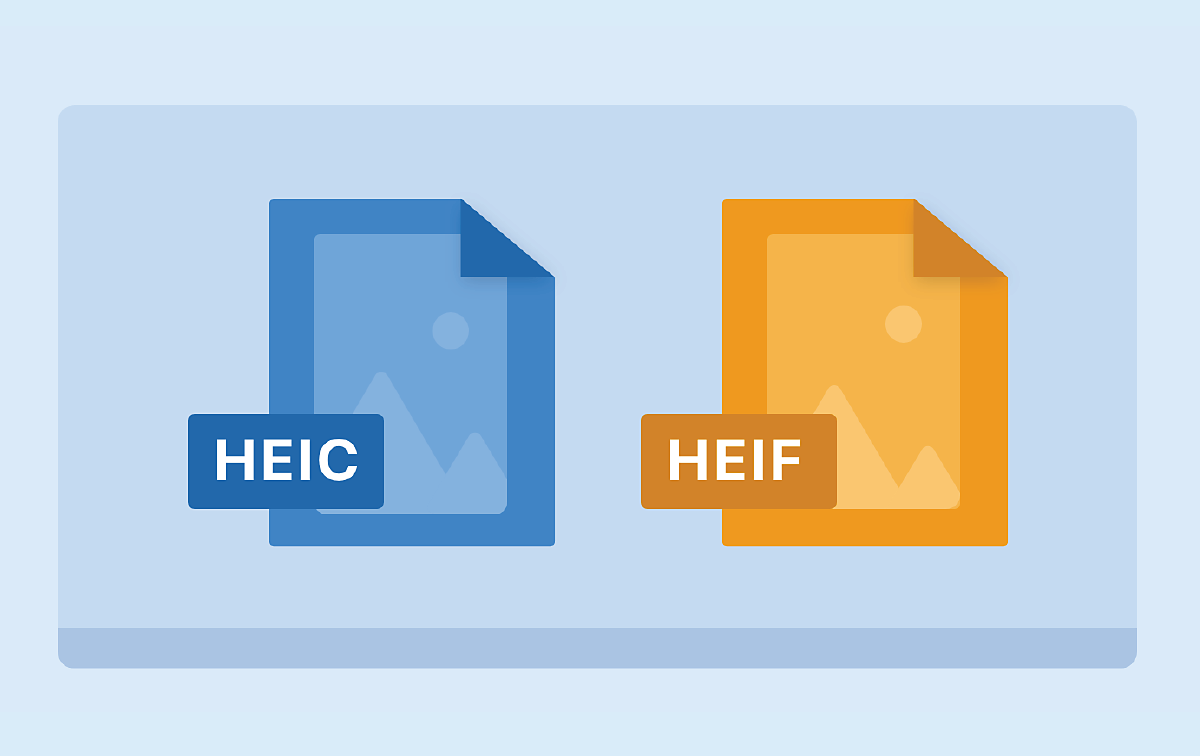
HEIC and HEIF image support (for Windows)
View thumbnails and previews of .HEIC and .HEIF images on Windows.
Performance improvements
Experience improvements in the Content panel scrolling and Keywords panel with this release.
Other enhancements
This release includes important bug fixes, addressing various security issues, and improving overall reliability.

Try these new features
Start exploring the latest updates and enhancements now.

Review a summary of the latest updates, new features, and fixed issues in recent Bridge releases.


Select the preferred Photoshop version
Effortlessly select your preferred Photoshop version for the Place and Tools menu workflows.

'AND' for Keywords filter
Now, you can easily filter your search by selecting multiple keywords, revealing files that contain all selected keywords.

Multi Window
Open multiple windows in Bridge, each window featuring multiple content panels for multitasking.

Keyboard Shortcut Customization
Customize your keyboard shortcuts easily and choose from a variety of keyboard layouts that best suit your requirements.

Compress/Extract
Effortlessly compress/extract files for various asset types in Bridge.

Place in Adobe Substance 3D Stager
Now, you can easily place asset files directly from Bridge to Adobe Substance 3D Stager.

Other enhancements
Toggle the visibility of the caption (Filename, Label, and Rating) in the Full-Screen mode, and ability to export with .JPG extension.

Create additional content panels and work on assets from multiple folders simultaneously.

Detach any panel and place it on a second monitor to make the best use of your multi monitor setup.

Easily customize the application interface by rearranging the panels to best suit your working style.

Improvements in File Type Association
Now search for a file type or a target product and set associations easily in the File Type Association(FTA) dialog.

Always show subfolder contents
Configure a content panel to always display the entire content of a folder, including its subfolder.

Reorder workspaces, hide them or delete custom workspaces via the new dedicated 'Edit workspace' dialog.
Organize your creative world with Bridge
Access and manage all your digital assets.
