(iPhone) In the Edit panel in loupe view, tap Light icon.
Naposledy aktualizováno
16. 4. 2026
- Adobe Lightroom User Guide
- Introduction
- In-app learning
- Add, import, and capture photos
- Organize photos
- Edit photos
- Edit photos
- Edit photos in Lightroom on mobile (iOS)
- Edit photos in Lightroom on mobile (Android)
- Edit photos with Quick Actions in Lightroom on mobile (iOS)
- Edit photos with Quick Actions in Lightroom on mobile (Android)
- Presets in Lightroom
- Presets in Lightroom for mobile (iOS)
- Presets in Lightroom for mobile (Android)
- Crop, Rotate, & Geometry tool in Lightroom
- Crop an image in Lightroom on mobile (iOS)
- Crop an image in Lightroom on mobile (Android)
- Remove tool in Lightroom
- Remove using the Clone tool
- Remove using the Heal tool
- Remove unwanted people
- Remove window reflection
- Remove sensor dust in a photo
- Remove tool in Lightroom on mobile (iOS)
- Remove tool in Lightroom on mobile (Android)
- Edit panel in Lightroom
- Masking in Lightroom
- Apply Masking in Lightroom on mobile (iOS)
- Apply Masking in Lightroom on mobile (Android)
- Lens Blur in Lightroom
- Merge photos to create HDRs, panoramas, and HDR panoramas
- Edit HDR photos
- Edit HDR photos in Lightroom on mobile (iOS)
- Edit HDR photos in Lightroom on mobile (Android)
- Easily enhance image quality in Lightroom
- Edit photos in other apps
- Learn about Content Credentials
- Add Content Credentials in Lightroom on mobile (iOS)
- Add Content Credentials in Lightroom on mobile (Android)
- Manage edits made with AI-powered tools(iOS)
- Manage edits made with AI-powered tools(Android)
- Edit photos
- Edit videos
- Save, share, and export
- Lightroom for mobile, TV and the web
- Get started with Lightroom for mobile (iOS)
- Get started with Lightroom for mobile (Android)
- Adobe Photoshop Lightroom on the web
- Set up Lightroom for Apple TV app
- Use keyboard shortcuts in Lightroom for mobile (iOS and Android)
- Adobe Photoshop Lightroom for mobile and Apple TV | FAQ
- View Lightroom photos and videos on your TV
- How to Add Presets/Sync Presets with mobile
- Manage Adobe Lightroom for mobile subscription (iOS)
- Manage Adobe Lightroom for mobile subscription (Android)
- Migrate photos
- Troubleshooting
Learn how to edit photos with custom presets, apply blur, make local adjustments with masking, remove an object, apply radial and graduated filters, edit copyright of photos and albums, and more. You can also retouch, remove haze, and enhance your photos in HDR.

Try the app
Follow along with any project to learn how to edit photos in Lightroom.
Panels in Loupe view
- Generative Remove is currently available as Early Access in Lightroom.
- Heal panel in Lightroom has been renamed to Remove.
On your iPhone or iPad, Select Lightroom or Edits view and tap a photo to edit in Loupe view. You now have the ability to select and work in the following panels:
Tip:
Use gestures to quickly navigate between menus. Swipe up anywhere on the photo to reveal the corresponding sub-menu and swipe down to close the menu. You can swipe down even further to exit the loupe view.
Precisely edit the photo with various slider controls, such as White Balance, Temperature, Exposure, Contrast, Blur and more, at your fingertips.

In the Edit panel in the Loupe view, tap the Auto icon at the left of the stacked panel to have Lightroom automatically apply the best edits for these slider controls in your photos: Exposure, Contrast, Highlights, Shadows, Whites, Blacks, Saturation, and Vibrance.
The Auto settings feature in Lightroom uses Adobe Sensei to intelligently apply adjustments based on a photo’s light and color characteristics.
- Additionally, the Auto settings feature also includes the ability to enhance the adjustments of the photo.
- When you capture an HDR image using the in-app camera, Lightroom for mobile (iOS) automatically applies Auto settings to your processed photo.
Light: Adjust the overall tonal range of your image and have the ability to edit and share in HDR.
-
(iPad) In the Edit panel menu in the loupe view, tap Light accordion.
Tip:Swipe to the end of the Light panel to enable Edit in HDR mode.
-
Adjust the tone control sliders:
Poznámka:Tap with two fingers on the photo to bring up the Histogram. Observe the Histogram as you adjust the tone controls.
Exposure
Sets the overall image brightness. Adjust the slider until the photo looks good and the image is the desired brightness.
Contrast
Increases or decreases image contrast, mainly affecting midtones. When you increase contrast, the middle-to-dark image areas become darker, and the middle-to-light image areas become lighter. The image tones are inversely affected as you decrease contrast.
Highlights
Adjusts bright image areas. Drag to the left to darken highlights and recover “blown out” highlight details. Drag to the right to brighten highlights.
Shadows
Adjusts dark image areas. Drag to the left to darken shadows. Drag to the right to brighten shadows and recover shadow details.
Whites
Adjusts white clipping. Drag to the left to reduce clipping in highlights. Drag to the right to increase highlight clipping. (Increased clipping may be desirable for specular highlights, such as metallic surfaces.)
Blacks
Adjusts black clipping. Drag to the left to increase black clipping (map more shadows to pure black). Drag to the right to reduce shadow clipping.
Fine-tune the tonal range using the Tone Curve
The Curve graph in the Light menu represents changes made to the tonal range of a photo.
(iPhone) In the Edit panel in Loupe view, tap Light > Curve icon to view the tone curve graph overlay over the photo.
(iPad) In the Edit panel menu in loupe view, tap Light accordion, then tap Curve.
The horizontal axis represents the original tone values (input values), with black on the left and progressively lighter values toward the right. The vertical axis represents the changed tone values (output values), with black on the bottom and lighter values progressing to white at the top. Use the tone curve to tweak the tone adjustments you make to a photo. Tone curve automatically adapts and expands when HDR mode is on, giving you greater control of the image.
You can also choose to make adjustments to individual points on the tone curve in the Red, Green, or Blue channels individually, or all three channels at once.
- Tap to add a point or double-tap to remove it.
- Drag a point to edit the image.
HDR optimization
You can edit and share images in High Dynamic Range (HDR). To enable HDR, Tap Edit > Light and toggle the Edit in HDR mode option. View HDR optimization in Lightroom for mobile (iOS) to learn more.

In the Edit panel in the Loupe view, the Color menu provides you controls to do the following:
- White Balance refers to the color created in your photo from the temperature of your light source. For example, a noonday sun will cast a very warm yellow color whereas some light bulbs will cast a very cool blue color in your photo. Set White Balance by choosing a preset option or specifying a neutral area in the photo with the White Balance selector.
- Fine-tune the white balance using the Temp and Tint controls. Temp or Temperature sets how yellow/warm or blue/cool your photo looks. Tint, on the other hand, sets how green or magenta your photo is.
- Adjust the color saturation (vividness) using the Vibrance and Saturation controls. Vibrance increases the intensity of muted colors, whereas Saturation increases the intensity of all colors in your photo.
- Black and White photography is a favourite tool of photographers to help viewers dive into the details of a photo. Convert the photo to Black & White using the B&W option.
- Fine-tune individual colors using the Hue, Saturation, and Luminance (HSL) sliders. Hue adjusts the tone of each individual color, and Saturation adjusts the amount of gray in a color, thus making it more muted or bright. Luminance helps adjust the amount of white in a color to make it brighter or darker. Use the Target Adjustment tool to adjust a particular color in a photo. Tap and drag on the image to change the color range under your fingertip.
- Color mix lets you fine-tune or change a selected color. Pick a color tone and tap the Color mix icon
 to fine-tune individual colors using the Hue, Saturation, and Luminance sliders.
- Starting with Lightroom for mobile (iOS) version 6.0, you can adjust the colors of shadows, mid-tones, and highlights using the Color Grading sliders. There is also a Global slider with which you can adjust the overall colors in the photo without affecting the settings of shadows, midtones, and highlights. Furthermore, you can adjust the Luminance, Blending, and Balance of the colors for shadows, mid-tones, and highlights using their respective sliders.

Lens blur allows you to add a creative touch to a photo with just one tap. Lens blur lets you add depth to a photo and achieve a creative look. Not only this, you can also add a portrait look to a photo even when it's not captured in portrait mode. Lens blur works best with a clear subject, foreground, and background.
To enable Lens blur, tap Edit > Blur and select the bokeh effect you want to apply. You can adjust the intensity and focal depth in an image easily. View Lens blur in Lightroom for Mobile (iOS) to learn more.

Poznámka:
Lens blur is currently available as Early Access in Lightroom for mobile (iOS). You can try the feature and share your feedback with the Lightroom team. To share your thoughts and experiences, tap the three-dot menu on the top right, tap App settings > Early access > Send feedback.
Here's a list of devices compatible with Lens blur.
-
(iPhone) In the Edit panel in loupe view, tap the Effects icon to view the controls.
(iPad) In the Edit panel menu in the loupe view, tap Effects accordion.
-
Adjust the effects sliders:
Texture
Smoothens or accentuates textured details in your photo. Move the slider to the left to smoothen details; move it to the right to accentuate details. When you adjust the Texture slider, the color or tonality does not change.
Clarity
Adds depth to an image by increasing local contrast. To maximize the effect, increase the setting until you see halos near the edge details of the image, and then reduce the setting slightly.
When using this setting, it is best to zoom in to 100% or greater. To zoom in, double-tap the photo or use the outward spread gesture.
Dehaze
Controls the amount of haze in a photograph. Drag to the right to remove haze; drag to the left to add haze.
Vignette
Applies a dark or light vignette for artistic effect to a photo. Negative values darken the corners of the photo. Positive values lighten the corners.
For related useful information, see Vignette, grain, and dehaze effects.
Grain
Adds realistic film-grain effect to your photos. Drag the slider to the right to add grain. When you add grain, you can also control the grain size and roughness using the Size and Roughness sliders respectively.
In the Detail panel in Lightroom for mobile (iOS), you can sharpen your photo to enhance edge definition and bring out details in the photo.
Photos taken with high ISO speeds can have noticeable noise, you can reduce the image noise by removing the extraneous visible artefacts that degrade image quality. Use the adjustment sliders within the Sharpening, Noise, and Color noise sections of the Detail panel to enhance the image.
Select Edit > Optics in Lightroom for mobile (iOS) to correct different types of defects at certain focal lengths, f-stops, and focus distances. You can automatically correct these lens distortions using the Optics option.
Chromatic aberration appears as a color fringe along the edges of objects. It is caused by the failure of the lens to focus different colors to the same spot, aberrations in sensor microlenses, and by flare.
Chromatic Aberration: Turn on to automatically correct blue-yellow and red-green fringes in your image.
Camera lenses can exhibit different types of defects at certain focal lengths, f-stops, and focus distances.
Enable Lens Correction: Turn on to apply lens correction on your photo.
Profiles allow you to control how colors and tonality are rendered in your photos. They are intended to serve as a starting point or foundation for making image edits.
Profiles allow you to control how colors and tonality are rendered in your photos. They are intended to serve as a starting point or foundation for making image edits.
Applying a profile on your photo does not change or overwrite the value of other edit control sliders. Therefore, you can make edits to your photos as you like and then choose to apply a profile on top of your edited image.
To browse and apply profiles, do the following:
-
(iPhone) In the Edit panel in the loupe view, tap Profiles icon.
- The Adobe Color profile, which is currently applied to your photo is displayed at the top of the screen.
- Tapping Adobe Raw brings up the profile groups menu.
(iPad) In the Edit panel menu in the Loupe view, tap Browse in the Profiles panel at the top.
Poznámka:When you import photos, Adobe Color and Adobe Monochrome profiles are applied by default to color and black-and-white photos respectively.
-
(iPhone) Tap to choose any of the profile groups from the menu to view profiles available in that group.
(iPad) Expand any of the profile groups (explained below) to view the profiles available in that group.
Favorites:
Displays profiles that you've marked as favorites. Groups include Favorites, Basic, Artistic, B&W, Modern, and Vintage.
Basic:
This profile group is available for non-raw photos only and provides two profile options - Color and Monochrome.
Profiles for raw photos
The following profile groups appear when you are editing a raw photo.
Adobe Raw: Adobe Raw profiles significantly improve color rendering and provide a good starting point for editing your raw images. Adobe Color profile, designed to give a good color/tone balance for any image, is applied by default to the raw photos you import in Lightroom.
Camera Matching: This feature displays profiles based on the camera make/model of your raw photo. Use Camera Matching profiles if you prefer the color rendering in your raw files to match what you see on your camera’s display screen.
Adaptive: Displays smart Adaptive Color and Adaptive B&W profiles to enhance tone, color, and contrast according to the unique properties of the raw photo.
Creative profiles for raw and non-raw photos
Creative profiles work on any file type including raw photos, JPEGs, and TIFFs. These profiles are designed to create a certain style or effect in your photo.
Artistic: Use these profiles if you want the color rendering in your photo to be more edgy, with stronger color shifts.
B&W: Use these profiles to get optimal tone shifts required for black and white work.
Modern: Use these profiles to create unique effects that fit in with the modern photography styles.
Vintage: Use these profiles to replicate the effects of vintage photos.
Poznámka:Starting with the Adobe Lightroom on mobile (v11.3), a Style: Film-Inspired profile group with multiple variations (Warm Gold, Rich Gold, Warm B&W, Soft Ember, Strong Ember, Muted B&W, Faded Blue, Deep Blue, Cool B&W, Light Sage, Deep Sage, and Bold B&W) to add moody textures or nostalgic warmth to your images.
-
Drag the Amount slider to adjust the intensity of the Artistic, B&W, Modern, or Vintage profiles when applying them.
-
You can swipe horizontally toward right or left on the profile thumbnails to browse all the profiles available under a selected profile group.
Tap a profile to apply it to your photo.
-
Tap and hold with one finger on the photo to see a Before view.
Tap the Undo or Redo icons to move back or forward in your edits, one step at a time.
To add a profile to your Favorites profile group, press-and-hold the profile's thumbnail. If the profile is currently selected, you can also tap the gray star icon appearing at the upper-right corner of the profile thumbnail.
The white star icon at the upper-right corner of the profile thumbnail indicates a favorite profile.
The Adaptive profiles help with image-adaptive adjustments in color, tone, and contrast of raw and DNG images.
-
Select any RAW or DNG image.
-
Select Edit > Profiles.
-
Select Adaptive B&W or Adaptive Color.

Select Adaptive Color or B&W based on your need.
Select Adaptive Color or B&W based on your need. -
Once applied, you can adjust the intensity with the slider in the range of 0 to 200.

Poznámka:
- When applying an Adaptive profile and then continuing to use Remove or Heal, you'll need to update the Adaptive profile.
- For best results, apply the Adaptive profile before making adjustments to your photo.
A Preset allows you to predetermine the positions of all or selected sliders and apply them to your photo. Also, you can edit a photo to your liking and save that exact combination of slider positions to apply to other photos.
For a detailed walkthrough of the Presets panel, learn how to apply presets in Lightroom on mobile (iOS).
The Crop and geometry tools help you refine framing and correct alignment. Use Upright Guide mode to fix perspective, Straighten to level the horizon, and Flip or Rotate to adjust orientation, ensuring your images look balanced and properly composed.
For a detailed walkthrough of the Presets panel, learn how to crop and fix your images.
Edit specific parts of your photo with greater precision and more creative control. AI-powered features like Select Subject, Select Sky and Select Background help you automatically select a subject or sky in a photo so you can make adjustments to that selection quickly. Bring your imagination to life by using masking tools like Brush, Linear and Radial gradient, Color range, Luminance range, and Depth range tools.
For a detailed walkthrough of the Masking panel, learn how to apply Mask in Lightroom for iOS.
Copy edits that you've applied to a photo and paste them to multiple selected photos. You can also choose which edit settings you want to copy from a photo.
-
Open a photo in loupe view.
-
Tap the three-dots (
 ) icon in the upper-right corner and choose Copy Settings.
 -
In the Copy Settings panel, select the edits that you want to copy. You can select edit setting groups such as Profile: Color, Tools, Light, among others. Optionally, tap the Select drop-down list to choose one of the following:
- All: Selects all the edit settings groups.
- Modified: Selects only the edits settings that you've modified or applied on the selected photo.
- Default: Selects the default set of edit settings. Tools and Geometry settings are excluded by default.
- None: Deselects all the edit settings.
You can also choose to select or deselect specific settings in each edit setting group. Tap the arrow icon against each edit setting group to view its specific settings.
-
After making the selections, tap the
 icon.
icon. -
In the Lightroom view select the photo(s) or album to which you want to paste the copied settings to.
Poznámka:If you have just one photo to paste the copied settings to, open the photo in Loupe view, tap the (
) icon, and choose Paste Settings. -
Tap Paste in the bottom panel.
-
In the Paste Settings confirmation dialog box that appears, tap Apply.
The copied settings are then applied to the selected photos.
Versions help you to quickly save different edits of the same photo so that you can experiment with editing and compare the different versions easily. To create a Version:
-
Open a photo and apply the desired edits.
-
Tap the Versions icon at the top panel.

Tap Versions icon
Tap Versions icon -
Tap Versions to view the Orignal photo you have imported or If you have made any edits to the photo, you can view those edits under the Current section. To save the current edits as a version, tap Named > Create version.
Tap to Create version
Tap to Create version -
Enter the name for the Version and tap Create. This way, you can apply different edits and save them as Versions.
-
Select a Version and tap the three-dot icon to rename or delete it.


Poznámka:
- The created Versions are synced across Lightroom for mobile (iOS and Android) and Lightroom desktop.
- Starting with Lightroom for mobile version 6.0, the Versions panel automatically saves significant edits of your photo as a Version. You can view the automatically saved Versions each time you make a significant edit, leave the Edit view, and then return to the Versions panel.
-
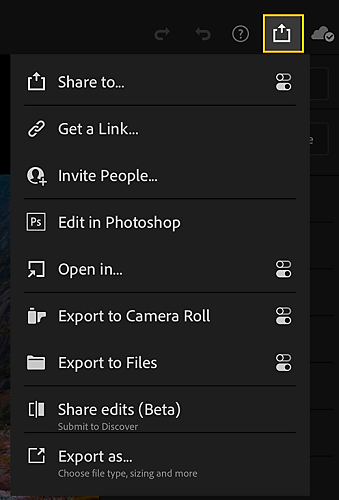
In the Lightroom app on the iPad, select the desired photo and tap the Share icon.
-
Select Edit in Photoshop.

The Share menu in Lightroom app on the iPad.
The Share menu in Lightroom app on the iPad. -
Make your edits in Photoshop on the iPad.
To bring the photo back to Lightroom, select Send to Lightroom in the top panel.

Send to Lightroom from Photoshop on the iPad.
Send to Lightroom from Photoshop on the iPad.

Available on iOS devices with a RAM capacity of 4 GB or more:
- iPhone XS/XS MAX and newer (excluding iPhone XR and SE2)
- iPad 10th Gen and newer
- iPad Air 4th Gen and newer
- iPad Mini 6th Gen and newer
- iPad Pro 2nd Gen and newer
Poznámka:
Adobe Sensei is the technology that powers intelligent features across all Adobe products to dramatically improve the design and delivery of digital experiences, using artificial intelligence and machine learning in a common framework.
Have a question or an idea?

If you have a question to ask or an idea to share, come and participate in the Adobe Lightroom community. We'd love to hear from you!
You can now import or export a single XMP preset or multiple XMP presets in a zip file.

