For the complete experience, please enable JavaScript in your browser. Thank you!

  • Creative Cloud
  • Photoshop
  • Illustrator
  • InDesign
  • Premiere Pro
  • After Effects
  • Lightroom
  • See all
  • See plans for small and medium businesses, and more >
  • Marketing Cloud
  • Analytics
  • Audience Manager
  • Campaign
  • Experience Manager
  • Media Optimizer
  • Primetime
  • See all
  • Document Cloud
  • Acrobat DC
  • Acrobat DC mobile
  • Elements
  • Digital Publishing
  • Acrobat Reader DC
  • Adobe Flash Player
  • Adobe AIR
  • Adobe Shockwave Player
  • All products
  • Creative Cloud
  • Individuals
  • Photographers
  • Students and Teachers
  • Small and Medium Business
  • Enterprise
  • Schools and Universities
  • Marketing Cloud
  • Document Cloud
  • Elements
  • Digital Publishing
  • All products
  • Learn at your level
    Get started or go deeper with tutorials of all our products.
    Learn now >
  • Contact support
    Get instant help from one of our awesome support people.
    Start now >
  • Ask the community
    Post, discuss, and be a part of our knowledgeable community.
    Join now >
  • All learn & support
    • About Us
    • Careers At Adobe
    • Investor Relations
    • Privacy  |  Security
    • Corporate Responsibility
    • Customer Showcase
    • Events
    • Contact Us
News
    • 4/21/2015
      Adobe Delivers Major Innovations to Creative Cloud Photography
    • 4/20/2015
      Adobe Positioned as a Leader in Gartner Magic Quadrant for Multichannel Campaign Management
    • 4/7/2015
      Adobe Document Cloud and Acrobat DC Now Available
    • 4/2/2015
      Adobe Launches Slate, High-Impact Visual Storytelling App for iPad
Flash Player Help / 

Uninstall Flash Player | Windows

Adobe Community Help


Products Affected

  • Flash Player
 
By clicking Submit, you accept the Adobe Terms of Use.
 

These instructions are for Windows.
If you use a Mac, see Uninstall Flash Player | Mac.

To the top

Flash Player information

If Flash Player is installed on your computer, the following box displays the version of Flash Player and your operating system. If Flash Player is not installed, an error message appears.

 
To the top

Issue

 Flash Player installation was not successful.

To the top

 Solution

  1. Download the uninstaller for Flash Player.

  2. Exit all browsers and other programs that use Flash.

  3. Run the uninstaller.

  4. Verify that uninstallation is complete.

1. Download the uninstaller for Flash Player

The Flash Player uninstaller executes on both 64-bit and 32-bit version of the Windows operating systems.

  • uninstaller

Save the file in a location where you can find it easily after you restart your computer. For example, save it on your Windows desktop.

Note: To uninstall Flash Player beta, use the corresponding Flash Player beta uninstaller available in Adobe Labs.

2. Exit all browsers and other programs that use Flash

The uninstaller does not work if any programs that use Flash are running on your computer.
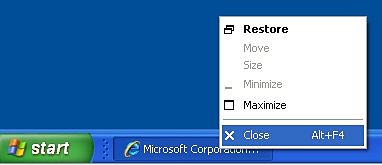
  • Look at the taskbar. If the taskbar contains program icons for a browser or for a game that uses Flash, right-click each icon and choose Close. This example shows a browser in the taskbar:
Right-click program in taskbar to close

Look at the icons in the system tray for programs that run in the background. Examples include AOL Instant Messenger, Yahoo! Messenger, and games that use Flash (any file with a name that ends in .swf). If you see such an icon, right-click the icon and click Exit, as shown in this example:

Right-click Yahoo! Messenger in system tray to exit

3. Run the uninstaller

  1. Double-click the icon of the uninstaller that downloaded to your computer. 
  2. Follow the prompts. If you see the message "Do you want to allow the following program to make changes to this computer?," click Yes. 
  3. Delete Flash Player files and folders.

    1. Choose Start > Run.

    2. Copy and paste the following and click OK. C:\Windows\system32\Macromed\Flash

    3. Delete all the files in this folder.

    4. Follow step 1 to step 3 for the following:
      C:\Windows\SysWOW64\Macromed\Flash
      %appdata%\Adobe\Flash Player
      %appdata%\Macromedia\Flash Player

      Note:

      Beginning with Flash Player 11.5, uninstalling the Flash Player resets the AutoUpdateDisable and SilentAutoUpdateEnable settings in mms.cfg to their default values, which are:

      • AutoUpdateDisable=0
      • SilentAutoUpdateEnable=0

      If you are running the Flash Player uninstaller as part of your deployment process, redeploy any custom changes that you have made to either AutoUpdateDisable or SilentAutoUpdateEnable.

4. Verify that uninstallation is complete

  1. Restart your computer.
  2. Open your browser and check the status of Flash Player.

Related content

  • Installation problems | Flash Player | Windows
  • Installation issues when switching between release and debugger versions during development and testing
Keywords: uninstaller; testing; plug-in; plugin; Flash Player; detection; tn_14157

This work is licensed under a Creative Commons Attribution-Noncommercial-Share Alike 3.0 Unported License  Twitter™ and Facebook posts are not covered under the terms of Creative Commons.

Legal Notices   |   Online Privacy Policy

Choose your region United States (Change)   Products   Downloads   Learn & Support   Company
Choose your region Close

Americas

Europe, Middle East and Africa

Asia Pacific

  • Brasil
  • Canada - English
  • Canada - Français
  • Latinoamérica
  • México
  • United States
  • Africa - English
  • Österreich - Deutsch
  • Belgium - English
  • Belgique - Français
  • België - Nederlands
  • България
  • Hrvatska
  • Cyprus - English
  • Česká republika
  • Danmark
  • Eesti
  • Suomi
  • France
  • Deutschland
  • Greece - English
  • Magyarország
  • Ireland
  • Israel - English
  • ישראל - עברית
  • Italia
  • Latvija
  • Lietuva
  • Luxembourg - Deutsch
  • Luxembourg - English
  • Luxembourg - Français
  • Malta - English
  • الشرق الأوسط وشمال أفريقيا - اللغة العربية
  • Middle East and North Africa - English
  • Moyen-Orient et Afrique du Nord - Français
  • Nederland
  • Norge
  • Polska
  • Portugal
  • România
  • Россия
  • Srbija
  • Slovensko
  • Slovenija
  • España
  • Sverige
  • Schweiz - Deutsch
  • Suisse - Français
  • Svizzera - Italiano
  • Türkiye
  • Україна
  • United Kingdom
  • Australia
  • 中国
  • 中國香港特別行政區
  • Hong Kong S.A.R. of China
  • India - English
  • 日本
  • 한국
  • New Zealand
  • Southeast Asia (Includes Indonesia, Malaysia, Philippines, Singapore, Thailand, and Vietnam) - English
  • 台灣

Commonwealth of Independent States

  • Includes Armenia, Azerbaijan, Belarus, Georgia, Moldova, Kazakhstan, Kyrgyzstan, Tajikistan, Turkmenistan, Ukraine, Uzbekistan

Copyright © 2015 Adobe Systems Incorporated. All rights reserved.

Terms of Use | Privacy | Cookies

AdChoices