某些 Creative Cloud 应用程序、服务和功能在中国不可用。

-
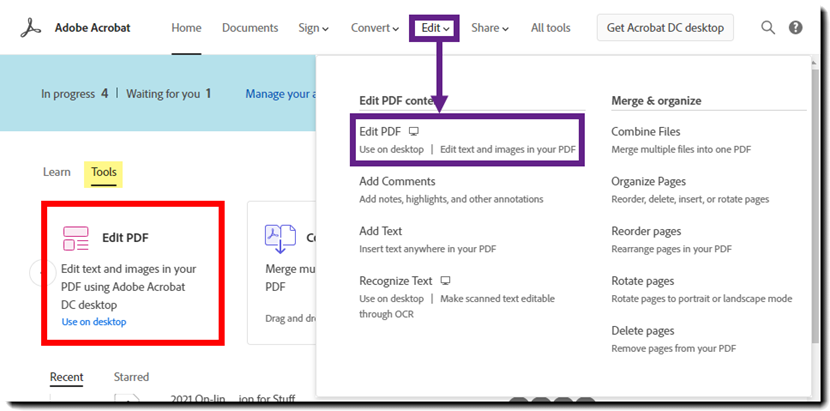
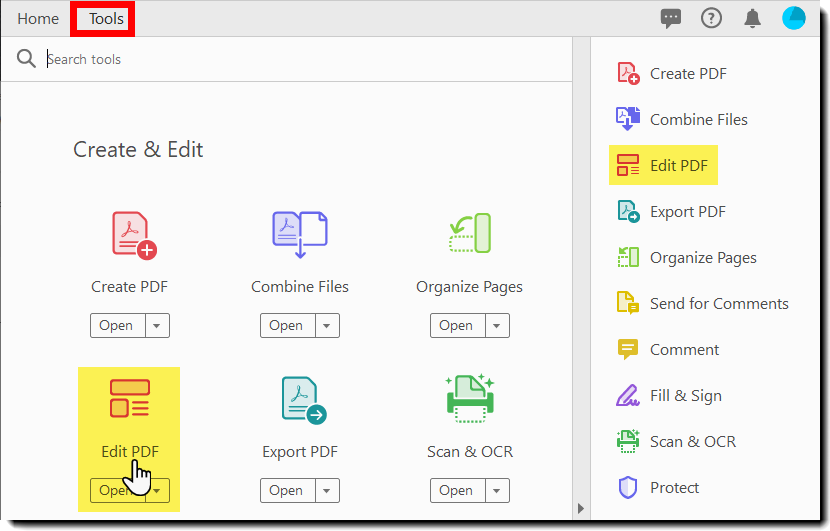
Sign in to Adobe Document Cloud at https://documentcloud.adobe.com with your Adobe ID and password, or with your social (Facebook or Google) account.
-
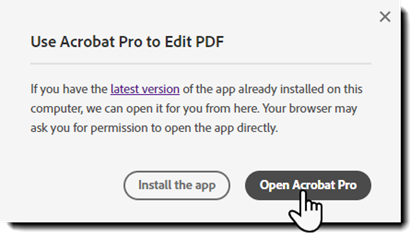
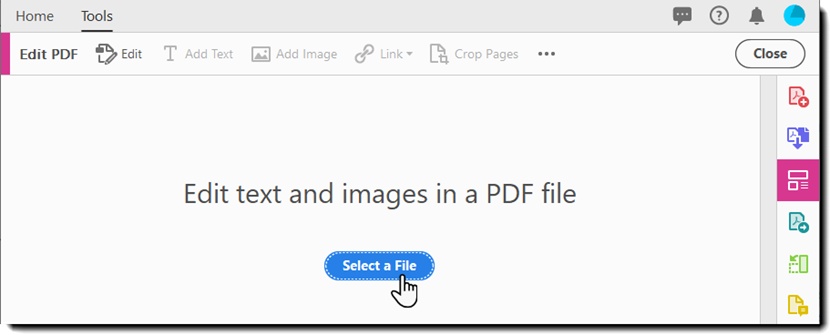
Editing a PDF requires the desktop application; an overlay challenges you to either:
- Install the app - If you haven't installed the application yet, click this option to start the install process
- Open Acrobat Pro - Click this option when you have the application installed on your local system to open the desktop app and continue
- Install the app - If you haven't installed the application yet, click this option to start the install process
-
The page will refresh to show the PDF with the editable elements.
Click the text element you want to edit and start typing. New text matches the look of the original fonts in your scanned image.
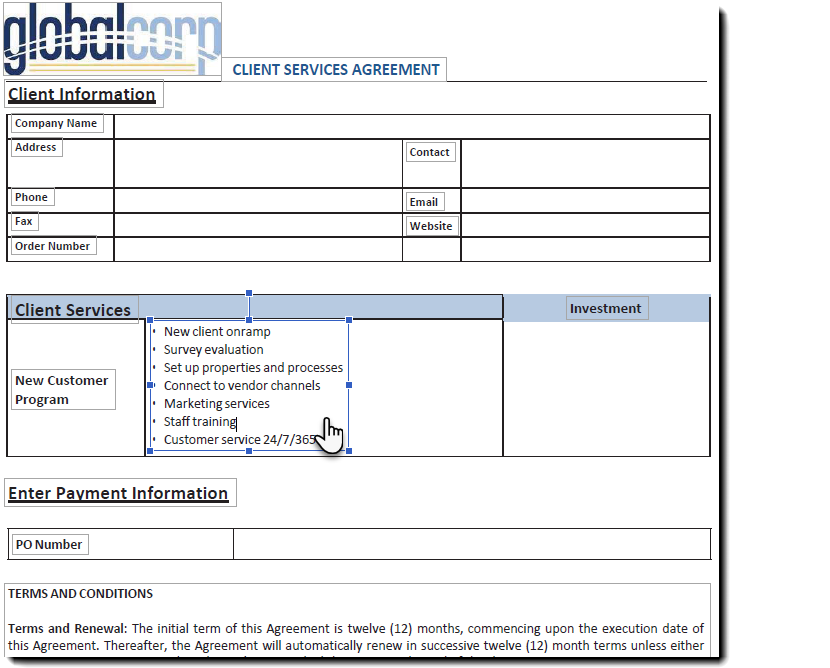
Edit the text by doing one of the following:
- Type new text to replace the selected text, or press Delete to remove it
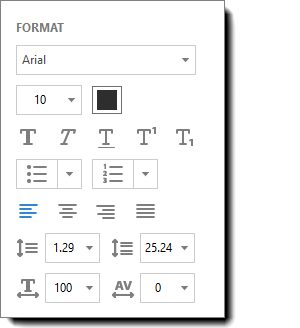
- Manage list items using the list controls (bulleted and numbered) in the right-side Format panel. You can create list items, convert an existing paragraph to a list item, convert an existing list item to a paragraph, and convert from one list type to another
- Select a font, font size, or other formatting options in the right-side Format panel. You can also use the advanced format options, such as line spacing, character spacing, horizontal scaling, stroke width, and color
Note
For legal reasons, you must have purchased a font and have it installed on your system to revise text using that font.
You can edit text only if the font used for that text is installed on your system. If the font isn’t installed on your system, but is embedded in the PDF, you can change only the color or font size. If the font is not installed or embedded, you can't edit any of the text.
PDFs created by scanning a document (thus turning it into an image) need additional processing to make the scanned text editable:
-
Sign in to Adobe Document Cloud at https://documentcloud.adobe.com with your Adobe ID and password, or with your social (Facebook or Google) account.
-
Editing a PDF requires the desktop application; an overlay challenges you to either:
- Install the app - If you haven't installed the application yet, click this option to start the install process
- Open Acrobat Pro - Click this option when you have the application installed on your local system to open the desktop app and continue
- Install the app - If you haven't installed the application yet, click this option to start the install process
-
The page will refresh to show the PDF with the editable elements.
Optical character recognization (OCR) is automatically appllied to your document and converts it to a fully editable copy of your PDF.
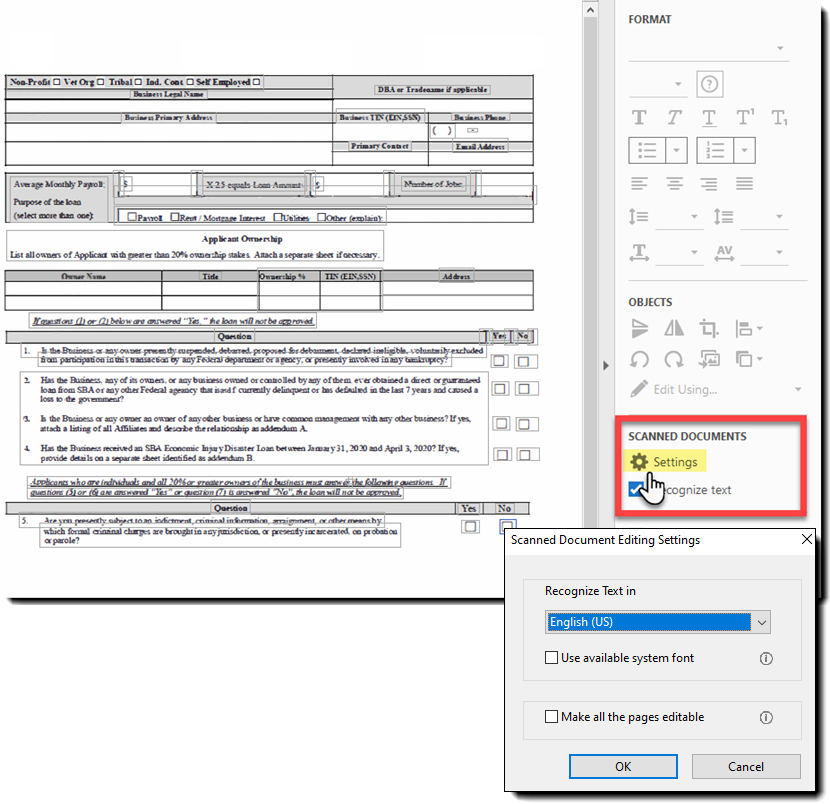
- A prompt on the upper-right corner appears showing you the recognized OCR language. To change the language, click Settings in the prompt or in the right panel:
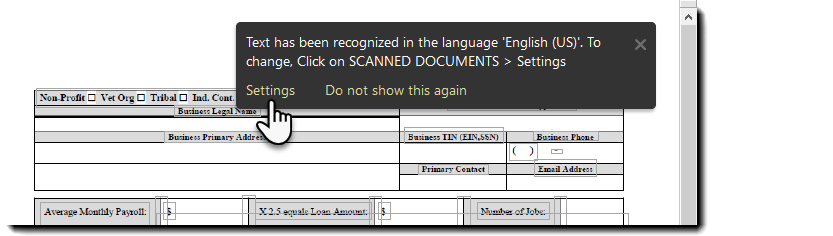
- A prompt on the upper-right corner appears showing you the recognized OCR language. To change the language, click Settings in the prompt or in the right panel:
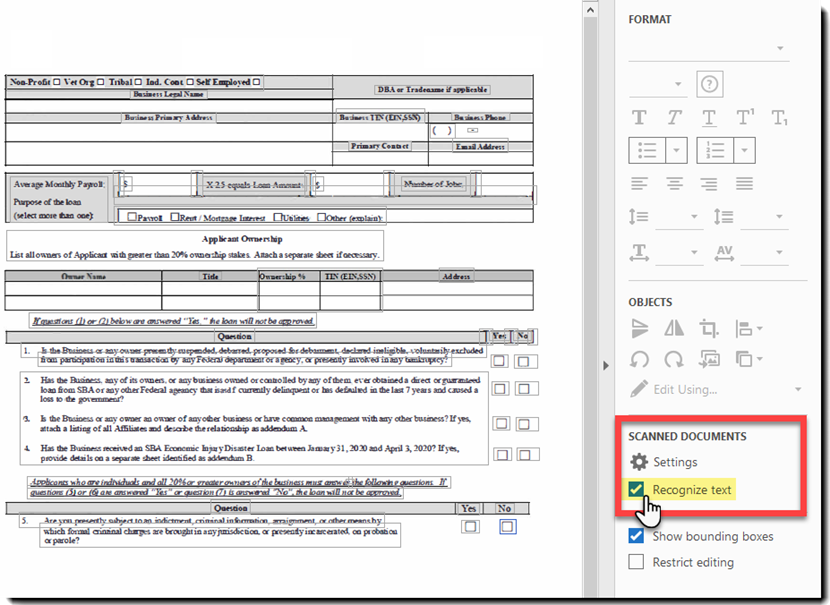
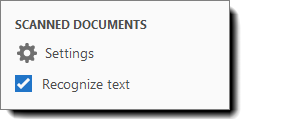
When you open a scanned document for editing, the two scan-specific options are displayed in the right pane under Scanned Documents:
● Settings: It shows options to select OCR language, use system fonts, and make all pages editable at one go. For more information, see Settings - OCR language, system fonts, and all pages editable.
● Recognize text: It allows switching from text-to-image or image-to-text editing mode. For more information, see Turn off or disable automatic OCR for scanned documents.
Use the settings to change OCR language, choose whether to use system fonts, and make all pages editable at one go. In the right pane, click Settings under Scanned Documents. The dialog box shows the following three settings:
- Recognize Text in (OCR language): By default the OCR language is picked from default locale
- Use available system font: If this option is checked, during the process of scanned to editable text conversion, the converted text is displayed in a font that is installed on the system and is a closest match to the original font in the scanned page
- Make all the pages editable: if this option is checked, then all pages of the current document are converted to editable text in one go. It is a relatively slower option. Use this option only if you want to edit all pages or convert all pages to editable text
Note
Initially, the language is set to the default locale and the other options are disabled. Any changes to these settings remain persistent and are applied when you enter in the edit mode (Tools > Edit PDF).
The OCR is turned on by default. Therefore, when you open a scanned document for editing, the current page is converted to editable text.
You can turn off/on the automatic OCR option in the right panel, scanned documents section.
To turn off automatic OCR, clear the Recognize text checkbox.
- To re-enable automatic OCR, check the Recognize text checkbox