Select the file to preview in the Content panel.
Last updated on
Aug 18, 2026
You can preview most video, and audio files in Adobe Bridge. You can preview SWF content, FLV files, and F4V files and most files supported by the version of QuickTime you have installed on your computer. Use Playback preferences to control how media files are played.
Note
Playback preview for videos is not supported on Windows 32 bit. It is supported on Windows 64 bit only.
Video thumbnail preview
Easily browse through your videos in Adobe Bridge with the new video thumbnail preview for all supported video files. Video thumbnail previews speed up your workflow by showing you a quick preview of all frames in your video, without an audio playback. You can then easily select the video clips that are useful for your project.
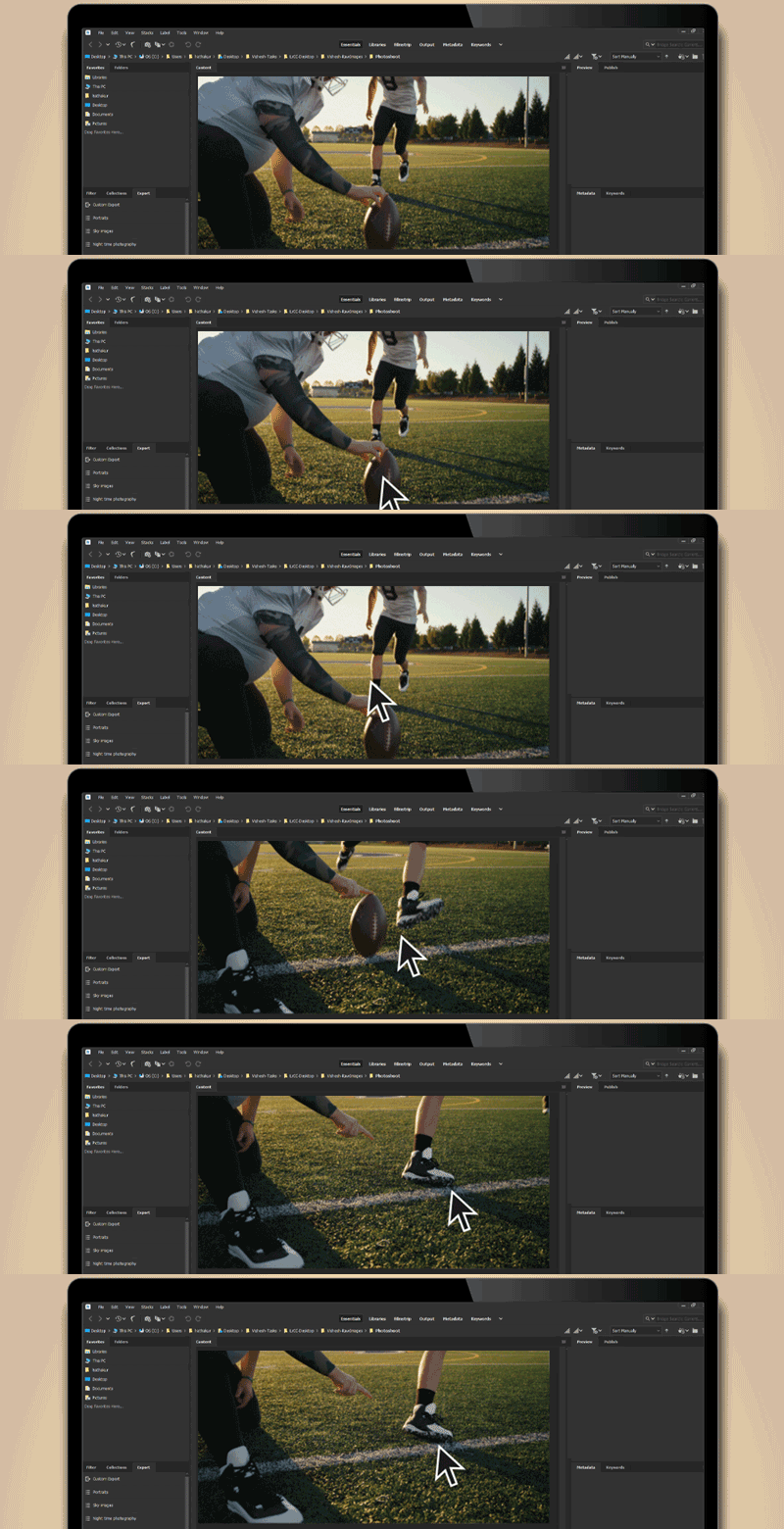
To enable the video thumbnail preview feature, do the following:Once you enable this option, you can simply hover your pointer over a video in the Content panel to see a quick video preview. The video thumbnail preview stops as you move the pointer away and goes back to the original thumbnail. Video thumbnail previewing on hover will always have priority over Preview panel playback.
- Go to Edit > Preferences > Thumbnails.
- In the Thumbnails menu, under the Video section, enable Preview Video on Mouse Hover.
Note
If you face performance issues with video workflows, check the recommended system requirements for Bridge on both Mac and Win.
Preview media files in the Preview panel
In the Preview panel, select the Play button to start the video, select the Pause button to pause playback, select the Loop button to toggle continuous loop, or select the Volume button to adjust volume.
Play full-screen previews of dynamic media files
Select the file to preview in the Content panel.
Select View > Full Screen Preview.
Select the Pause button to pause playback, select the Play button to resume playback, select the Loop button to toggle continuous loop, or select the Volume button to adjust volume.
Press Esc to return to Adobe Bridge.
Set playback preferences
In Adobe Bridge, select Edit > Preferences (Windows) or Adobe Bridge > Preferences (macOS).
Select Playback.
Change any of the following settings, and select OK.
- Stack Playback Frame Rate: In stacks that contain ten or more images, you can preview (scrub) the images. This option lets you specify a frame rate for previewing image stacks. Learn how to stack files.
- Play Audio Files Automatically When Previewed: When you click an audio file to display it in the Preview panel, the audio begins to play automatically. Turn off this option to play audio files manually.
- Loop Audio Files When Previewed: Continually repeats (loops) the audio file. Deselect this option if you want the audio file to play only once.
- Play Video Files Automatically When Previewed: Play a video file automatically in the Preview panel when you select it in the Content panel.
- Loop Video Files When Previewed: Continually repeats (loops) the video file. Deselect this option if you want the video file to play only once.

Organize your creative world with Bridge
Access and manage all your digital assets.
