Launch Bridge.
Last updated on
Aug 25, 2026
Learn how to use Content Credentials (Early Access) to promote content authenticity and transparency in the content creation process.
How to use Content Credentials (Early Access) in Adobe Bridge
Within the Export panel, create/edit a preset.
Within the Content Credentials dropdown in the preset dialog box, select Apply Content Credentials.

Select Information to include:
- Producer: Enable this option to display the name listed on your Adobe account.
- Connected Accounts: Enable this option to manage your social accounts. Select Manage to link your social media accounts with Content Credentials.
- Edits & Activity: Enable this option to display the editing and processing actions taken to produce the final image.
From the Storage Method dropdown, choose the required option:
- Attach to files: This method increases file sizes but keeps your Content Credentials more private. However, the attached Content Credentials are less resilient and may be stripped from your content when published or shared online.
- Publish to Content Credentials cloud: This method reduces file sizes and improves resiliency. If the credentials are ever stripped from your content, they can be recovered with Adobe Inspect. In Adobe Inspect, your published Content Credentials may appear as possible matches for content that is visually similar to yours.
- Attach and publish to cloud: This method provides the benefits of both approaches, offering a balance between privacy and resiliency.
Select Preview to view the Content Credentials settings.

Select Save.
How to view Content Credentials status
Launch Bridge.
Select Edit > Preferences.
Within the Content preferences settings, select Display Content Credentials information in Content and Filter panel. Then, select OK.

How to filter your files based on the Content Credentials status
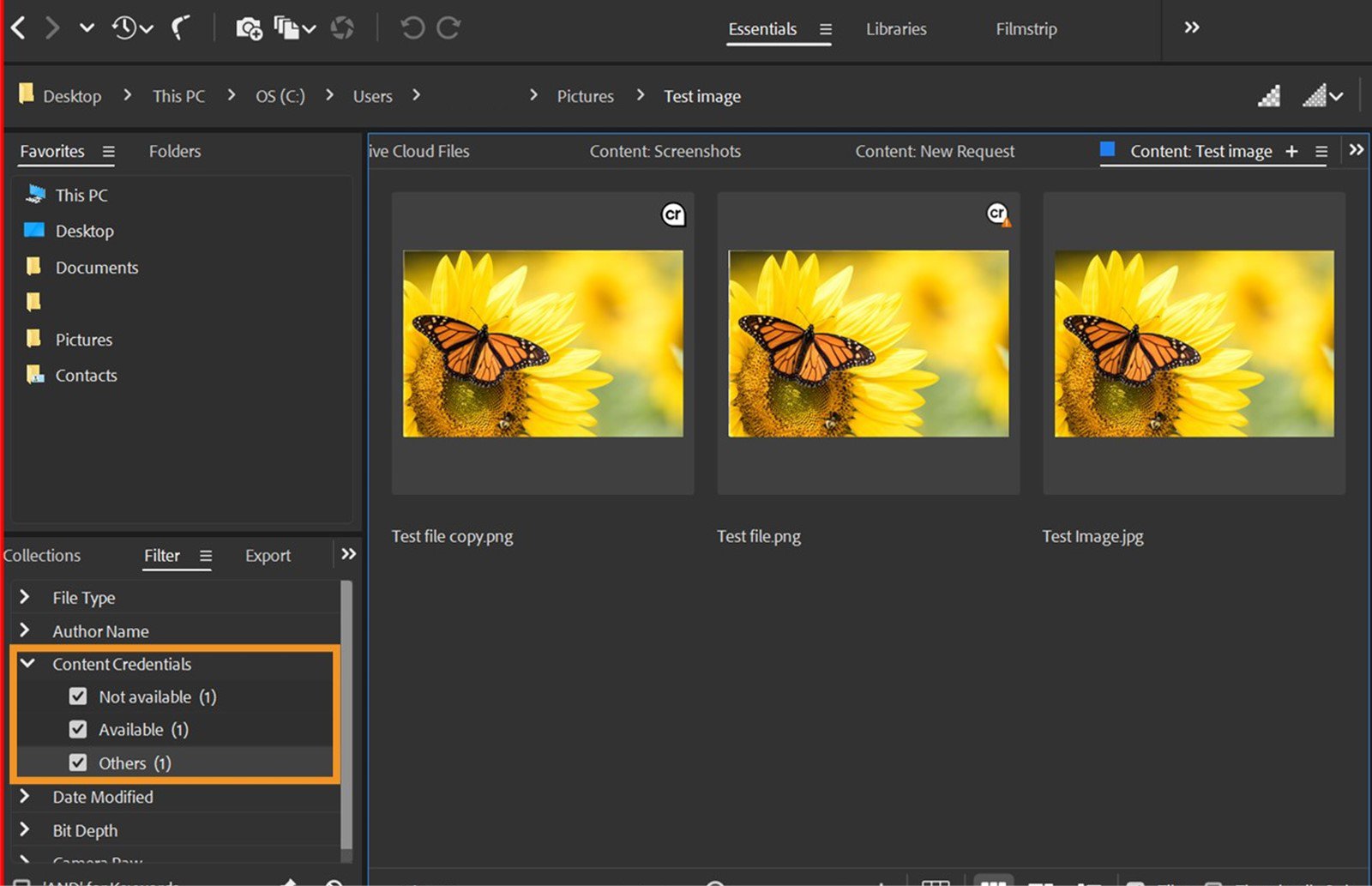
Open Filter panel.
Within the Content Credentials dropdown, you can further filter your files based on the following Content Credentials status:
- Not available
- Available
- Others
How to view the Content Credentials status in the Metadata panel
Select the desired file.
Within the Metadata panel, you can easily check the Content Credentials status of the selected file.

Note
Learn more about Content Credentials and how Adobe apps support generative AI content labeling.

Organize your creative world with Bridge
Access and manage all your digital assets.
