Enhance landscape photos with improved masking
Detect and selectively edit snow in your winter photos using enhanced Landscape Masking. Explore new Landscape Adaptive presets to quickly refine your landscape shots.
Cập nhật gần đây nhất vào
9 thg 11, 2026
Explore the new and enhanced features in the latest releases of Adobe Lightroom on desktop.
November 2026 (version 10.0)

Create cinematic lighting with Glow effects
Give your photos a soft, luminous look using effects such as Bloom, Halation, and Diffusion. Apply Glow to the entire photo or use masking to limit it to specific areas.
Learn how to apply glow effects to your photos ›

Capture photos directly into Lightroom with tethered shooting
Connect supported cameras and capture photos directly in Lightroom. Preview your shot in Live View, use overlays, and work with multiple connected cameras.
Learn how to connect your cameras to Lightroom with Tether capture ›

Remove skin blemishes while preserving natural details
Eliminate blemishes, moles, and freckles with the AI-powered blemish removal tool. Control how prominent each element appears, and then fine-tune individual spots to remove or restore them.
Learn how to remove skin blemishes from photos ›

Fix a blink in a photo with Open Eyes (Early Access)
Use AI-powered Open Eyes to correct closed or partially closed eyes in your photos, helping you achieve a more natural look without retaking the shot.
Learn how to use the Open Eyes option ›

Find your best shot with Survey view
Compare multiple photos together to quickly identify your best photo. Reorder photos by dragging them, use keyboard shortcuts, or switch to full-screen view for a closer look.
Learn how to compare multiple photos in Survey view ›

Apply Color Grading to masked areas
Adjust the colors of shadows, midtones, and highlights across an entire photo or within specific masked areas using Color Grading controls.
Learn how to apply color tints to the masked areas of your photos ›

Generate depth-based masks for any photos
Create depth-based masks on a photo that lacks depth information. Using AI, Lightroom generates a depth map, allowing you to select and adjust the foreground, middle ground, or background areas.
Learn how to automatically create depth range in photos ›

Add your editing controls to Favorites for easy access
Customize the Favorites panel in Lightroom desktop by adding frequently used editing controls, reordering them, and importing or exporting your Favorites settings for quick access.
Learn how to add edit controls to your favorites and manage them ›

Personalize the Lightroom workspace
Choose from predefined workspaces or customize the appearance, layout, panels, keyboard shortcuts, and learning resources in Lightroom desktop to suit your editing workflow.
Learn how to personalize your Lightroom workspace ›

Evaluate color with the Vectorscope
Visualize the hue and saturation distributions in your photos using Vectorscope to make accurate tonal adjustments, standardize skin tones, and perform color grading.
Learn how to check the color accuracy of your photo ›

Correct wide-angle distortion in group photos
Use the Projection slider to improve perspective and reduce stretching of edges and corners in wide-angle photos, especially in group photos and selfies.
Learn how to use the Projection slider in photos ›

Save versions of your photo edits in Local
Create and manage named versions of a photo in Local mode to preserve different edits, compare results, and return to a previous version without losing your changes.
Learn how to create versions of your edited photos in Local mode ›

Edit photos from newly supported cameras
Find the newly added cameras in the list of supported camera profiles.
Learn about the cameras supported by Lightroom desktop ›

Explore support for new lenses
Find the newly added lenses in the list of supported lens profiles.
Learn about the lenses supported by Lightroom desktop ›

Try these new features
Start exploring the latest updates and enhancements now.

Release notes
Review a summary of updates and fixed issues for previous Adobe Lightroom releases.


Edit and refine photos using Prompt to Edit (Early Access)
Apply complex edits to your photos easily with Prompt to Edit. Choose an example prompt designed for photographers, or describe the edits you want.

Experience improvements in Reflection Removal
Get cleaner results, even on complex surfaces. Remove reflections from windows, glass, and water with fewer smudges and ghosting artifacts.

Edit photos from newly supported cameras
Find the newly added cameras in the list of supported camera profiles.
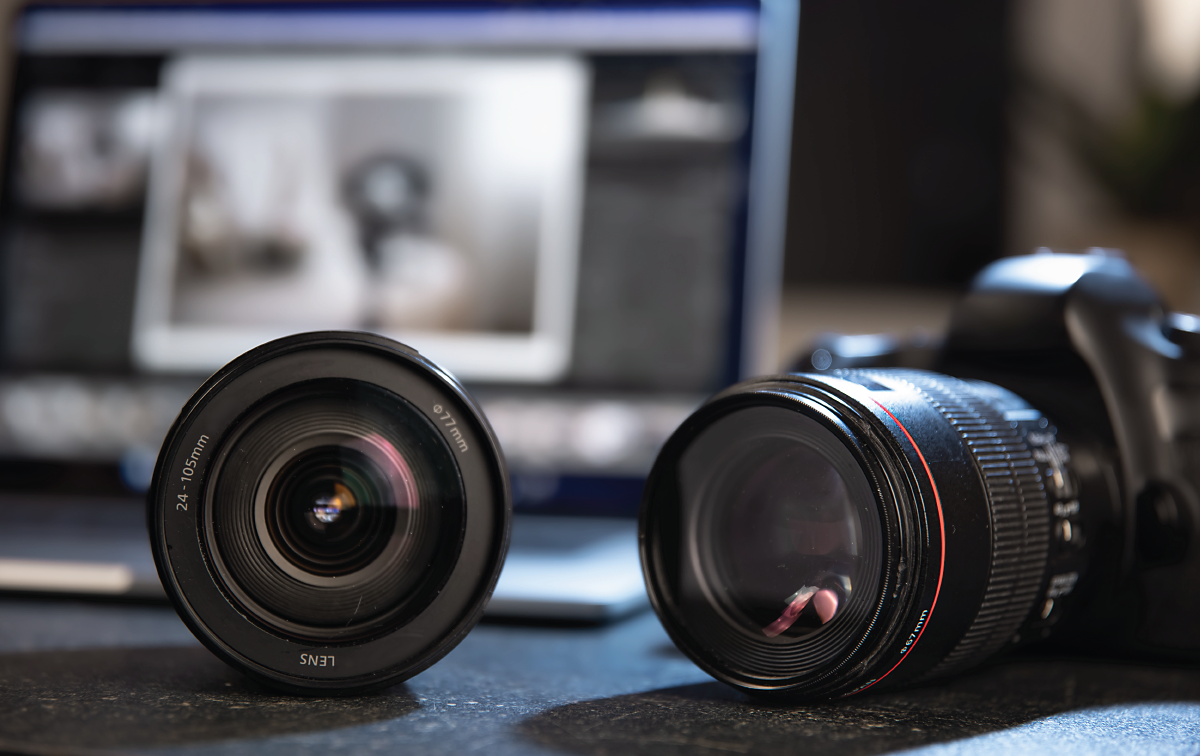
Explore support for new lenses
Find the newly added lenses in the list of supported lens profiles.

Extend your photos using Generative Expand
Expand your photo frame and fill the new areas with content that blends naturally with the original photo using Generative Expand.

Refine Masking with new controls
Try the new Feather and Edge sliders for more control, better creative effects, and smoother transitions when masking.
Learn how to use the Feather and Edge sliders to fine-tune masking ›

Edit photos from newly supported cameras
Find the newly added cameras in the supported camera profile list.

Explore support for new lenses
Find the newly added lenses in the list of supported lens profiles.

Simplify people-focused culling with the Faces panel
Review Eye sharpness and Eyes open scores and details for each face in a photo, helping you quickly identify and select the best photos from a shoot.

Reduce blur with AI Sharpen
Improve sharpness, restore fine details, and enhance clarity in out-of-focus photos with AI Sharpen.

Add motion to your photos with Generate Video
Turn your favorite moment into a short video with Generate Video using simple prompts that describe your creative intent.

Select subjects with more precision when masking
Separate subjects from busy backgrounds with enhanced subject detection and more accurate selections for faster, cleaner masks.

Organize photos with custom color labels
Modify your color labels and add new custom colors to match your workflow, making it easier to organize projects and track edits at a glance.

Control tonal adjustments through Histogram
Adjust Exposure, Whites, Blacks, Highlights, and Shadows directly in the Histogram for faster, more intuitive photo editing.
Edit photos from newly supported cameras
Find the newly added cameras in the supported camera profile list.

Explore support for new lenses
Find the newly added lenses in the list of supported lens profiles.

Search your photos using natural language
Quickly find photos in Lightroom by describing what you're looking for in everyday language, without relying on keywords or manual tagging.

Create mood boards
Easily create mood boards by sending photos directly from Lightroom to Adobe Firefly Boards to explore creative ideas and organize visual inspiration.

Turn standard photos into film-inspired looks
Give your photos a classic film-inspired look with the new Film-Inspired presets in Lightroom on desktop.

Pan and zoom while cropping a photo
Pan and zoom within the Crop tool in Lightroom to make precise adjustments and refine your photo's composition.

Import and edit PSB files
Import, view, and edit large-format PSB files across Lightroom on supported surfaces.
Learn more about supported file formats in the Lightroom ecosystem ›
Edit photos from newly supported cameras
Find the newly added cameras in the supported camera profile list.

Explore support for new lenses
Find the newly added lenses in the list of supported lens profiles.

Improve the quality of your photos with Generative Upscale
Improve photo resolution and sharpness while preserving details using Generative Upscale, powered by Topaz Labs.

Edit Lightroom photos in Firefly
Enhance Lightroom photos in Firefly using prompt-based editing, or convert photos into videos.
Learn how to enhance photos and create a video from them in Firefly ›

Import and edit WebP files
Import, edit, and sync WebP files seamlessly across Lightroom.
Edit photos from newly supported cameras
Find the newly added cameras in the supported camera profile list.
Explore support for new lenses
Find the newly added lenses in the list of supported lens profiles.
Edit photos from newly supported cameras
Find the newly added cameras in the supported camera profile list.
Explore support for new lenses
Find the newly added lenses in the list of supported lens profiles.

Select your best photos with Assisted Culling
Quickly identify and select the best photos from large albums using Assisted Culling in Lightroom.

Remove dust spots from photos
Quickly detect and remove dust spots in your photos caused by dust on your camera's sensor or lens for a cleaner a look.

Refine colors with the Variance slider
Adjust color and tonal variations in your photos using the Variance slider to achieve a more consistent look.


Organize photos with color labels
Easily organize, search, and filter your photos in Lightroom using color labels.

View photos from subfolders in Local Storage
View photos from all subfolders in the Local tab to easily browse and organize your photos.

Batch rename photos with custom templates
Create custom naming templates to quickly rename multiple photos at once in Lightroom.
Edit photos from newly supported cameras
Find the newly added cameras in the supported camera profile list.
Explore support for new lenses
Find the newly added lenses in the list of supported lens profiles.

Thử nghiệm những tính năng mới nhất trong Adobe Lightroom
Làm cho ảnh của bạn trở nên đẹp hơn bao giờ hết với khả năng chỉnh sửa thông minh hơn – dù trên máy tính để bàn hay thiết bị di động.
