Select the Generate Image tool in the Toolbar. You can also navigate to Generate Image from the Edit menu.
Viimati uuendatud
16. sept 2026
Enhanced in Photoshop Elements 2027.
For information specific to the 2026 version, see the 2026 section below.
Bring your ideas to life with generative AI
Generative AI in Photoshop Elements opens up a whole new world of creative possibilities. Want to swap a cluttered background for something clean and professional? Or maybe build a custom scene for a family photo book, travel collage, or even a personalized greeting card? Just type what you’re imagining, and Generate Image brings it to life.

Märkus
Photoshop Elements 2027 license comes with 25 generative credits per month, while the Photoshop Elements and Premiere Elements (PEPE) bundle includes 100 generative credits per month. The number of generative credits used varies based on the AI model and settings selected. If you use all your credits for the month, you can buy more credits within the app, or wait for the monthly credits to reset. Learn more about generative credits.
How to generate images in Photoshop Elements


Märkus
This feature is available in AI, Quick, and Advanced modes. In Guided mode, you can access it through the Replace Background Guided Edit.

From the Model menu, choose the AI model you want to use. To learn more about the AI Models, see AI Models in Photoshop Elements.

In the Prompt textbox, type a description to create anything from a basic background to a detailed image.

Nõuanne
Detailed descriptions, including desired colors, mood, lighting, and style produce better results.
Nõuanne
You can also choose from the available preset prompts by clicking Browse Ideas option next to Inspiration and selecting one of the predefined prompts for image generation.

For the Firefly model, select Auto, Art, or Photo from Content Type. Auto is selected by default.

After typing a prompt and selecting the content type, click Generate.

When you click Generate, Photoshop Elements gives you four variations with Adobe Firefly model and one variation with Partner Models.. Simply pick the one you like best.
Nõuanne
Select Generate again to create more variations using the same prompt and settings, or refine your text prompt before generating new variations. From the three-dot menu, you can delete unwanted variations or rate the results. When using the Firefly model, you can also select Generate Similar to generate variations based on a selected result.

Märkus
Generated variations are associated with Generative Layers, which you can access from the Layers panel. Variations are saved with the PSD file, so you can revisit them later by reopening the document and selecting the corresponding Generative Layer to view the saved variations in the Tool Options panel.
Credit Balance
To check your credit balance, click the Credit Balance icon located below the Generate icon.


Introduced in Photoshop Elements 2026.

Select the Generate Image tool in the Toolbar. You can also navigate to Generate Image from the Edit menu.


Märkus
This feature is available in both Quick and Advanced mode.
In the Prompt textbox, type a description to create anything from a basic background to a detailed image.

Nõuanne
Detailed descriptions, including desired colors, mood, lighting, and style, produce better results.
Nõuanne
You can also choose from the available preset prompts by clicking the Inspiration tool and selecting one of the predefined defaults for image generation.
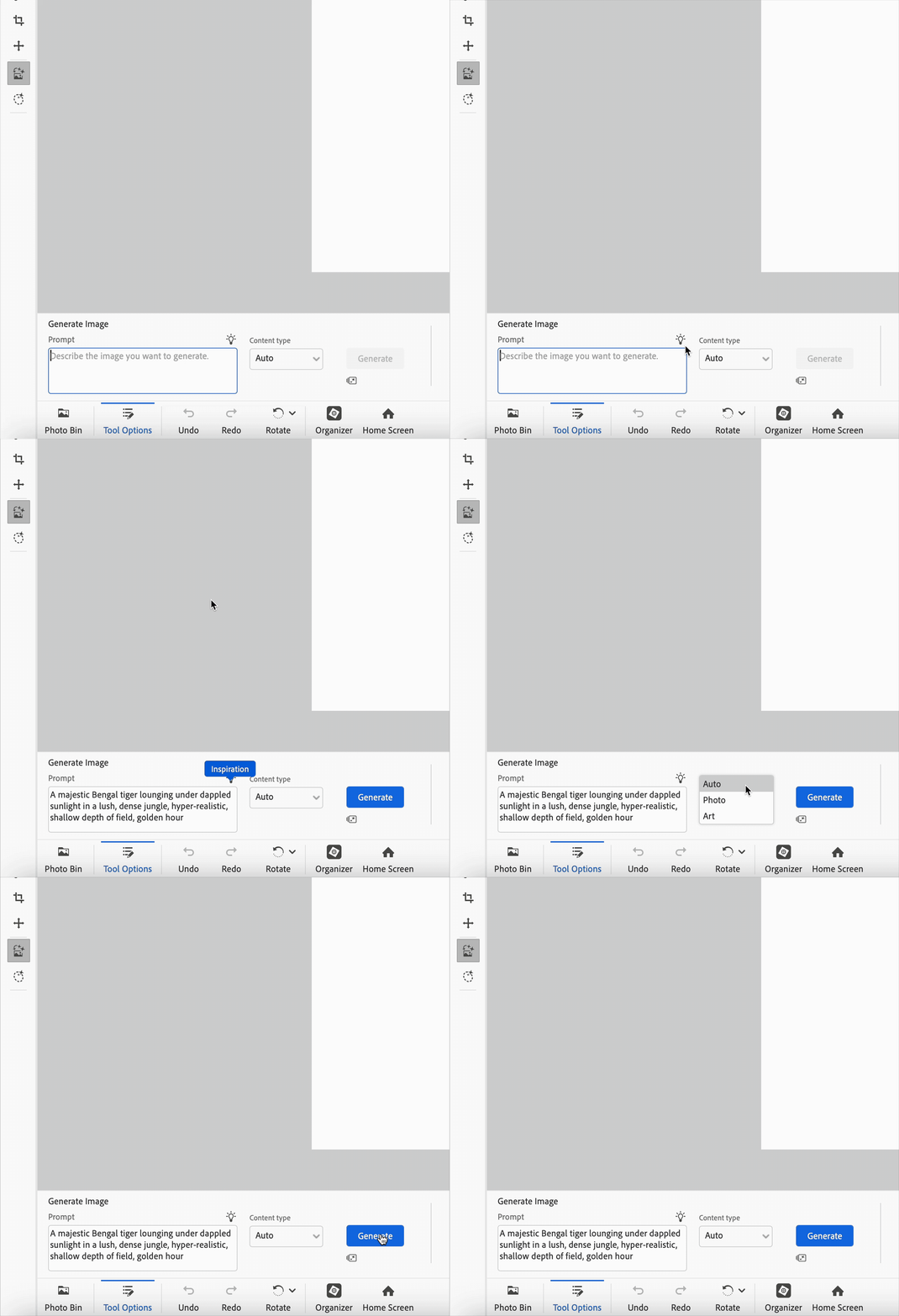
Select the content type (Art or Photo), or keep it set to Auto (default).

After typing a prompt and selecting the content type, click Generate.

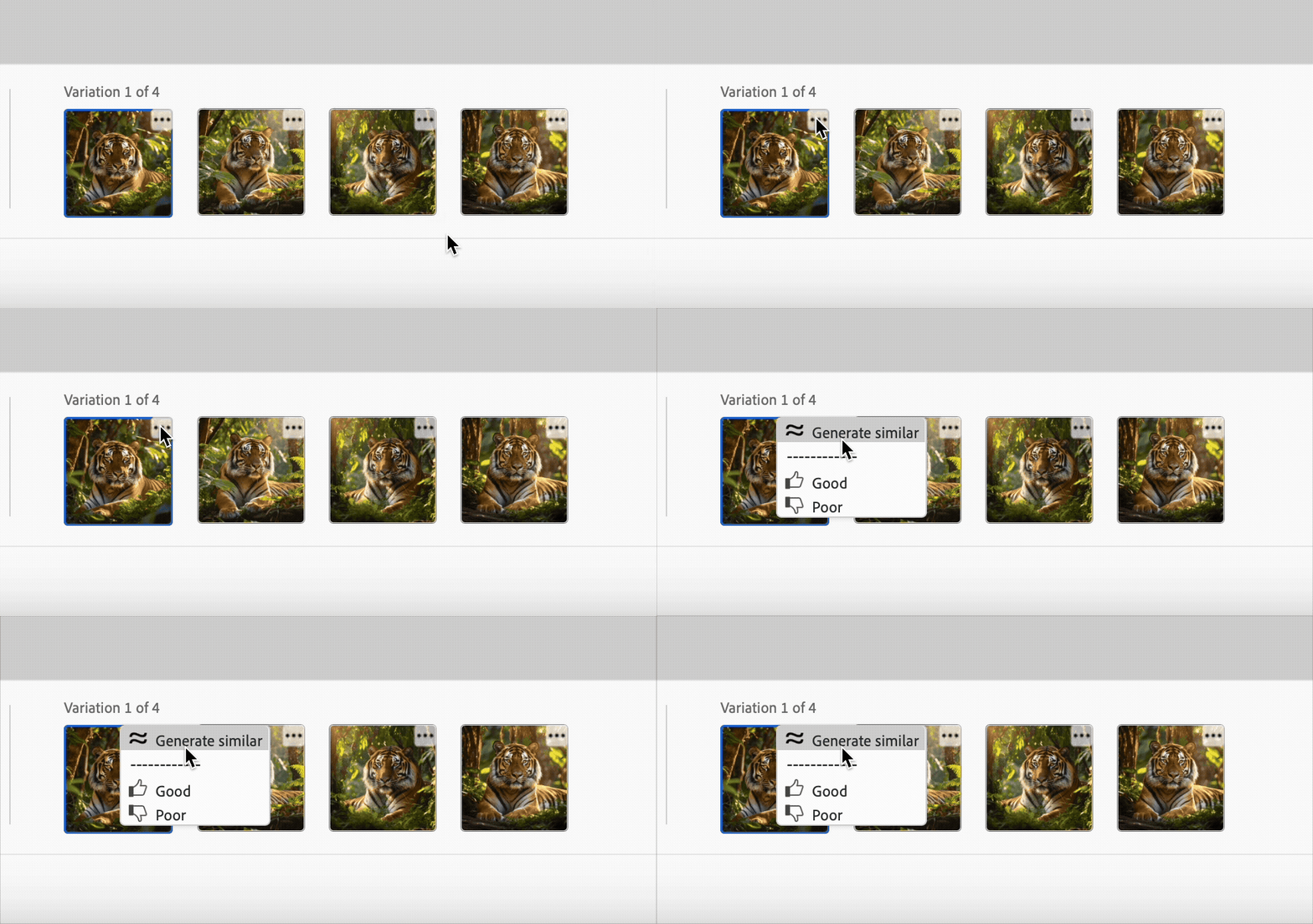
When you click Generate, Photoshop Elements gives you four options to choose from. Simply pick the one you like best.
Nõuanne
You can generate more options by refining your text prompt or clicking the three-dot menu to create similar variations. You can also use the menu to rate the results.
Credit Balance
To check your credit balance, click the Credit Usage icon located below the Generate icon.

TALK TO US

If you have questions about working with Generate Image in Photoshop Elements, reach out to us in our Photoshop Elements community. We would love to help.

Redigeerige ja jagage pilt hõlpsasti Photoshop Elementsiga
Kombineerige fotosid, vahetage värve ja kustutage kõike tehisintellektipõhiste võimsate tööriistadega.
