Sign in to Adobe Document Cloud at https://documentcloud.adobe.com with your Adobe ID and password, or with your social (Facebook or Google) account.
Last updated on
Dec 15, 2020
Use Adobe Acrobat Export PDF to convert PDF files into editable Microsoft Word or Microsoft Excel files.
Adobe Acrobat PDF Pack performs OCR on PDF files that contain images, vector art, hidden text, or a combination of these elements. (For example, Adobe Acrobat PDF Pack performs OCR on PDF files created from scanned documents.) Adobe Acrobat PDF Pack also performs OCR on the text that it can't interpret because the text was encoded incorrectly in the source application.
Note
OCR is the conversion of images of text (scanned text) into editable characters so that you can search, correct, and copy the text.
Steps to export PDF:
- Click Convert in the top navigation bar and select Export PDF from the pop-down menu
- Or click the Export PDF tool card

Do one of the following to select the PDF file that you want to export, and then click Continue:
- Choose files from the Recent or Documents tab.
- Add files from your computer or drag-and-drop the files onto the highlighted area.
- You can also drag and drop files to the Export PDF tool card
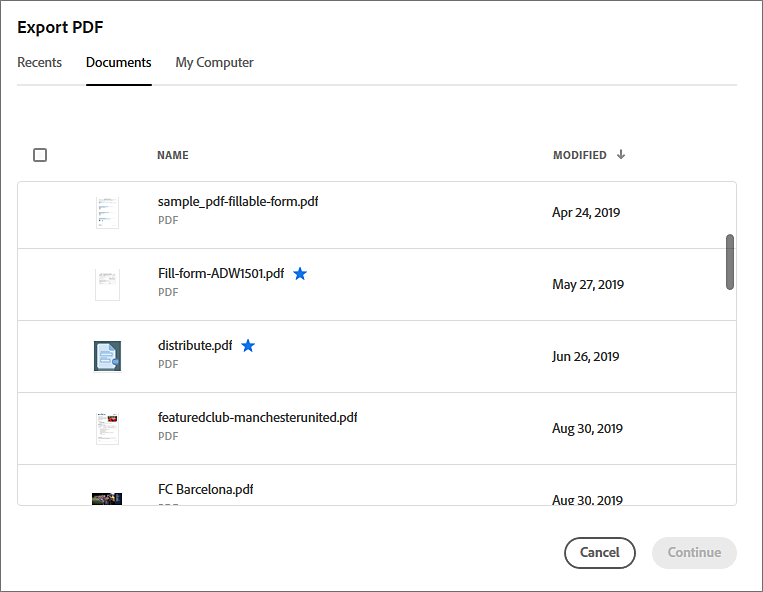
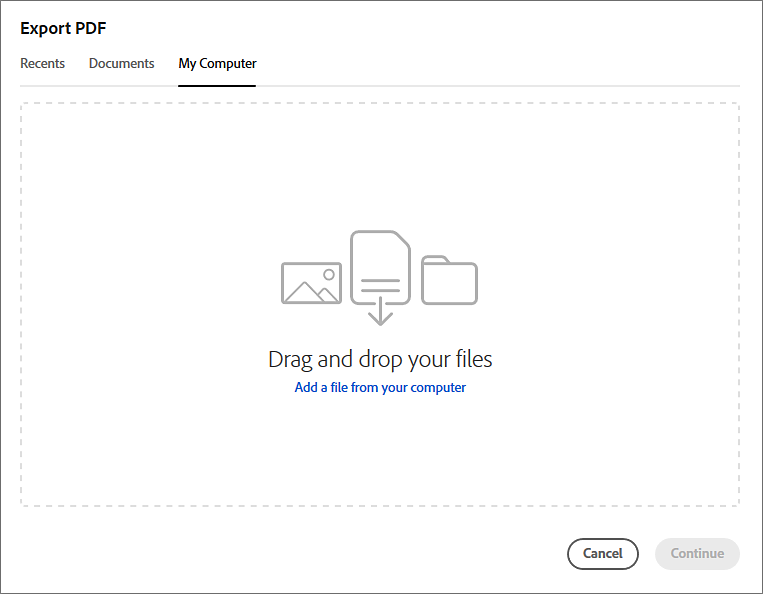
To select additional PDF files to export, click Add Files and then select the desired files from the Recent or Files list, or from your computer, and then click Continue.

Do the following on the same pop-up window:
- Select the desired file format from the Export To drop-down list.
- Select the language of the document you're exporting from the Document Language drop-down list.
Note: Adobe Acrobat PDF Pack does not retain the language setting from session to session. Therefore, make sure that you select the appropriate language each time you convert a document with OCR.
Click Export to.
The selected PDF file is uploaded to the server and the content is exported to the desired format. Click the Download icon to save the file on your computer or device.

A copy of the exported file is also stored in your Adobe Document Cloud account. The Recent section at the bottom area of the Home page lists all the files you’ve exported recently. Alternatively, to see the list of all your files, click Documents in the top-menu bar.
More like this

Streamline your work with Acrobat Sign
Manage and sign documents online quickly and easily.
