Click Expert, and then click Guided. From the list of Guided Edits, select Adding Video in Title.
Last updated on
Jan 12, 2022
The Adding Video in Title Guided Edit shows you how to add a video in the title of your video to make the title interesting and impactful. This Guided Edit is available only in the Expert view.

Click Add Media to import clips.
Select a media source. For example, select Files and Folders if the video clips are on your computer's hard drive.

Select the files and folders you want to import and click Open (Win) or Import (Mac). Hold the command key or use shift to select multiple files.
All the clips you import are stored in the Project Assets bin. Drag and drop these to Video 1 track on the timeline.
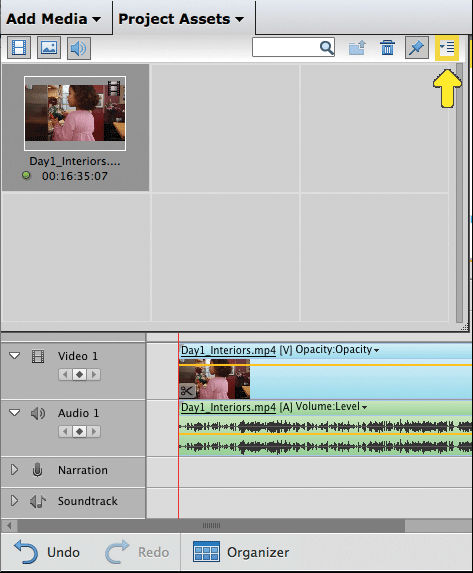
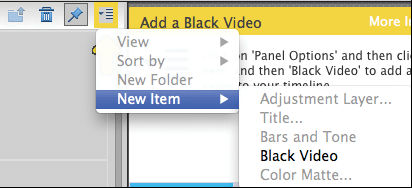
Add a Black Video to the timeline. Click Project Assets > Panel Options > New Item > Black Video.
Drag the Black Video and drop it on the Video 2 track to place it directly above your clip on the Video 1 track.
Note
Expand the timeline if the Video 2 track is not visible.

Extend the duration of the Black Video so that it lasts for at least ten seconds for the effect to be displayed.
Click Titles & Text on the Action bar. Drag-and-drop a title from the list to the Video 3 track. For best results, use the Default title.
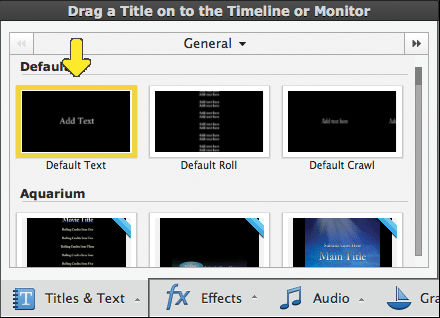
Expand the duration of the title (Video 3 track) to match the duration of the Black Video (Video 2 track). Click Next after you have adjusted the duration.
Double-click the title on the monitor and type your title.
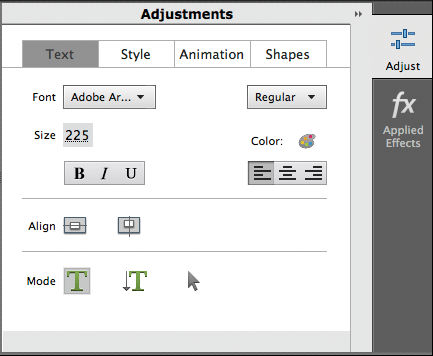
You can change the font and the font size from the Adjust > Adjustments tab.
Note
Use the Arrow mode in the Adjust tab to move the title to the desired position.
Click Effects on the Action bar.
Select the Track Matte Key effect from the Keying category. Drag-and-drop the effect on the Black Video (Video track 2) on the timeline.
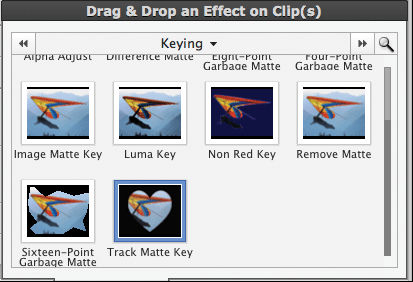
In the Track Matte Key in Applied effects, do the following:
- Select Video 3 from the Matte drop-down menu.
- Select the Reverse option.
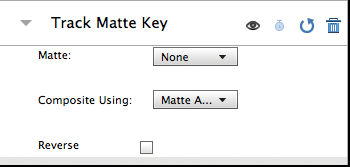
You can add the video in different shapes in the Title Adjust panel.
Click the Play button in the source monitor to view the applied Guided Edit. Click Render to improve the quality.


Easily edit and share stunning videos with Premiere Elements
Get creative with colour, effects, transitions, text, and music. Create reels, reframe, trim with AI powered tools.
