
In the Run dialog window, enter regedit and click Ok.
Last updated on
Aug 25, 2021
In the unlikely event of Adobe XD crashing, learn how to share crash logs and spin dump logs with Adobe to help resolve the issue.
Collect and share the crash logs
Follow the steps below to collect crash logs:
Windows
Navigate to the registry \HKEY_LOCAL_MACHINE\SOFTWARE\Microsoft\Windows\Windows Error Reporting\LocalDumps.
Set up the Registry values as per the instructions in this URL: https://docs.microsoft.com/en-us/windows/desktop/wer/collecting-user-mode-dumps
Now retry with the same workflow where XD was crashed and if it is still able to reproduce, then navigate to %LOCALAPPDATA%\CrashDumps using Run window.
You can find the crash report saved in .dmp format in the location by name similar to XD CC.exe.XXXX.dmp.
macOS
During crash, a pop-up dialog appears. Click Report... to save the report to System Reports.

You can use the following steps to locate the system reports in your system:
Click the launch pad and search for Console.
In Console, click System Reports on the left pane.
Search for Crash report having the filename with a prefix as Adobe XD_YYYY-MM-DD where YYYY-MM-DD is the date on which the file is saved.
Right-click on the report file and click Reveal in Finder to get the logs which can be shared.
Share spin dump logs
If Adobe Customer Care asks you to share spin dump logs, follow the steps given below:
Windows
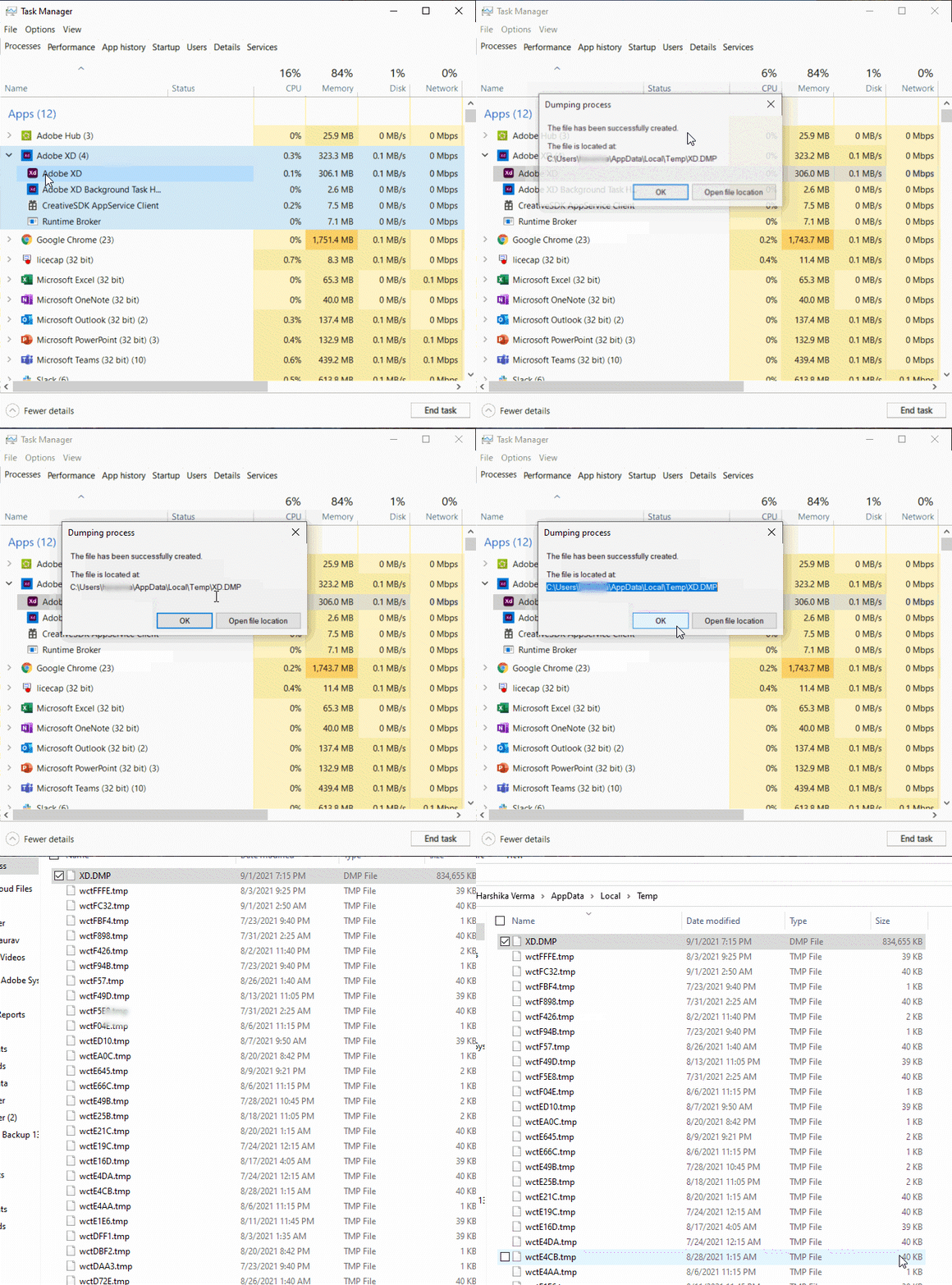
Type Task Manager in Windows Search.
In the Processes tab, select the Adobe XD process.
Right-click Adobe XD and select Create dump file.
macOS
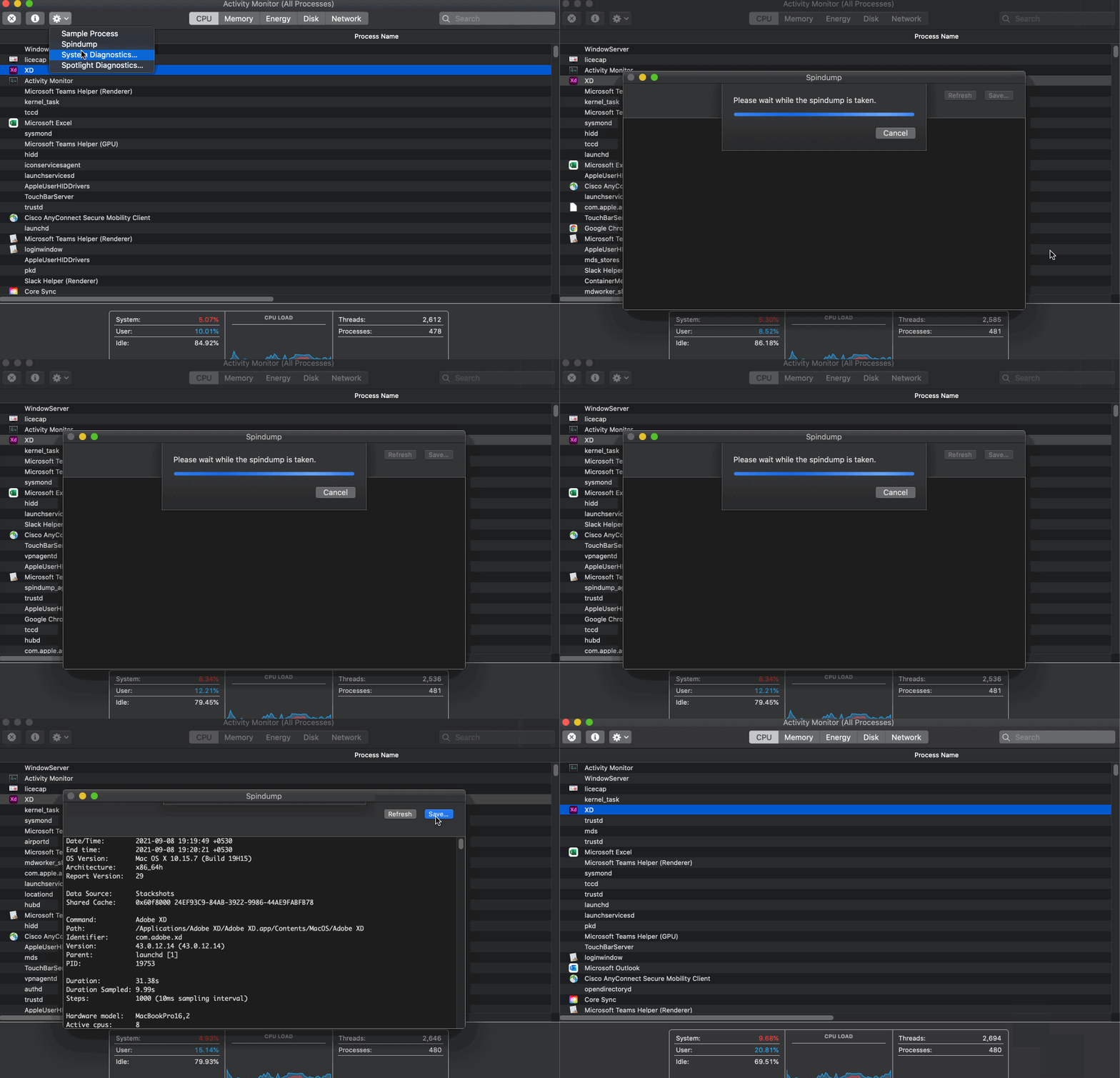
Open Launchpad and search for the Activity Monitor app
In the App name tab, select the Adobe XD process (might show as Not Responding).
Click the gear icon and select Spin Dump.

Design UX prototypes with Adobe XD
Create interactive mockups for websites and mobile apps.
