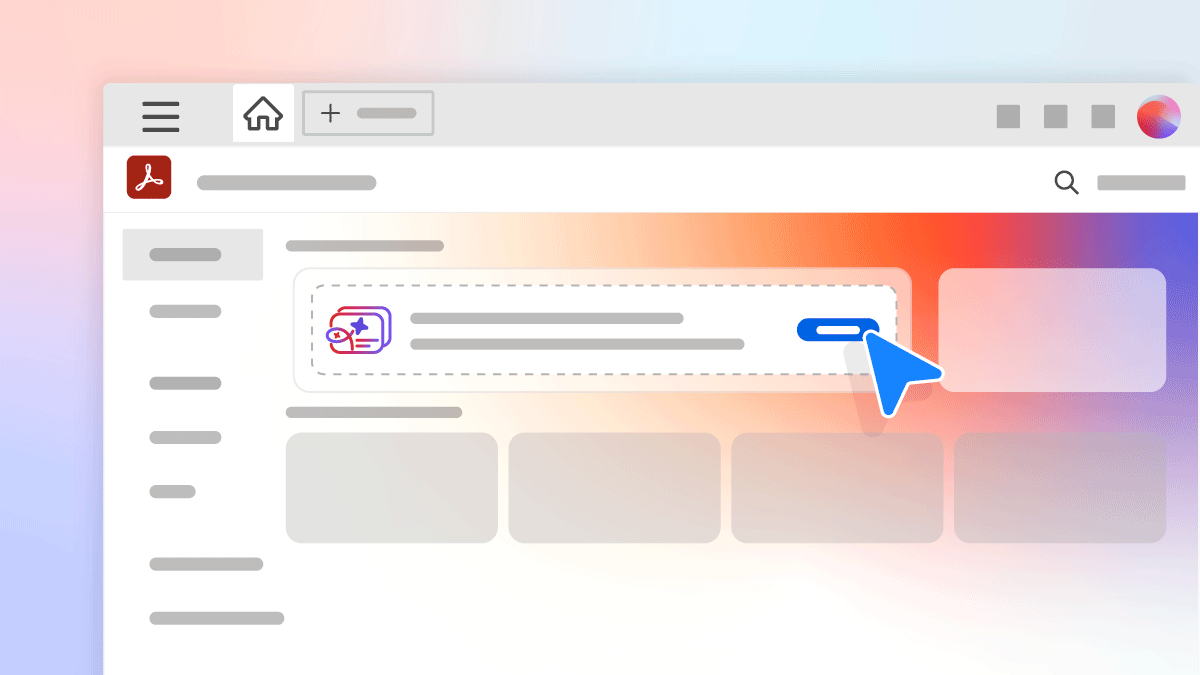
Acrobat latest release is available now. For more information, see New Features Summary | Acrobat latest release.
Acrobat now shows a progressive, multi-state home screen that helps you:
For more information, see Workspace basics.
The new sharing experience simplifies the way you share PDFs for viewing, reviewing, or signing. The Share interface in the right pane is now replaced with a new modal dialog box that provides you with the following four main tasks to choose from:
Adobe is testing this new PDF sharing experience in Acrobat. Therefore, the new experience may not be available to all Acrobat users.
For more information, see Share and track PDFs online (New experience | Old experience).
Fill and Sign and Adobe Sign (formerly known as Send for Signature) are now consolidated into a single Sign tool where you can either fill & sign a document or get a document signed from others. It includes a simplified experience that asks you who needs to fill and sign first: you or others and then walks you through the steps to complete the task. It's the one place for all your form filling and signature needs.
1. Select Fill & Sign in the right pane or from the Tools center. The Fill & Sign interface is displayed.
2. Choose an option based on who needs to fill and sign the document/form first:
a. If you want to fill and sign the document/form, choose Me. The Fill & Sign options are displayed.
b. If you want to send the document to others for signature, choose Others. The Send for Signature Using Adobe Sign options are displayed.
Acrobat now smartly recognizes that you have a form to be filled as soon as you open it for viewing – it then guides you to fill the form right there. Once you’re in the Fill and Sign interface and click Me, the fill and sign options automatically appear in the toolbar. After you complete the form and click Next, a new sharing dialog box is displayed showing the following options:
For more information, see Send documents for signature.
You can now restore the previous session of open PDFs in Acrobat. When Acrobat closes unexpectedly, the Reopen Closed PDFs contextual tip is displayed. Click Restore.
Alternatively, to restore the previous session, click File > Reopen PDFs from last session.
To reopen a recently closed tab, right-click the tab of an open PDF and select Reopen Closed Tab. Select this option again to open multiple closed tabs. Alternatively, use the keyboard shortcut Alt + Shift + T. Acrobat reopens the files in the sequence they were closed.
When you type the first few letters to search in a PDF, Acrobat provides suggestions for the matching word and its frequency of occurrence in the document. When you select a word, Acrobat highlights all the matching results in the PDF.
For more information, see Searching PDFs.
Acrobat now provides contextual tips based on the action performed on a PDF. These tips are intuitive and a huge time-saver. Acrobat guides you to:
Acrobat now provides quick actions in a floating toolbar to perform contextual actions when you view a PDF. You do not have to open the commenting tool to access these actions.
When you add a comment, the @mention is consistently present in the comment box for easy access and reviewer selection.
For more information, see Use annotation and drawing markup tools to add comments in PDFs.
You can now directly use the Create and Share Adobe PDF option from the Home menu in Microsoft PowerPoint and Microsoft Word to create PDFs and share them with others for viewing or review. Also, while sharing, you can allow commenting to get easy and fast feedback.
Create rich, high fidelity, and accessible PDFs from Microsoft PowerPoint on Mac using the new Acrobat ribbon interface. This feature leverages the Document Cloud Create PDF service.
Send your documents for signature directly from within Microsoft Word or Microsoft PowerPoint. To do this, open any Microsoft Word or PowerPoint document, and from the Home tab, click Request Signatures.
When you receive a PDF attachment in Outlook, you can now choose to open the file in Acrobat. Use one of the following options from Outlook:
After you install or upgrade Acrobat to the latest version, relaunch Outlook to see the new options.
A new floating Open in Acrobat button is displayed in Google Chrome when you open an online PDF. On clicking the button, the PDF is downloaded and opened in Acrobat.
The Undo-Redo feature is now added to the Reading Order tool in Accessibility. You can revert the previous tag-related changes in a document one-by-one using the Reading Order tool. To undo the reading order changes, click Edit > Undo Edit. To redo the changes, click Edit > Redo Edit.
For more information, see Reading Order tool for PDFs.
The VoiceOver navigation is improved on Mac. There are new VoiceOver containers in Home, Tools center, and Document view of Acrobat and Acrobat Reader.
You now have the option to clear all your recent files list including the shared, viewed, and reviewed files in Acrobat. To do this, go to Home > Recent and click Clear Recent.
Now you can use Adobe Acrobat and Acrobat Reader Mac desktop applications to open files protected with MIP (Microsoft Information Protection) solutions including Azure Information Protection (AIP) and Information Protection using Office 365.
Acrobat Reader and Acrobat now auto-detect a MIP-protected file and prompts you to download the corresponding plug-in from the help page. Once you download and install the plug-in, the protected files open like any other PDF in Acrobat or Reader.
Acrobat no longer supports Mac OS 10.11 as Apple declared the end of support for this version in August 2018. Adobe recommends that you update your Mac OS to the latest version and install the latest version of Acrobat and continue receiving Acrobat updates.
For the latest system requirements, see System requirements Acrobat.
The following profiles are added to the Preflight tool in Acrobat:
Acrobat now works much faster. You will experience:
If Acrobat is not the default PDF owner on your computer, you will see an OS toast notification to set Acrobat as the default app for PDFs. Click the notification to follow a guided workflow to set Acrobat to view all PDFs.
The Home view now has a single scroll bar for the entire window covering Recommended tools, To Do cards, and Recent sections.
If you are an active Acrobat subscriber but still using Reader, Acrobat Reader will prompt you to download Acrobat.
Acrobat Reader users will be given two free Sign transactions every month once they sign in so that they can experience the Sign workflow.
Sign in to your account