Sign in to Acrobat Sign as an administrator.
- Adobe Acrobat Sign User's Guide
- What's New
- Get Started
-
Recipient experiences
- Email options
-
E-signing page options
- The recipient's e-signing page
- Open a view to read the agreement
- Decline to sign the agreement as a recipient
- Delegate your authority in the agreement to another person
- Restart the agreement from the first recipient
- Download a PDF of the agreement
- View the events in the agreement history
- View the agreement messages from the sender
- Convert an agreement to be printed and manually signed
- Convert a written signature process back to electronic signature
- Navigate through the form fields of the agreement
- Recipient e-signing experience when using Mobile Focus
- Clear the data you have entered into the agreement fields
- E-sign page magnification and navigation
- Change the language of the page controls
- Review the Legal Notices for Adobe Acrobat Sign
- Adjust your Cookie Preferences
-
Users
- Profile and preferences
- Sharing user content
- Address book
- Home page
-
Send agreements
- Send page overview
- Recipient signing order - signature cycle
- Compose a hybrid recipient workflow
- Send an agreement with only yourself as a signer
- Request signatures from others
- Send an agreement using e-Witnesses
- Use templates to send agreements
- Obtain a written signature
- Compose an agreement for in-person signing in Acrobat Sign
- Set a completion deadline in Adobe Acrobat Sign
- Add a password to protect viewing of the PDF
- Use clickable links in message fields
- Use Agreement AI generative summaries
- Sign agreements
-
Manage agreements
- Overview of the Manage page
- Create a copy of an agreement
- Replace a recipient in an active agreement
- Cancel an agreement in Adobe Acrobat Sign
- Add and edit reminders from the Manage page
- Review an agreement's reminders
- Cancel a reminder for an agreement
- Text search in Adobe Acrobat Sign
- Open and View an agreement
- Create a template from an agreement
- Hide or Unhide an agreement from view on the Manage page
- Upload a signed copy of the agreement
- Modify a sent agreement's documents or fields
- How to edit a recipient's authentication method after the agreement has been sent
- Add, edit, or remove the Expiration Date (Completion Date)
- Share an individual agreement
- Unshare an agreement
- Download the PDF of an agreement
- Download the individual files of an agreement
- Export the field data for an individual agreement
- Remove a recipient from an in-progress agreement
- Resume a paused agreement
- Bulk actions
- Audit reports
-
Reporting and Exporting data
- Reports and Data Exports
- Edit an existing Report chart
- Transaction consumption reports
- Agreement reports
- Create a new report chart
- Download the content of a data export
- Refresh the content in an existing data export
- Edit an existing data export
- Web form data export
- Create a new data export
- Rename an export or chart report
- Duplicate an export or chart report
- Schedule an export or chart report
- Delete an export or chart report
-
Form field authors
- In-app authoring environment
- Create forms with text tags
- Create forms with Acrobat
- Form field reference
- Adobe Acrobat Sign Authoring - FAQ
-
Modern authoring
- Understand the modern authoring experience
- Work with suggested fields
- Add and configure form fields
- Assign pre-authored PDF form fields
- Review and manage form fields
- Copy, clone, and link form fields
- Validate form fields and resolve errors
- Use Prefill fields
- Apply field templates
- Edit document content during authoring
- Advanced field configuration
-
Advanced users
- Send in Bulk
- Webforms
- Reusable templates
- Custom workflows
-
Power Automate Workflows
- Overview and entitlements included with the Microsoft Power Automate integration
- Enable the Power Automate integration
- In-Context Actions for Power Automate on the Manage Page
- Track your Power Automate usage
- Create a new Power Automate flow in the Acrobat Sign environment
- Triggers for Power Automate flows
- Import external Power Automate flows into Acrobat Sign
- Access and manage your Power Automate flows
- Edit Power Automate flows within the Acrobat Sign environment
- Share Power Automate flows to other users in your Acrobat Sign organization
- Disable Power Automate flows
- Delete Power Automate flows
-
Useful PA Templates for Admins
- Save all completed documents to SharePoint
- Save all completed documents to OneDrive for Business
- Save all completed documents to Google Drive
- Save all completed documents to DropBox
- Save all completed documents to Box
- Save your completed documents to SharePoint
- Save your completed documents to One Drive for Business
- Save your completed documents to Google Drive
- Save your completed documents to Box
- Save completed webform documents to SharePoint Library
- Extract field data from your signed document and update Excel sheet
- Get your Adobe Acrobat Sign notifications in a Teams Channel
- Generate doc from Power App form and Word template, send for signature
-
Administers
- Set up your Acrobat Sign company account
-
User provisioning
- Authenticate your signers using your SSO solution (and optionally entitle them to use the Acrobat Sign product)
- Enable SSO for direct Acrobat Sign access
- Provision Acrobat Sign users with SSO
- Configure user auto-assignment rules
- Move a user from one Admin Console organization to another
- Create Technical Accounts to send agreements via API
- Create Service Accounts to send agreements under a functional entity
-
User management
- Change your email or name in Acrobat Sign
- Edit a user's group membership
- Grant users access to reporting data
- Set authority levels for admins and users
- Edit a user’s Admin Console roles
- Promote users to privacy admin status
- Manage user and group content shares
- Log in to your Adobe Acrobat Sign account
- Group management
- Asset management
- Admin reports
-
Settings configuration
- Configuring the Adobe Acrobat Sign environment
-
Global Settings
- Enable the modern Recipient Experience
- Configure Self Signing Workflows
- Configure access to Send in Bulk
- Configure Web Forms
- Enable Custom Send Workflows
- Configure access to Power Automate workflows
- Configure access to create reusable library templates
- Collect form data with agreements
- Limit document visibility for agreement participants
- Attach a PDF copy of the signed document in emails sent to
- Suppress the email link to the online signed agreement
- Suppress the image of the first page of the agreement in emails
- Files attached to email will be named as
- Attach audit report to emails and downloads in Acrobat Sign
- Merge multiple documents into one document after signing
- Allow recipients to download individual files
- Empower senders to upload physically signed documents
- Adobe Acrobat Sign delegation settings for internal users
- Set a default time zone to use for agreements
- Configure the default date format to use for agreements and signatures
- Upgrade your account to allow Users in Multiple Groups (UMG)
- Assign users to multiple groups
- Group Administrator Permissions
- Configure the option to replace a recipient on an agreement
- Configure the content of your Audit Reports
- Verify agreement validity
- Include view events in the audit report
- Include page counts in the audit report
- Add the transaction ID and document name to each page of the agreement
- Enable in-product messaging and guidance
- Enforce PDF/A workflows for long-term archiving
- Enable the Acrobat Sign Smart Assistant Chatbot
- Configure the New request signature experience
- Enable the New custom workflow experience
- Enable the modern Create Template experience
- Account Setup / Branding Settings
-
Signature Preferences
- Configure well-formatted signatures
- Configure how you will allow recipients to sign and initial agreements
- Capture signature on mobile device
- Configure Terms of Use and Consumer Disclosure acceptance
- Hiding Guided Navigation While Signing
- Allow recipients to restart agreements
- Configure Decline options for recipients
- Allow Stamp Images and Signatures
- Allow signers to print, place written signatures and upload the agreem
- Set up Mandatory Mobile Signature Capture
- Request IP address from recipients for the audit report
- Enable drawn signature scaling
-
Digital Signatures
- Overview of Digital Signatures in Adobe Acrobat Sign
- Download and sign with an Acrobat certificate
- Enable cloud-based digital signatures
- Configure bulk digital signatures from Manage in Acrobat Sign
- Require digital signatures for specific recipients
- Send metadata to the cloud signature provider
- Configure a restricted Identity Provider
- Configure auto-provisioning for partner applications
- Create electronic seals in Adobe Acrobat Sign
- Digital Identity
- Report Settings
-
Security Settings
- Restrict user access to Acrobat Sign using allowed IP address ranges
- Administrator managed sharing
- Configure Account Sharing Permissions
- Agreement sharing controls
- Signer Identity Verification
- Define the complexity of user-applied passwords
- Block signers within a specific geography
- Allow page extraction from agreement PDFs
- Document link expiration
- Stand-alone timestamp certificates for electronic signatures
- Block iframe embedding in Acrobat Sign
- Customer-managed encryption overview
- Understand customer-managed encryption in Acrobat Sign
- Configure Customer Managed Encryption
- Manage customer-managed encryption keys
- Customer-managed encryption considerations and limitations
- Troubleshoot customer-managed encryption
-
Send Settings
- Configure document editing during authoring
- Agreement creation experiences
- Require recipient name when configuring an agreement or web form
- Lock Name values for known users when authenticating
- Allow various recipient roles
- Configure the e-Witness role for recipients
- Configure in-person signing in Acrobat Sign
- Enable recipient groups
- Configure CC notifications as part of a recipient record
- Configure OneDrive file upload
- Automatically "flatten" PDF documents when uploaded
- Allow User to Modify Agreements
- Remove recipients from in-flight agreements
- Enable private messages to recipients
- Allowed signature types
- Set reminders for the agreement recipients
- Allow senders to add passwords to protect viewing the agreement PDF
- Send notifications through SMS or WhatsApp in Adobe Acrobat Sign
- Adobe Acrobat Sign Identity Authentication Methods
- Signing Password
- Knowledge-based authentication
- Configure phone authentication
- WhatsApp authentication
- Configure one-time password via email authentication
- Acrobat Sign Authentication
- Cloud-based digital signatures
- Digital Identity Provider authentication
- Government ID authentication
- Signer Identity Report
- Configure Content Protection
- Configure Automatic Document Expiration (Completion deadline)
- Signature order options
- Configure hybrid recipient routing
- Configure internal recipient restrictions in Acrobat Sign
- Configure the Download agreement link
- Form Field Borders
- Liquid Mode for Mobile Web Signing Experience
- Enable Template-Defined Signature Placement in Custom Workflows
- Enable Acrobat Sign to tag uploaded PDFs for accessibility
- Restricted access to agreements
- Configure pause and resume agreements
- Attach documents from Google drive
- Configure Agreement AI generative summaries
- Configure CC events in audit reports
- Configure document editing for library templates
- Message Templates
- Bio-Pharma Settings
- Notarize integration with Acrobat Sign
- Set up online payments
- SAML Settings
- Data Governance
- Set up an archive for your agreements
-
Email Settings
- Email header and footer images
- Enable and configure the user's personal email footer
- Adobe Acrobat Sign - Suppress email addresses in agreement notifications
- Adobe Acrobat Sign - Suppress email addresses in To and CC fields of the email header
- Enable linkless notifications
- Use customized email templates
- Understand the Acrobat Sign tracking pixel
- Migrating from echosign.com to adobesign.com
- Customize the Options for Recipients on the e-sign page
-
Guidance for regulatory demands
- Accessibility
- HIPAA configurations in Adobe Acrobat Sign Solutions
- GDPR
- 21 CFR part 11 and EudraLex Annex 11
- EU/UK considerations
- Comply with IVES
- Report Abuse links
-
Integrations
- Adobe Acrobat Sign Integrations
- Product versions and lifecycle
- Integration keys
-
Acrobat Sign for Salesforce
- Acrobat Sign for Salesforce: Install the package (v24)
- Acrobat Sign for Salesforce: Configure the package
- Adobe Acrobat Sign for Salesforce: Upgrade Guide
- Adobe Acrobat Sign for Salesforce: Release notes
- Adobe Acrobat Sign for Salesforce (Lightning profile): User Guide
- Acrobat Sign for Salesforce Mobile
- Enable authentication with digital identity providers
- Adobe Acrobat Sign for Salesforce: Mappings and Templates Guide
- Using Acrobat Sign Document Builder for Salesforce
- Configure Large Documents and Push Agreements Service
- Adobe Acrobat Sign for Salesforce: Customization Guide
- Adobe Acrobat Sign for Salesforce: Developer Guide
- Acrobat Sign for Salesforce: Other Guides
- Adobe Acrobat Sign for Salesforce: FAQs
- Acrobat Sign for Salesforce: Troubleshooting Guide
- Microsoft: Office
- Microsoft: Teams
-
Microsoft: Dynamics
- Acrobat Sign for Microsoft Dynamics
- Adobe Acrobat Sign for Microsoft Dynamics 365 Online: Installation Guide
- Adobe Acrobat Sign for Microsoft Dynamics Online: User Guide
- Adobe Acrobat Sign for Microsoft Dynamics 365 On-Premises: Installation Guide
- Adobe Sign for Microsoft Dynamics On-Premises: User Guide
- Adobe Acrobat Sign for Microsoft Dynamics Workflows: User Guide
- Adobe Acrobat Sign for Microsoft Dynamics 365 Talent
- Adobe Sign for Microsoft Dynamics: Upgrade Guide
- Adobe Acrobat Sign for Microsoft Dynamics 365: Release Notes
- Microsoft: Power Automate
- Microsoft: Search connector
- ServiceNow
- SAP SuccessFactors
- Workday
- NetSuite
- Adobe Acrobat Sign for SugarCRM
- VeevaVault
- Adobe Acrobat Sign for Coupa BSM Suite: Installation Guide
- Zapier
-
Developers
- REST APIs
- Webhooks
- Sandbox
- System-level resources
- Support
Attach files from Google Drive - New
Last updated on
Aug 31, 2026
Allow senders to attach files from Google Drive when they create agreements.
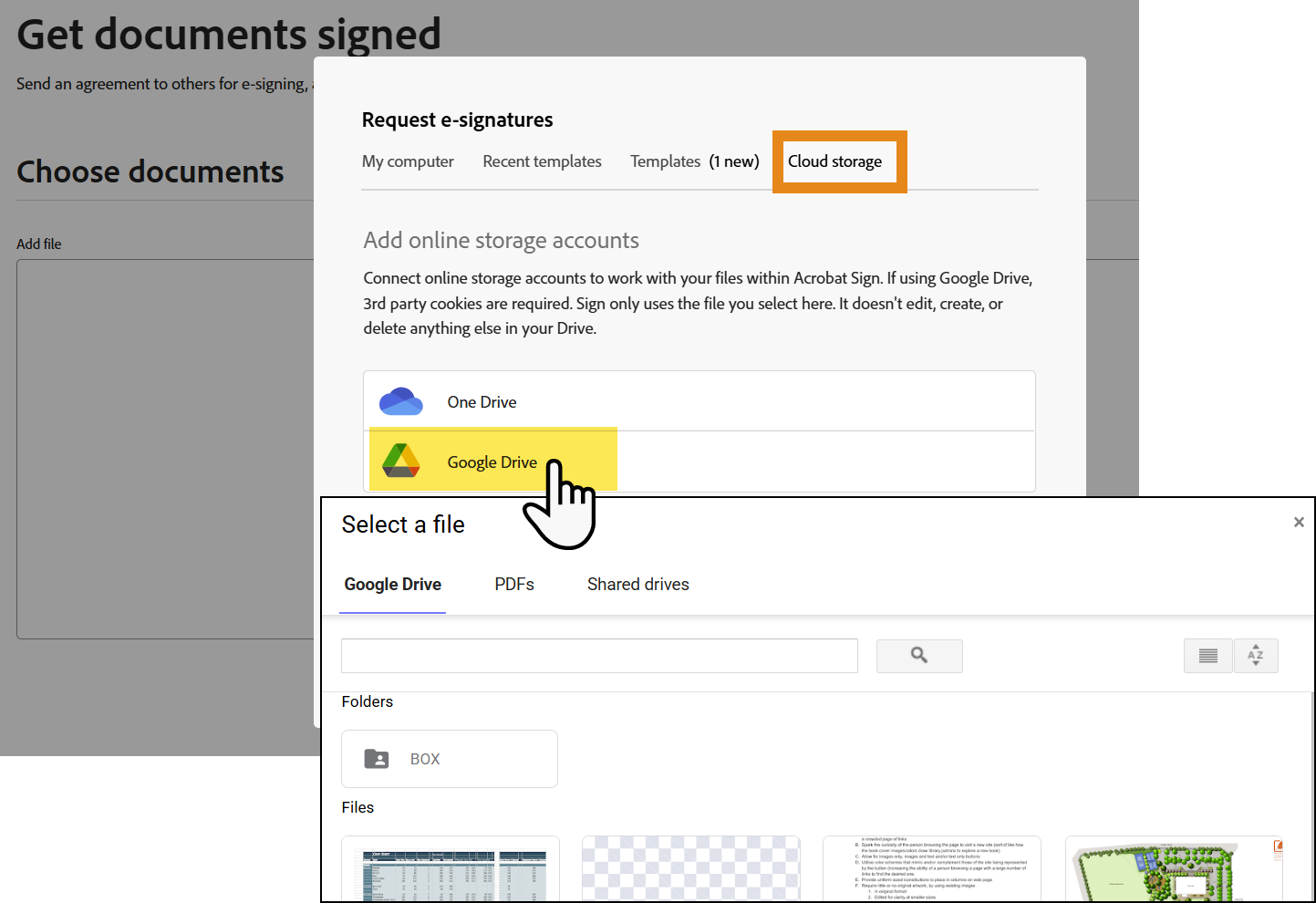
Enable Google Drive file attachments to let senders choose files from Google Drive during agreement creation. Senders authenticate with Google, select a file from the Google file picker, and Acrobat Sign adds the selected file to the agreement.
Configuration
Availability
- Acrobat Sign Solutions: Supported
- Acrobat Sign for Government: Not supported
- Acrobat Standard: Not supported
- Acrobat Pro: Not supported
Configuration scope
Account and group.
- Group-level settings override account-level settings.
Default value
Disabled
In-flight impact
Changing this setting does not affect agreements that are already in progress.
Dependencies
Senders must have access to a Google account and the files they want to attach from Google Drive.
Browsers must allow pop-ups, redirects, and third-party cookies for the Acrobat Sign site so the Google authentication flow can open and complete.
Enable or disable Google Drive file attachments
Go to Account Settings > Send Settings > Attach Documents.
Select or clear Allow senders to attach documents from Google Drive.
Select Save.

Controls
Allow senders to attach documents from Google Drive
When enabled, senders can select Google Drive from the file picker in supported compose workflows.
How the setting works
When enabled, Google Drive becomes available as a file source for new transactions that use supported compose experiences:
- Request signatures
- Create a reusable template
- Send in Bulk
- Custom workflow
After the sender selects Google Drive, Acrobat Sign starts the Google authentication flow. The sender signs in to Google, chooses a file from the Google file picker, and Acrobat Sign retrieves the selected file.
Native Google Docs are exported as PDF before they are added to the agreement. Other supported file types are retrieved from Google Drive and processed by Acrobat Sign as standard uploaded documents.
Best practices
Enable Google Drive file attachments when users manage source documents in Google Drive. Senders can add the current version of a file directly to Acrobat Sign without downloading or manually converting a local copy.
Before enabling the setting broadly, confirm that users’ browsers allow pop-ups, redirects, and third-party cookies for the Acrobat Sign site.
Things to know
- Files added from Google Drive must be 10 MB or smaller per file.
- Pop-ups, redirects, and third-party cookies are required for Google authentication to complete.
- If third-party cookies are blocked, the Google authentication flow may not open or complete.
- If third-party cookies are blocked, the Google authentication flow may not open or complete.
- Senders must authenticate with Google before they can select files from Google Drive.
- Acrobat Sign can access only the files the sender explicitly selects through the Google file picker. It does not receive access to the sender’s full Google Drive.
- Native Google Docs are exported as PDF before they are added to the agreement.
- Google Drive file attachments are available only for Acrobat Sign Solutions in the commercial environment. GovCloud is not included.
