- What's new
-
Get started
- Technical requirements and installation
-
Learn the basics
- Adobe Photoshop on desktop FAQ
- Home screen overview
- Workspace overview
- Access the Discover panel
- Save custom workspaces
- Switch workspaces
- Delete workspaces
- Dock or undock panels
- Boost workflows with the Contextual Task Bar
- Add and remove panels
- Stack floating panels
- Restore workspaces
- Rearrange document windows
- Move panels
- Hide or show all panels
- Expand or collapse panel icons
- Change text size in panels and tooltips
- Use simple math in number fields
- High-density monitor support and per-monitor scaling
- Arrange and group panels
-
Set up toolbars and panels
- Customize toolbar
- Use spring-loaded shortcuts
- Tooltips overview
- Create tool presets
- Use Undo and Redo commands
- History panel settings
- Set History Log preferences
- View history logs
- Use snapshots in the History panel
- Paint with image states from the History panel
- Manage image states
- Restore parts of an image to a previous state
- Settings and preferences
- Generative AI in Photoshop
-
Create, open, and import images
- Import files
-
Create images
- Generate an image with descriptive text prompts
- Edit images with Generative Fill
- Generate sharper variations with Enhance Detail
- Explore beyond the canvas with Generative Expand
- Use reference images for consistent results
- Generate images guided by a reference image
- Edit images with Prompt to edit
- Create a Dynamic layer from a generated edit
- Use Markup for AI image generation
-
Create and manage layers
- Get started with layers
- Transform and manipulate layers
-
Color adjustment and fill layers
- Adjustment and fill layers overview
- Work with adjustment layers
- Use layer masks to target adjustment or fill layers
- Create adjustment layers
- Merging adjustment or fill layers
- Adjustment presets overview
- Create custom presets
- Correct color balance with Color and vibrance
- Create fill layers
- Adjustment layer options
- Change adjustment and fill layer options
- Adjust contrast with Clarity and Dehaze
- Adjust texture with Grain
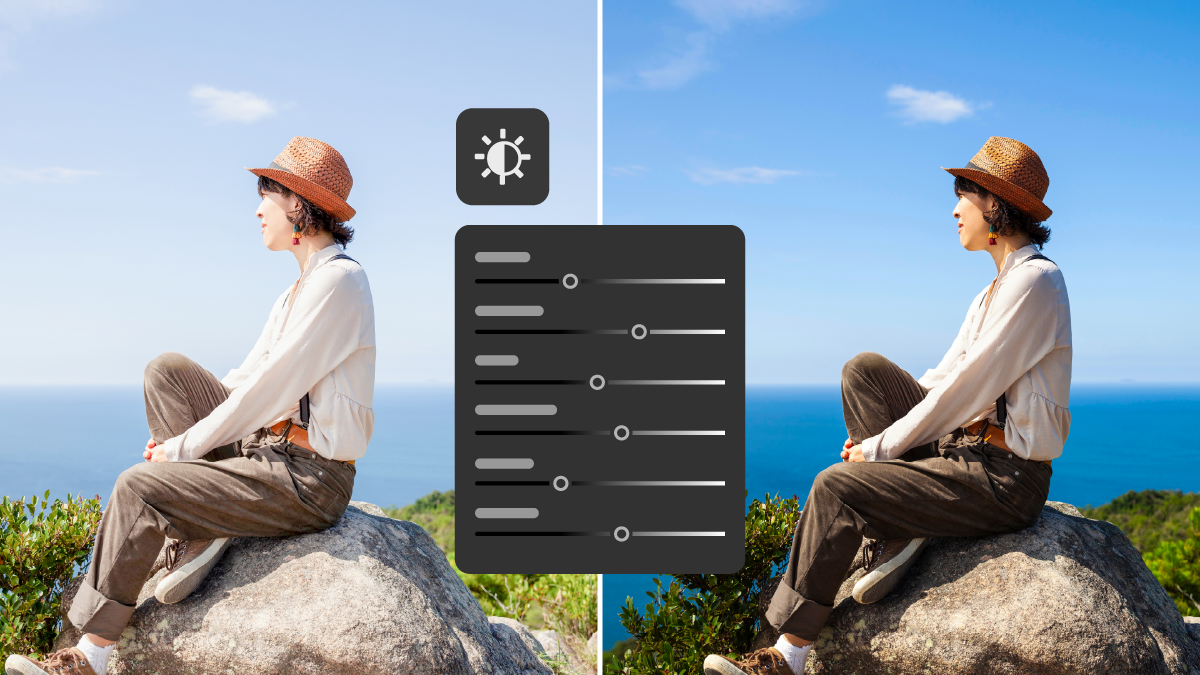
- Adjust image lighting with Light
-
Apply layer effects
- Add layer styles
- Work with preset styles
- Layer style effects and options overview
- Manage preset styles
- Display or hide layer styles
- Copy and paste layer styles
- Import preset style libraries
- Manage contours
- Set a global lighting angle for all layers
- Scale layer effects
- Remove layer effects
- Work with layer styles
- Convert layer styles to image layers
-
Smart objects
- Smart Objects - overview and benefits
- Create embedded Smart Objects
- Create linked Smart Objects
- Update Linked Smart Objects
- View Linked Smart Object properties
- Embed Linked Smart Objects
- Package and locate linked Smart Objects
- Convert embedded Smart Objects to linked
- Filter the Layers panel by Smart Objects
- Duplicate an embedded Smart Object
- Edit the contents of a Smart Object
- Replace the contents of a Smart Object
- Convert Smart Objects to layers
- Rasterize Smart Objects
- Export the contents of an embedded Smart Object
- Reset Smart Object transforms
- Create layer compositions
- Layout and design tools
-
Crop, resize, and transform
-
Resize and adjust resolution
- Printed image resolution
- Set image size and resolution
- Resample option in the Image Size dialog
- Monitor resolution and image display size
- File size
- Printer resolution
- Resolution specs for printing images
- Preserve visual content when scaling images
- Specify content to protect when scaling
- Resize images
- Resampling options in Photoshop
- Change the pixel dimensions of images
- Change print dimensions and resolution
- Manage image file size
- Resizing parameters in Photoshop
- Crop and straighten
- Transform, manipulate, and reshape
-
Resize and adjust resolution
-
Make selections
- Get started with selections
-
Automatic and color-based selections
- Improve Select Subject and Remove Background results
- Make precise selections using Select People
- Remove objects with Delete and Fill Selection
- Improve hair selections with the Refine Hair tool
- Mask all objects in a layer
- Detect subject using Select Subject
- Paint a selection with Quick Selection tool
- Select areas by color with the Magic Wand tool
- Freehand selections
-
Refine and modify selections
- Move a selection or selection border
- Refine your selection and mask
- Hover layer bounds in the Move tool
- Copy and paste selections
- Create multiple copies of a selection within an image
- Paste one selection into or outside another
- Delete or cut selected pixels
- Control the movement of a selection
- Hide or show selection edges
- Inverse selection
- Adjust a selection manually
- Select only an area intersected by other selections
- Refine and soften selection edges
- Select pixels using anti-aliasing
- Define a feathered edge for a selection tool
- Create a selection around a selection border
- Expand or contract a selection
- Clean up stray pixels in a color-based selection
- Fringe pixels around a selection
- Decrease the fringe on a selection
- Remove a matte from a selection
- Use selections for generative editing
- Create masks
-
Repair and retouch
-
Remove objects and fill space
- Remove background in your images
- Replace background with Generate Background
- Retouch tools overview
- Blend objects and people into any background with Harmonize
- Remove objects with Content-Aware Fill
- Adjust Content-Aware Fill settings
- Tools to fine-tune sampling and fill areas
- Apply or cancel Content-Aware fill changes
- View full-resolution preview in the Preview panel
- Remove objects from within the Contextual Task Bar
- Remove tool known issues and workarounds
- Remove tool minimum and recommended hardware requirements
- Remove objects
- Remove wires, people, and general distractions
- Review and refine general distractions
- Heal and clone
- Adjust light and tone
-
Clean and restore images
- Enhance image quality with Generative Upscale
- Define planes to adjust perspective
- Manipulate the planes to adjust perspective
- Edit different perspectives in the same image
- Keyboard shortcuts to adjust perspective
- Get started with Photomerge
- Create panoramic images with Photomerge
- Create 360-degree panoramas
- Remove imperfections with the Spot Healing Brush
- Repair an area with the Patch tool
- Retouch a large area with the Healing Brush tool
- Remove red eye in flash photos
- Define an image as a preset pattern
- Erase parts of an image with the Eraser tool
- Auto Erase with the Pencil tool
- Create smoother brush strokes using stroke smoothing
- Change pixels to transparent with the Background Eraser tool
- Remove similar pixels with the Magic Eraser tool
- Remove reflections
-
Remove objects and fill space
-
Adjust color
- Color profiles
- Choose colors
- Color modes
- Color corrections
- Selective color adjustments
- Color effects and techniques
-
Apply painting techniques
- Fill objects, selections, and layers
- Create and fill with patterns
-
Brushes and presets
- Get started with brush presets
- Display the Brush Settings panel and brush options
- Create a brush tip from an image
- Create a brush and set painting options
- Select a preset brush
- Create a new preset brush
- Create preset brush groups
- Rename preset brushes
- Delete preset brushes
- Import brushes and brush packs
-
Draw shapes and paths
- Create shapes
- Draw lines and curves
-
Text and typography
- Get started with text
- Select and manage fonts
- Type layers and creation
- Text on paths and shapes
- Characters and glyphs
- International text and languages
- Work with Dynamic Text
-
Effects and filters
- Get started with filters
- Smart filters
- Blur and sharpen filters
-
Artistic and stylize filters
- Reshape and distort images with Transform Warp
- Warp a Layer with Cylindrical Transform
- Get precise distortions with Split Warp
- Distort specific image areas with Puppet Warp
- Overview of Liquify filter
- Overview of distortion tools
- Use Liquify to distort an image
- Freeze or thaw areas
- Work with meshes
- Work with backdrops
- Reconstruct distortions
- Replace the sky in images
- Select and manage sky presets
- Enhance images with generative AI filters
- Neural filters
-
Use grids and measurement guides
- Alignment grids and guides
- Measure and scale
-
Add video and animation
-
Create animation frames
- Create frame-based animations
- Add frames to animations
- Select animation frames
- Edit animation frames
- Unify layer properties in animation frames
- Specify a delay time in frame animations
- Manage layer visibility in animation frames
- Create frames using tweening
- Copy frames with layer properties
- Choose a frame disposal method
- Specify looping in frame animations
- Delete animations
- Use keyframes
-
Create animation frames
-
Automate tasks
- Create and record actions
- Process a batch of files
- Automation settings and presets
-
Save and export
- Save files
-
Export files to different formats
- Video and animation export formats
- Enhance animation frames
- Flatten frames into layers
- Export video files or image sequences
- Photoshop file formats overview
- File compression in Photoshop
- Supported file formats in Photoshop
- Image file formats supported in Photoshop
- Export your work using the Quick Export as option
- Fine-tune export settings with Export As
- Export settings and export location preferences
- Export files in different sizes
- Export layers as files
- Export artboards as PDF
- Export artboards as files
- Save and export to cloud
- Metadata, CSS, and content credentials
-
Share and collaborate
- Collaborate and edit
- App integrations
-
Troubleshoot
- Tools and resources
- Performance and stability issues
- File and format issues
- Tool and feature issues
Desktop

Photoshop Help

What’s new in Adobe Photoshop
Learn what's new in the latest release of Adobe Photoshop on desktop.



Popular articles
Try the latest in Photoshop on desktop
Start exploring new features and enhancements.


