Open a photo in Photoshop Elements.
Last updated on
Oct 1, 2025
Adjust facial features
The Adjust Facial Features workflow uses face-aware technology to identify and adjust facial characteristics of people in a photograph. You can take a portrait picture and adjust facial features like the jaw, nose, lips, and eyes by using simple sliders to increase or decrease an effect.
Note
For Adjust Facial Features to work well, ensure that there are one or more faces in the photograph that you are using.
Select Enhance > Adjust Facial Features.
In the Adjust Facial Features dialog, you'll notice that the face of the person is marked with a circular highlighter to indicate that the face-aware feature has found a face in the picture.
Note
More than one face in the picture? If there are more than one faces in the picture, there will be multiple circular highlighters indicating where Photoshop Elements was able to detect faces. Click a ring or a face to adjust the features of that face.

For a selected face, you can adjust the following features using the available sliders:
|
Feature |
Characteristics |
|
Lips |
Smile, Height, Width, Upper lip, Lower lip |
|
Eyes |
Height, Width, Size, Tilt, Distance |
|
Nose |
Height, Width |
|
Face Shape |
Width, Forehead height, Jawbone shape, Chin height |
|
Face Tilt |
Angle, Left-Right, Up-Down |
Note
- Face Tilt is introduced in Photoshop Elements 2021.
- Select the Before/After toggle button to review the changes caused by moving the sliders left or right.

(Optional) To reset edits to a particular characteristic, double-click the slider. Modifications for that characteristic are canceled.
Do one of the following:
- To cancel the set of modifications you have made to facial features, select Reset.
- To apply the modifications made to the facial features, select OK.
Precisely remove red eye
Red eye is a common issue that occurs when your photo subject's retina is illuminated by your camera's flash. You’ll see it more often when taking pictures in a darkened room because the subject’s iris is wide open. To avoid red eye, use the camera’s red-eye reduction feature, if available.
Note
To automatically fix red eye when you import photos into the Elements Organizer, select Automatically Fix Red Eyes in the Get Photos dialog box. You can also remove red eye from selected photos in the Photo Browser.

To manually fix red eye, select the Eye tool  in Quick or Advanced mode.
In the Tool Options bar, set the Pupil Radius and Darken Amount.
In the image, do one of the following:
- Select a red area of an eye.
- Draw a selection over the eye area.
When you release the mouse button, the red is removed from the eyes.
Note
You can also automatically fix red-eye by selecting Auto Correct in the Eye tool options bar.
Remove the Pet Eye effect
The Eye tool enables you to remove the reddish glow in the eyes, due to reflection of light (resulting from low ambient light or the use of a flash). For animals, the eyes glow white, green, red, or yellow, and the often-used red-eye removal tools may not fix the effect correctly.

To fix the Pet Eye effect:
In the Quick or Advanced mode, select the Eye Tool.
In the Tool Options bar, select the Pet Eye check box.

Do one of the following:
- Draw a rectangle around the eye region.
- Select on the eye in the picture.
Note
When you select the Pet Eye check box, the Auto Correct button is disabled.
Open closed eyes
Enhanced in Photoshop Elements 2019
The Open Closed Eyes feature lets you open closed eyes in your photos. You can open a person's eyes using the eyes from another photo from your computer or the Elements Organizer catalog.
Open a photo in Photoshop Elements.
Do one of the following in the Quick or Expert mode:
- Select the Eye tool and then click the Open Closed Eyes button in the Tool Options bar.
- Select Enhance > Open Closed Eyes.
In the Open Closed Eyes dialog, you can see that the face of the person is marked with a circular highlighter to indicate that the face is detected in the picture.
(Optional) You are shown a few samples in the Try Sample Eyes list. You can choose a face that closely matches the main photo. Photoshop Elements uses the selected face to replace the closed eyes in the main photo.
Do one of the following:
- Select Computer to select a source photo from your computer.
- Select Organizer to select a source photo from the Elements Organizer.
- Select Photo Bin to select a source photo from the currently opened files.
Note
You can select multiple source photos if you want. Photoshop Elements uses faces from these source photos to replace the closed eyes in the main photo. You can experiment with different eye replacements to find the best results.
Select a face in the main photo whose eyes need to be opened, and then click on any of the faces from the source photos. Try different faces to find the best results.
Note
In case the source photo has a different skin tone, Photoshop Elements matches the skin tone around the eyes with the main photo.
(Optional) Select Before/After to compare the results with the original photo.
(Optional) Select Reset if you don't like the results. You can use a different source photo to try and get better results.
Select OK.
Save the photo with the changes.
Move and reposition objects
The Content-Aware Move tool allows you to select an object in your photograph and move the selection to a different location, or extend it.

Select the Content-Aware Move tool  .
.
Choose a mode to specify whether you want to move an object or create a copy of the object.
Move
Enables you to move objects to a different location in the image.
Extend
Enables you to replicate the object multiple times.
Choose the type of selection you want to make:
New
Drag your mouse around the object you want to move, or extend to create a new selection.
Add
Any selection you make adds to the previous selection.
Subtract
When you make a new selection over an existing selection, the overlapping portion is removed from the resulting selection.
Intersect
When you make a new selection over an existing selection, only the common area overlapping the new and old selection continues to be selected.
Drag the mouse pointer (  ) over the image, select the object you want to move or extend.

When you have made a selection, move the object to a new location. To do this, select and drag the object to a new location.
The area where the selection is moved from is automatically filled, based on the image content surrounding the area.
Transform your selection at the new location. Select one of the following options:
- Rotate Enables you to rotate your selection to a different angle in the image.
- Scale Enables you to adjust the size of your selection.
- Skew Enables you to change the perspective of your selection in the image.
If the automatically-filled area does not appear correct, select Sample All Layers checkbox and adjust the Healing slider.
Remove spots and unwanted objects
Introducing the new AI-powered Remove Tool in Photoshop Elements 2025 and above.
Photoshop Elements has several tools for removing minor flaws, such as spots or unwanted objects, from your images.
- Remove Tool
- Spot Healing Brush Tool
- Healing Brush Tool

Introducing the new AI-powered Remove Tool in Photoshop Elements 2025 and above. This tool uses artificial intelligence (AI) technology to streamline the removal of unwanted objects from your photos. You can select the object you wish to remove with a brush stroke. The surrounding background will be intelligently filled and seamlessly blended, preserving your image's overall quality, depth, and detail, even with complex backgrounds.
The tool is available in the Quick and Advanced views under Tools. Select the Toolbar in the application's left panel to use this tool. You'll find this tool as the third last icon in the Quick view and under the Enhance tools category as the second option in the Advanced view.
Select the Remove tool from the Toolbox.
Choose a brush size. A brush that is slightly larger
than the area you want to fix works best so that you can cover the
entire area with one click.

Choose the Add and Subtract options in the Tool Options.

Note
Click Sample All Layers to apply your change to all layers of the image.
Select the area you want to fix in the image, or select and drag over a larger area.

Enhancements made in Photoshop Elements 2026
Following enhancements has been made in Remove Tool in Photoshop Elements 2026:
- Customizable overlay colors to support users with color vision deficiency.
- Option to automatically detect people in the background for easy removal.
To change the overlay color:
Introduced in Photoshop Elements 2026.
Click the Gear icon to open the color and opacity settings.

Choose a suitable overlay color from the Color dropdown.

Use the Opacity slider to adjust opacity of the overlay.
Introduced in Photoshop Elements 2026.
Say goodbye to photobombers and background strangers. Remove tool now has an option to automatically detect unwanted people from your photos for removal while preserving the main subject.
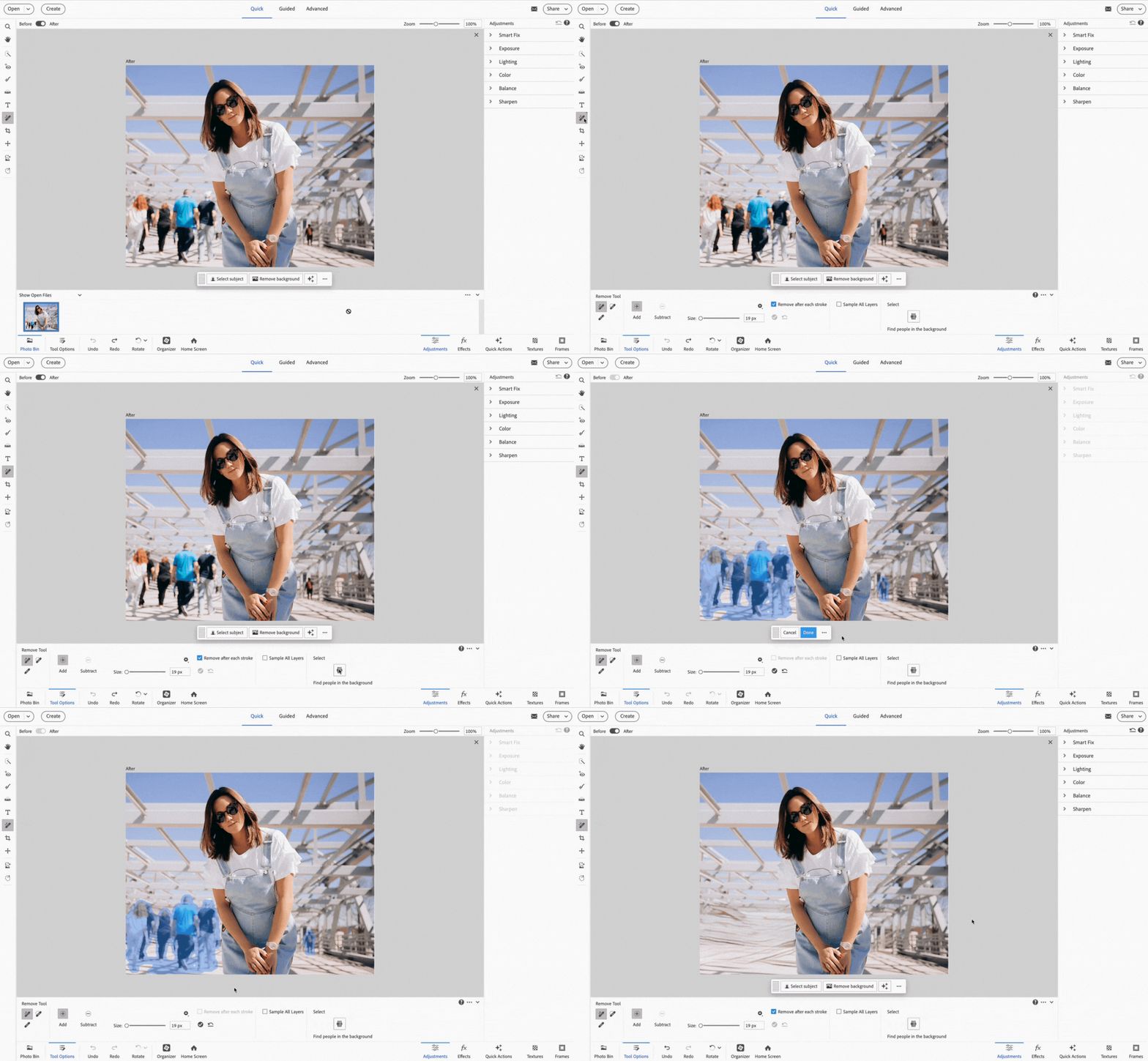
Open photo and select Remove Tool.
In the tool options panel, click Find people in the background.

AI detects and highlights background figures.
Use Add/Subtract for refinement.
Click Done on the contextual tool bar to apply.
Remove spots and small imperfections
The Spot Healing Brush quickly removes blemishes and other imperfections from your photos. You can either click once on a blemish, or drag to smooth away imperfections in an area.

Select the Spot Healing Brush tool  .
.
Choose a brush size. A brush that is slightly larger
than the area you want to fix works best so that you can cover the
entire area with one click.
Choose one of the following Type options in the Tool Options bar.
Proximity Match
Uses the pixels around the edge of the selection to find an image area to use as a patch for the selected area. If this option doesn’t provide a satisfactory fix, choose Edit > Undo, and try the Create Texture option.
Create Texture
Uses all the pixels in a selection to create a texture for fixing the area. If the texture doesn’t work, try dragging through the area a second time.
Note
Click Sample All Layers to apply your change to all layers of the image.
Select the area you want to fix in the image, or select and drag over a larger area.
Remove unwanted objects with content-aware healing
You can remove unwanted objects or figures from your photos without destroying the photos. Using the Content-Aware option with the Spot Healing Brush tool, you can remove selected objects from a photo. Photoshop Elements compares nearby image content to seamlessly fill the selection, realistically maintaining key details such as shadows and object edges.

To remove an unwanted object:
Select the Spot Healing Brush tool .
Select Content-Aware in the Tool Options bar.
Paint over the object that you want to remove from the image.
Spot healing works best on small objects. If the image you're working on is large and has a large unwanted object, make sure that you work with high-end computer configuration. You can see the Photoshop Elements system requirements for the recommended computer configuration.
If you experience problems with large images, try the following approaches:
- Draw smaller brush strokes at a time.
- Downsample the image.
- Increase the RAM allocated and relaunch the application.

Try it in the app
Quickly erase unwanted objects from your photos in Photoshop Elements
Fix large imperfections
The Healing Brush fixes large areas of imperfection when you drag over them. You can remove objects from a uniform background, such as an object in a field of grass.

Select the Healing Brush tool  .
.
Choose a brush size from the Tool Options bar and set healing brush options:
Mode
Determines how the source or pattern blends with existing pixels. Normal mode lays new pixels over the original pixels. Replace mode preserves film grain and texture at the edges of the brush stroke.
Source
Sets the source to use for repairing pixels. Sampled uses pixels from the current image. Pattern uses pixels from the pattern you specify in the Pattern panel.
Aligned
Samples pixels continuously without losing the current sampling point, even if you release the mouse button. Deselect Aligned to continue using the sampled pixels from the initial sampling point each time you stop and resume painting.
Sample All Layers
Choose Sample All Layers to sample data from the current layer, the current layer and below, or all visible layers.
Position the pointer in any open image and press Alt
(Option in Mac OS) click to sample data.
Note
If you are sampling from one image and applying to another, both images must be in the same color mode unless one of the images is in Grayscale mode.
Drag the image over the flaw to meld existing data with
sampled data. The sampled pixels meld with the existing pixels each
time you release the mouse button.
Note
If there is a strong contrast at the edges of the area you want to heal, make a selection before you use the Healing Brush tool. Make the selection bigger than the area you want to heal but precisely follow the boundary of contrasting pixels. When you paint with the Healing Brush tool, the selection prevents colors from bleeding from the outside.
Correct camera distortion
The Correct Camera Distortion dialog box enables you to fix common lens distortion problems, like darkened edges due to lens faults or improper lens shading. For example, in a picture of the sky taken in low light, the corners of the image are darker than the center. Changing the vignette amount and midtone settings fixes the distortion.
Adjust distortions due to vertical or horizontal camera tilt by using the perspective controls. Rotate an image or fix image perspective to adjust distortions. The filter image grid for Correct Camera Distortion helps you make easy and accurate adjustments.

Select Filter > Correct Camera Distortion.
Select Preview check box.
Set any of the following options to correct your image, and then select OK.
Remove Distortion
Corrects lens barrel or pincushion distortion. Type a number in the box, or move the slider to straighten horizontal and vertical lines that bend either away from or toward the center of the image.
Vignette Amount
Sets the amount of lightening or darkening along the edges of an image. Type a number in the box, or move the slider to gradually shade the image.
Vignette Midpoint
Specifies the width of area affected by the Amount slider. Move the slider, or type a lower number to affect more of the image. Type a higher number to restrict the effect to the edges of the image.
Vertical Perspective
Corrects image perspective caused by tilting the camera up or down. Type a number in the box or use the slider to make vertical lines in an image parallel.
Horizontal Perspective
Type a number in the box or use the slider to correct perspective by making horizontal lines in an image parallel.
Angle
Rotates the image to correct for camera tilt or to make adjustments after correcting perspective. Type a number in the box or drag the angle dial to rotate the image to the left (counterclockwise) or right (clockwise).
Scale
Adjusts the image scale up or down. The image pixel dimensions aren’t changed. Type a number in the box or use the slider to remove blank areas of the image caused by pincushion, rotation, or perspective corrections. Scaling up effectively results in cropping the image and interpolating up to the original pixel dimensions.
Show Grid
Shows the grid when selected. Hides the grid when deselected.
Zoom
Shows a closer view when you zoom in, and shows a more distant view when you zoom out.
Color
Specifies the grid color.
Automatically remove haze
Remove haze, fog, or smog from a photo
You can now remove the dampening effect that environmental or atmospheric conditions have on your pictures, particularly photos of landscapes. Using the Auto Haze Removal feature, you can reduce the masking effect that haze, fog, or smog creates.
To use the Auto Haze Removal feature:
- Open an picture in Photoshop Elements, in the Quick or Expert modes.
- With the image open, choose Enhance > Auto Haze Removal.
The image is processed and the effects of haze or fog are reduced. Repeat Step 2, to further process the photograph.
Note
Auto Haze Removal works better on uncompressed/raw images.
Manually remove haze
An alternative to automatic haze removal


Open an image in Photoshop Elements in the Quick or Advanced mode.
Select Enhance > Haze Removal.
Use the Haze Reduction and Sensitivity sliders to achieve the desired level of haze reduction.


Note
Remember that using too much of either of the sliders may result in an image with high levels of contrast or minor imperfections in the photograph getting magnified. Play with both sliders till you get the right result.
Use the Before/After toggle button to view the effectiveness of the Haze Reduction feature on the photo.
When done, select OK. To cancel Haze Removal edits to the image, select Cancel.
Easily edit and share images with Photoshop Elements
Combine photos, swap out colors, and erase anything with AI-powered tools.
