
Open the PDF in Acrobat on Android and select Edit PDF from the bottom menu.
Select Add text and tap on the document where you want to add text.
In the text box that appears, enter your text and use resizers to resize the text box.
To change the text color, select Color picker and pick a color from the palette.
Select Text size and drag the slider to adjust it.
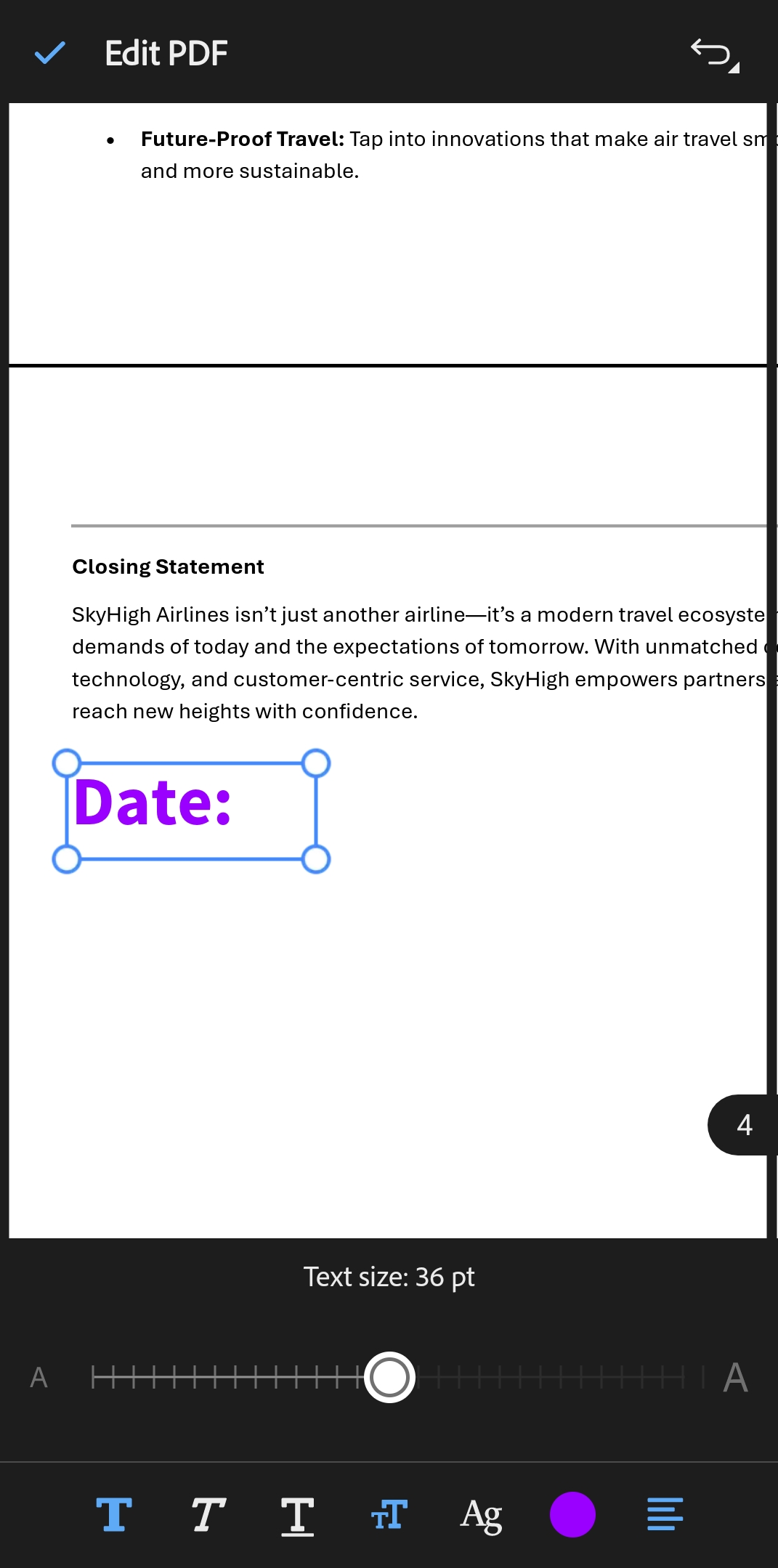
To move the text box, long press it and drag it to the new location.
Tip
Use the Undo or Redo options from the top menu to revert or restore the changes.
Tap anywhere on the document to finish adding the text.
Select the checkmark in the top-left corner.

