
Error
Last updated on
Aug 6, 2026
Learn how to edit, pause and remove the automatically provision products.
System Administrators can edit an existing assignment rule to generate a new product access URL or modify the following:
- Teams product: associated product and user access option
- Enterprise product: associated product, product profile, set of eligible users, and user access options
Sign in to the Adobe Admin Console and navigate to Products > Automatic assignment rules. |
Select Edit for the relevant assignment rule. |
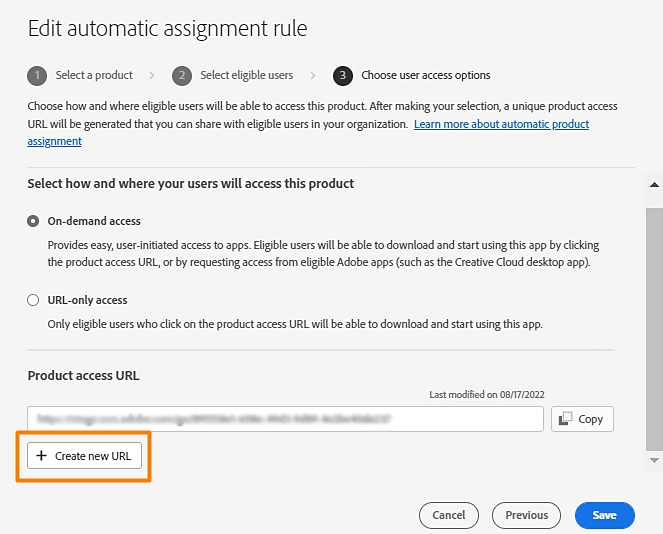
Go to the Choose user access options screen and select Create new URL to generate a new product access URL.
|
Make the necessary changes and Save the rule. An administrator can choose to generate a new product access URL for an existing rule to prevent previous recipients of the URL from requesting access to a product license. Generating a new product access URL for an existing rule will make the previously generated URL invalid. |
To Pause or Remove a rule, in the Automatic assignment rules screen:
|
Common errors
|
|
Description |
Impact |
Mitigation |
|
Product Profile Has Been Removed |
The product profile associated with a rule is deleted. Rule status changes to Pending. |
Users requesting access will not receive a license until a profile is reassigned. |
Assign another product profile to the rule. |
|
Product Has Been Removed |
A product is removed from the Admin Console, or its contract expires. Rule status changes to Pending. |
The product is not available for automatic assignment. |
Assign another Product to the rule. |
|
One or More Domains Are Not Active |
The inactive domains are removed from the rule. The rule still applies to the other selected active domains. If none of the chosen domains for the rule are active, the status of the rule changes to Pending. |
Users previously eligible based on email domain are no longer eligible. |
Update the affected domains or remove them from the list of eligible domains for the rule. |
|
Select At Least One Domain If Choosing A Directory For Eligibility |
No domain selected when choosing a specific directory for user eligibility. |
The rule cannot be created or updated without a domain if you've selected Users in selected directories or domains as eligible users. |
Select a domain to proceed. |
|
One or More Directories are Not Active |
Directories associated with a rule are no longer active; they are removed from the rule. The rule still applies to the other active directories previously added. If the chosen directory for the rule is not active, the status of the rule changes Pending. |
Users previously eligible based on the directory are no longer eligible. |
Update or remove affected directories from the rule. |
|
No Licenses Available |
All available licenses are in use. Only applies to Teams products within Teams or VIP contracts, or Enterprise products not eligible for overprovisioning. |
Users cannot gain access until more licenses are added. |
For enterprise products, purchase more licenses for the product, which will automatically provision a license to users who were previously approved for access and awaiting license availability. To view a list of pending users awaiting access, navigate to Admin Console > Products, choose a product, and select NO ACCESS. For teams products, purchase more licenses for the product, then users can re-request access to the product and are automatically granted access if more licenses have been added. |
Frequently asked questions
|
Why use automatic assignment rules over product requests? |
Automatic assignment rules are recommended when your organization is willing to auto-approve and provision a product to a defined set of users. Product requests allow System Administrators to review each request before approving or denying based on the user's needs. |
|
Where can users request product access? |
Users can request access using the Creative Cloud desktop app or Creative Cloud on the web. The option appears based on configurations established by their organization's administrators. Adobe continues to add more applications from which users can request access. |
|
Can automatic assignment rules and product requests run simultaneously? |
Yes. Automatic assignment rules for specific products can be set while product requests are also enabled for your organization. The auto-assignment rule takes precedence if a user qualifies for a rule. |
|
Why can't I choose directories or domains for eligibility? |
The option to choose specific directories or domains for rule eligibility is only available when an enterprise product is chosen for the rule. The option defaults to All Users in This Organization if the product selected is a Teams product. |
|
Why can I choose product profiles for some products only? |
Only enterprise products require selecting a product profile to create a rule. Teams products do not use product profiles for license assignment. |
|
What notifications do users receive when approved? |
Users receive an email notification confirming that their request is approved and another email when the license is available for use with their Adobe account. |
|
What do I do after receiving a license alert? |
If you receive an email alerting you to purchase more licenses, it means an active rule has no more licenses available to automatically provision to requesting users. Once more licenses are made available, users are granted access to a license either automatically or by re-requesting, based on the contract type the product is part of. |
|
Will users receive access without available licenses? |
No. Users will not receive automated access to a requested product until an administrator makes more licenses available to fulfill outstanding requests for an automatic assignment rule. |
