
Go to Settings > Asset Management.
Last updated on
Oct 12, 2026
Grant or revoke user access to shared collections from Asset Management.
Administrators can manage who can view shared collections across the organization. Asset Management changes access to collections; it does not transfer ownership or let administrators directly delete another user's files or collections.
Understand admin permissions
Administrators can manage user access to collections in the organization.
They cannot directly delete collections or files owned by another user. Users manage and delete their own assets, including files, collections, attributes, and extracted values.
If another user's collections or files must be permanently removed, use the supported data-deletion process for that user.
Grant access to a collection
Grant view access when another user needs to analyze documents in an existing shared collection.
View access lets the user work with the shared documents but does not let them alter or delete the source files.
Move the pointer over the collection and select the Edit button.
In Share collection for viewing, enter one or more email addresses.
Select the users you want to add from the matching results.
Select Send.

Analyzer confirms that access has been granted.
Revoke access to a collection
Remove access when a user should no longer be able to view a shared collection.
Go to Settings > Asset Management.
Locate the collection and select Edit.
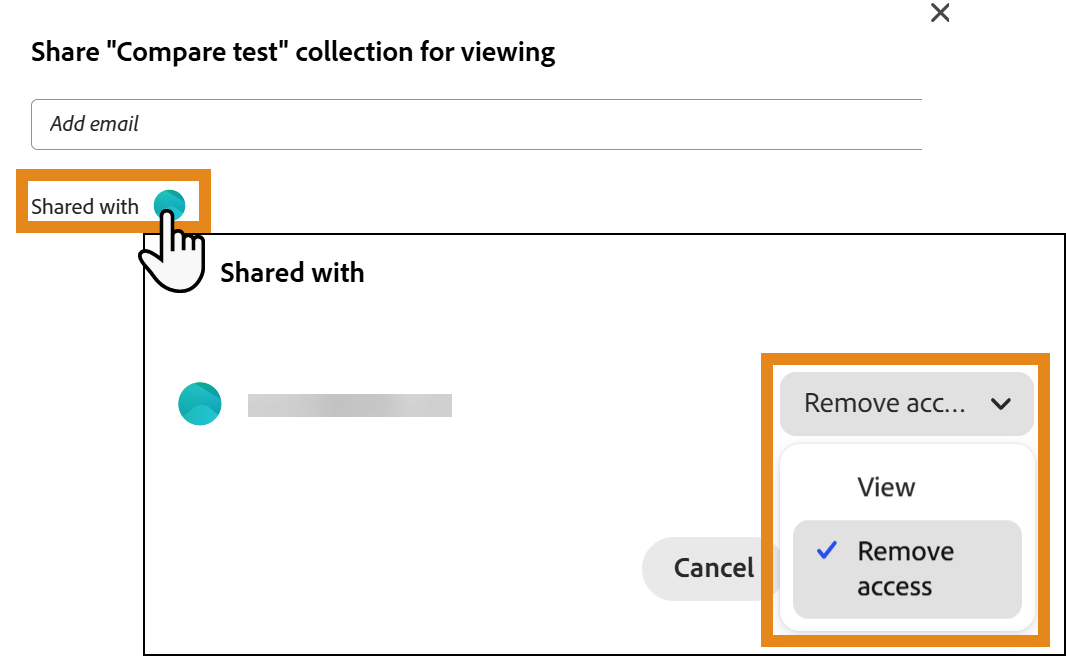
Select the Shared with icon.
Locate the user whose access you want to remove.
Using the drop-down list to the right of the user's email, select Remove Access.
Select Save Changes.
Analyzer updates the collection and removes the user's access.
