Documentation for Substance 3D Integrations is now available on Experience League. After March 14th, HelpX pages will automatically redirect to the equivalent Experience League page.
Refer to the FAQ for more information about which documentation is affected.
Last updated on
May 17, 2023

- Substance 3D home
- Ecosystems and Plugins
- Home
- Game Engines
- Game Engines overview
- Unreal Engine
- Unreal Engine 5
- Unreal Engine 5 overview
- Unreal Engine 5 Release Notes
- Plugin Overview - UE5
- Plugin Settings - UE5
- Substance Input Image - UE5
- Material Instance Definition - UE5
- Material Template Usage - UE5
- Out-of-the-Box Material Templates
- Physical size - UE5
- Tiling Substance - UE5
- Substance 3D Plugin Default Templates
- Substance 3D Assets Library Usage - UE5
- Blueprints - UE5
- Unreal Engine 5 Scripting
- Installing to Source Builds
- Unreal Engine 5 overview
- Unreal Engine 4
- Unreal Engine 4 overview
- Unreal Engine 4 plugin release notes
- Unreal plugin 4.27.0.1
- Unreal plugin 4.26.0.21
- Unreal plugin 4.26.0.2
- Unreal plugin 4.26.0.1
- Unreal plugin 4.25.0.5
- Unreal plugin 4.25.0.4
- Unreal plugin 4.25.0.3
- Unreal plugin 4.24.0.3
- Unreal plugin 4.23.0.2
- Unreal plugin 4.23.0.1
- Unreal plugin 4.22.0.33
- Unreal plugin 4.22.0.32
- Unreal plugin 4.21.0.31
- Plugin Overview - UE4
- Plugin Settings - UE4
- Substance Input Image - UE4
- Material Instance Definition - UE4
- Tiling Substance - UE4
- Working with Bump Offset (Parallax) - UE4
- Working with Displacement - UE4
- Source in UE4
- Live Link in UE4
- Blueprints - UE4
- Unreal Engine 4 Scripting
- Unreal Engine 4 overview
- Unreal Engine 5
- Unity
- Unity overview
- Unity Release Notes
- Downloading Substance 3D Plugin in Unity
- Unity Plugin Overview
- Unity Preferences
- Optimization Guidelines
- Upgrading Projects/Known Issues
- Managing Substance Graphs
- Changing parameters
- Generated Textures (Packing)
- Rendering Color Space
- Using Image Inputs
- Publishing for Mobile
- Substance 3D for Unity Scripting
- API Overview
- Scripting API
- C# Example Script
- Substance 3D Assets Library Usage
- Removing Substance Plugin
- Substance 3D in Unity Tutorials
- Physical Size in Unity
- Sharing sbsar Files Between Projects
- Unity overview
- Lumberyard
- Roblox
- 3D Applications
- 3D Applications overview
- Maya
- 3ds Max
- MODO
- MODO overview
- Modo Plugin Release Notes
- Substance in MODO Overview
- Modo Installation
- Parameters
- Custom Materials
- Working with Normals
- Working with Emissive
- Bump and Displacement
- Working with References
- Animating Substances
- Copy/Duplicate Substance
- Environment and Rendering Setup
- Modo Switch Engine
- Tiling Modo textures
- MODO overview
- Cinema 4D
- Houdini
- Blender
- Blender overview
- Release Notes
- Substance in Blender Overview
- Downloading and Installing the Plugin
- Preferences
- The Substance 3D Panel
- Shortcuts and Navigation
- Workflows
- Physical size in Blender
- Substance 3D Assets Library
- Troubleshooting
- Uninstalling the Add-on
- Substance 3D Add-on for Blender Tutorials
- Blender overview
- Creative Cloud Applications
- Renderers
- Partnerships
Physical Size - UE5
Physical Size in Substance materials allows materials to be scaled based on their size in the world. This value is set in Substance Designer and read into Unreal through the material template system.
The Substance_Triplanar_Template material in the parent contains an example of how physical size can be used to scale Unreal materials.
Regardless of the upscaling values on the mesh, the materials will tile based on the size they take up in the world in centimeters. In the case of the rock material (picture 1), this is 1.8m (180cm) for each measurement.
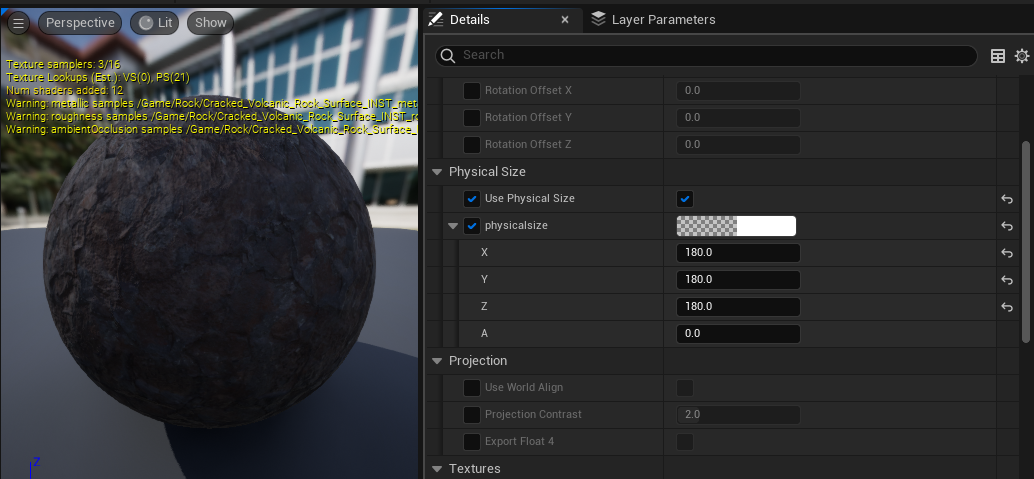
Substance materials containing physical size data will have their values copied into any existing material vector parameter node named physicalsize.
As there is no displacement value in materials in UE5, the physical size template copies the value as X, Y, X for the triplanar map.
