
Flatten textures directly in the layer stack
Any group can be flattened by pressing Ctrl/Cmd + M or by selecting the Flatten group entry in the right-click contextual menu. This generates a merged copy of the selected content while automatically disabling the source group, keeping the original layers intact until a decision is made to remove or restore them.
Last updated on
Mar 9, 2026
- Substance 3D home
- Home
- Getting Started
- Getting Started overview
- Activation and licenses
- System requirements
- Project creation
- Export
- Export overview
- Export window
- Output templates
- Export overview
- Glossary
- Getting Started overview
- Interface
- Interface overview
- Assets
- Substance 3D Assets
- Color picker
- Display settings
- History
- Layer stack
- Main menu
- Project configuration
- Properties
- Settings
- Shader settings
- Texture Set
- Toolbars
- Viewport
- Miscellaneous
- Painting
- Painting overview
- Paint tools
- Path tools
- Path tool overview
- Paint along path
- Ribbon path
- Filled path
- Erase along path
- Smudge along path
- Straight line
- Lazy mouse
- Symmetry
- Fill projections
- Presets
- Presets overview
- Creating and saving presets
- Creating particles presets
- Photoshop brush presets
- Dynamic strokes
- Advanced channel painting
- Vector graphic (.svg & .ai)
- Text resource
- Effects
- Baking
- Content
- Creating custom effects
- Importing assets
- Creating custom effects
- Features
- Automatic resource update
- Automatic UV Unwrapping
- Physical size
- Smart Materials and Masks
- Subsurface Scattering
- Dynamic Material Layering
- UV Reprojection
- UV Tiles
- Color Management
- Post Processing
- Iray Renderer
- Plugins
- Sparse Virtual Textures
- Custom Shaders
- SpaceMouse® by 3Dconnexion
- Universal Scene Description (USD)
- Send to
- Technical Support
- Performance Guidelines
- Configuring Pens and Tablets
- Exporting the log file
- Exporting a DXDiag
- Technical issues
- GPU Issues
- Crash when working with overclocked GPU
- Forcing the external GPU on Mac OS
- GPU drivers compatibility
- GPU drivers crash with long computations (TDR crash)
- GPU has outdated drivers
- GPU is not recognized
- GPU is not recognized and is mentionned as GDI Generic
- Issues with Nvidia GPUs on recent Mac OS versions
- Multi/Bi-GPU
- Running on integrated GPU
- Painter doesn't start on the right GPU
- Startup Issues
- Rendering Issues
- Stability Issues
- Miscellaneous Issues
- GPU Issues
- Workflow Issues
- Export Issues
- Tools Issues
- Project Issues
- Library Issues
- Viewport Issues
- Plugins Issues
- License Issues
- Pipeline and integration
- Installation and preferences
- Configuration
- Resource management
- Scripting and development
- Scripts and plugins
- Shader API Reference
- Shader API overview
- Changelog - Shader API
- Libraries - Shader API
- Lib Alpha - Shader API
- Lib Bayer - Shader API
- Lib Defines - Shader API
- Lib Emissive - Shader API
- Lib Env - Shader API
- Lib Normal - Shader API
- Lib PBR - Shader API
- Lib PBR Aniso - Shader API
- Lib Pom - Shader API
- Lib Random - Shader API
- Lib Sampler - Shader API
- Lib Sparse - Shader API
- Lib SSS - Shader API
- Lib Utils - Shader API
- Lib Vectors - Shader API
- Parameters - Shader API
- Shaders - Shader API
- Release notes
- Release notes overview
- All Changes
- Version 12.0
- Version 11.1
- Version 11.0
- Known issues
- Old versions
- Version 10.1
- Version 10.0
- Version 9.1
- Version 9.0
- Version 8.3
- Version 8.2
- Version 8.1
- Version 7.4
- Version 7.3
- Version 7.2
- Version 2021.1 (7.1.0)
- Version 2020.2 (6.2.0)
- Version 2020.1 (6.1.0)
- Version 2019.3
- Version 2019.2
- Version 2019.1
- Version 2018.3
- Version 2018.2
- Version 2018.1
- Version 2017.4
- Version 2017.3
- Version 2017.2
- Version 2017.1
- Version 2.6
- Version 2.5
- Version 2.4
- Version 2.3
- Version 2.2
Version 12.0
Substance 3D Painter 12.0 offers texture flattening directly in the layer stack, a new automatic mode for warp projection, a revamped set of post-processing effects, and an improved project creation and settings workflow.
Release date: 9 March 2026
Note
In this version the support of integrated GPUs with unified/shared memory has been improved. Better detection of video memory can be expected which should lead to better performance and fewer graphical issues.
Major features
New flattening of LAYERS

A new Flatten action is now available in the right-click context menu of the layer stack. Several layers can be quickly merged by grouping them (Ctrl/Cmd + G) and creating a flattened copy (Ctrl/Cmd + M). The source group is automatically disabled, leaving the choice to either delete it or alternatively save it as a Smart Material for later editing.
Flattened elements of the layer stack can also be exported directly to disk for quick iterations in other applications. Groups, layers, or masks can be exported individually or in batch via the right-click menu of the layer stack.
-
-
Flatten and export textures to the disk
A dedicated export action in the right-click menu bakes the flattened result of a layer, mask, or group and saves it directly to disk. This is useful for transferring baked content to other applications without going through the full texture export pipeline. -
Batch operations
Multiple layers, groups, or masks can be selected at once and flattened or exported individually in a single operation, making it efficient to process large portions of a layer stack in one step.


Note
More information about the flattening of layers is available in the dedicated documentation page.
New warp to geometry mode for projections

Decals can now automatically adapt to complex surfaces, reducing the need for manual adjustments. The Warp to geometry toggle is available in the contextual toolbar while the Warp projection is active.
-
New parameter in contextual toolbar
A new Warp to geometry toggle is available in the contextual toolbar whenever the Warp projection mode is active. It can be turned off at any time without resetting the current projection setup. -
Automatic wrapping to mesh surface
When enabled, the warp projection automatically follows the curvature and topology of the underlying mesh. Dragging the projection across the surface will make it smoothly conform to the geometry, significantly reducing the amount of manual fine-tuning needed when placing decals on complex or curved shapes.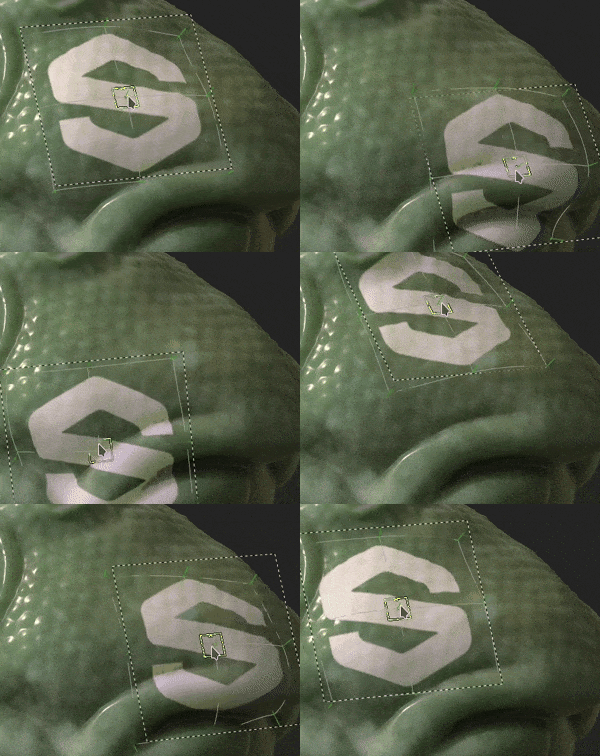
-
Preservation of local deformations
When editing the warp projection grid vertices, the warp to geometry mode will try to retain the pre-defined deformation to ensure the same shape is always projected.

Note
For more information about the warp projection, check out the dedicated documentation page.
New Post effects

Renders inside Painter can now be enhanced with a brand new set of post-processing effects available in the Display Settings window. New additions such as Lens flare and Film grain are now available, alongside improved Depth of field and Glare effects among many others.
Here is an example of what you can achieve with the new effects:

-
New post-processing effects
All post-processing effects can be enabled and configured individually from the Display Settings window. Effects are applied in stack order and each one can be toggled on or off independently, making it easy to combine and experiment with different results. -
New list of effects:
- Depth of field: Blurs objects outside the focal range to simulate camera lens focus.
- Bloom: Adds a soft glow emanating from bright areas of the image.
- Glare: Creates light streaks around sources of light.
- Lens flare: Simulates optical reflections of the lens when a bright light shines in the camera.
- Lateral aberration: Simulates chromatic fringing at the image edges caused by lens imperfections.
- Vignette: Darkens the corners and edges of the frame to draw focus toward the center.
- Sharpen: Increases edge contrast to make the rendered image appear crisper.
- Film grain: Overlays subtle noise to replicate the texture of analog film.
- Tone mapping: Remaps HDR luminance values into a displayable range for a more cinematic look.
- Color correction: Adjusts contrast, saturation, brightness, and temperature to fine-tune the overall color balance.

Note
For more information about the new effects, take a look at the dedicated documentation.
Improved new project and settings window

The new project window and the project settings dialog have been redesigned to be easier to navigate. Parameters have been re-ordered and grouped for better readability, and the mesh re-importing workflow has been improved to reduce repetitive steps when iterating on a project.
-
Improved new project window
Parameters in the new project window have been reorganized and re-ordered so that the most commonly used settings are more prominently placed. The overall layout is now easier to scan, reducing the time needed to configure a new project. -
New workflow for re-importing meshes in project settings
A new checkbox Reimport mesh in the project settings allows re-importing the project mesh more easily thanks to the file path of the previously loaded file now being saved and pre-filled automatically.

Release Notes
Version 12
12.0.0
Release date: 2026/03/09
Summary: This is a major release. This release contains the features flatten layers, warp on geometry, new post effects, improvement to the new project window and other improvements.
Added:
- [Flatten Layers] Flatten layers inside the layer stack
- [Flatten Layers] Export flattened layers to disk
- [Warp to geometry] Add new auto-warping functionality to Warp projections
- [Post-effects] Replace post effects with addition of new ones
- [Post-effects] Update tone mapper
- [Post-effects] Add new usage for Post-effects assets
- [Content][Post-effects] Integrate default post-effects assets in library
- [New Project] Improve UI for Project Creation
- [New project] Changes to reimport mesh functionality
- [New project] Allow for *.geo.usd files to be opened
- [Project Configuration] Improve UI for Project Configuration
- Update USD library to version 25.05
- Update Substance Engine to version 9.3.4
- Raise minimum drivers to 25.3.1/25.Q2 for AMD GPUs
- Update Qt to 6.8.6
- [Scripting] Update JavaScript API to version 1.1.20
- Update Python to 3.13
Fixed:
- [Crash] Changing a material channel output in a mask can crash
- [Import] EXR textures are forced into sRGB instead of linear when importing USD files
- [UV Tiles] Image sequence with a single image also fills other UV Tiles
- [Baking] AO is different between CPU and GPU baking
- [Color Management][MacOS] Viewport BaseColor does not match colorpicker
- [USD] Uniform values are not imported in some cases
