
From the Knowledge Base home page, select the Collections filter.
Last updated on
Sep 23, 2026
Remove a user’s access to a collection or restrict access to invited users only.
You can update sharing at any time. Removing a user prevents them from opening the collection unless they regain access through an organization-wide link.
Remove a user from a collection
Select the ellipsis next to the collection name.
Select Share collection.
The sharing panel opens.
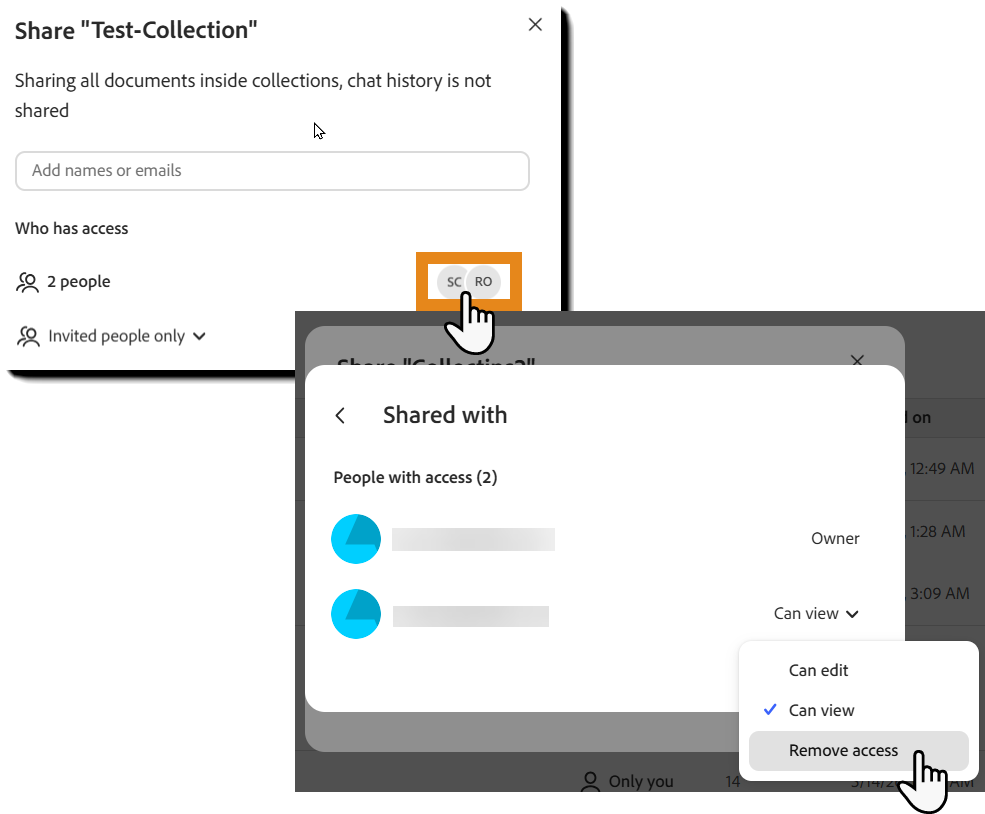
Select the row of persona icons next to the number of people who have access.
This opens the list of individual users explicitly shared to.
Find the user whose access you want to remove.
Open the access menu next to the user’s name.
Select Remove access.
Access is removed immediately.
Restrict access to invited users
A collection link may remain available to anyone in your organization. To fully restrict access, change the link setting.
In the sharing panel, open the link access menu.
Select Invited people only.

Close the sharing panel.
Only users who remain on the invited-user list can open the collection.
Things to know
- Removing a user does not delete the collection or its files.
- A removed user may still have access when the link setting is Anyone in your organization.
- Users with edit access can change the collection until you remove their access.
