
On the Products page in the Adobe Admin Console, select Firefly custom models.
Last updated on
Jun 17, 2025
Learn how System Administrators can empower users to train Adobe Firefly with brand assets, so anyone in the organization can generate consistent, on-brand content that is safe for commercial use.
Before you begin
Ensure that you have the right plan
Firefly custom models are available to organizations that use Adobe storage for business. It's also only available on the Creative Cloud for enterprise Edition 5, Edition 4 (formerly Pro Firefly), and Edition 4 with Premium Stock (formerly Pro Plus) plans. To purchase a new plan for your company, contact Adobe Sales.
If you have a Creative Cloud for enterprise plan, contact your Adobe Account Manager to add custom models to your plan. You can find their contact details in the Admin Console under the Account tab. Select your contract, then select the View details icon for the Account manager.
Assign a product admin for custom models
Assign at least one product administrator for Firefly Custom Models to manage user entitlements and the models. These product administrators are automatically granted storage administrative rights. If they need to train or publish a custom model, you must provision them with the ability to use custom models. Learn more about managing admin roles.

Create product profiles
Adobe recommends creating a product profile for trainers and assigning it to users or user groups.
Select New profile.
Enter a name and description for the product profile and select Next.
Enable the Trainer service and select Save.
Note
The generator service is no longer relevant and will be removed from the Admin Console.
Assign product profiles to the users or user groups
To entitle a user as a trainer, a system administrator must assign them the trainer product profile in Firefly custom models and a product that entitles the user to Adobe Firefly. You can assign product profiles directly to users, but assigning them to user groups is easier to maintain.
In the Admin Console, navigate to Users > User groups.
Select New User Group. Enter a name and description for the trainers' group, and select Save.
Select the trainers' user group and choose Add User. Enter the user details and save them. Learn how to create and manage user groups and add users in bulk.
On the Assigned product profiles tab, select Assign profile.
Select the Add icon > Firefly custom models > Trainer for Firefly custom models. Then, select the Add icon again to select the Creative Cloud for enterprise Edition 5, Edition 4 (formerly Pro Firefly), or Edition 4 with Premium Stock (formerly Pro Plus) plans.
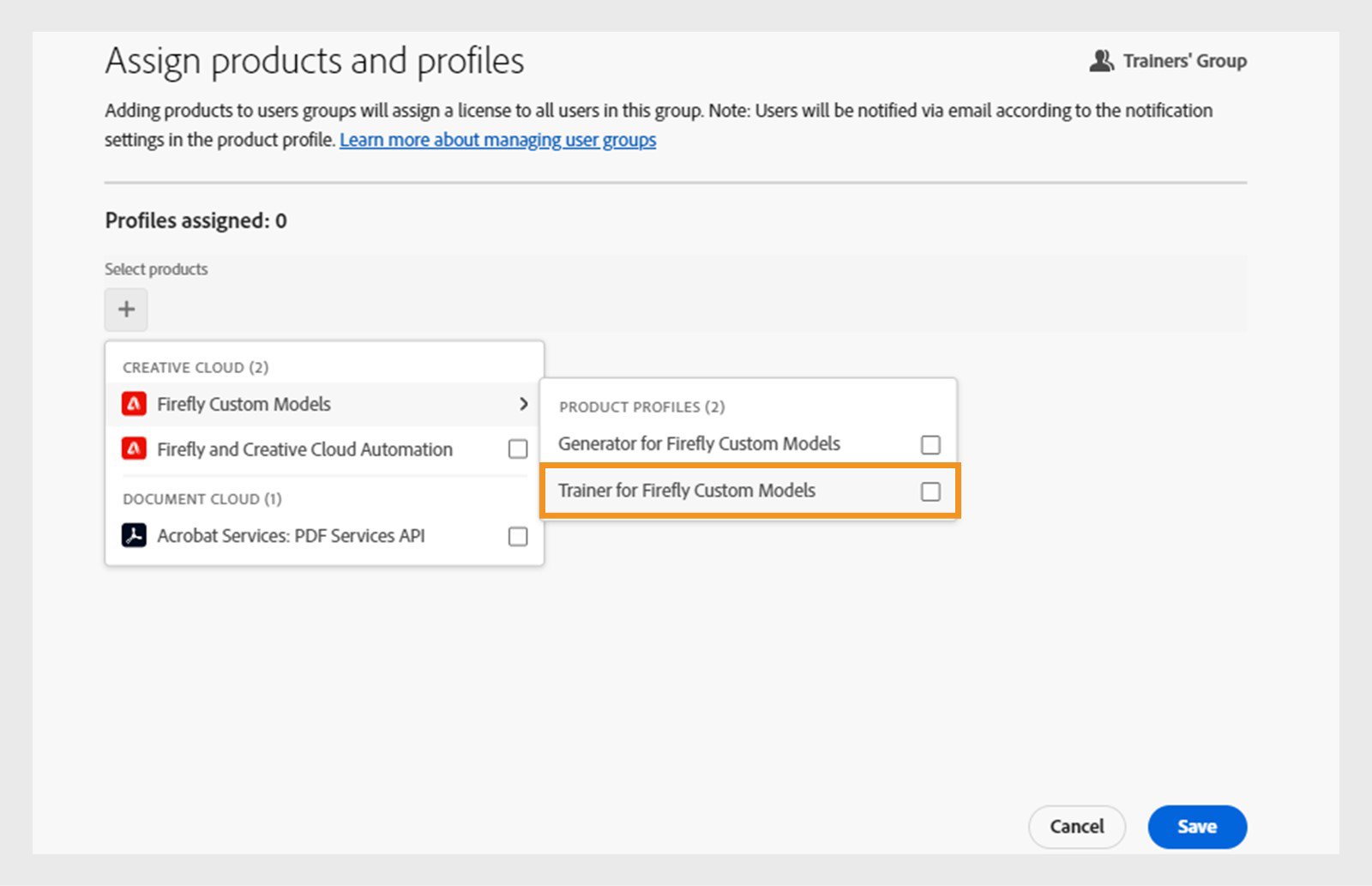
Select Save.
To add more trainers, add them to the Trainers user group. They will automatically gain access to both Firefly and Firefly Custom Models.
In the Admin Console, navigate to Users.
To entitle new users, select Add users. Enter a username or email address.
To entitle existing users, select the user's name. Select the More Options icon in the Products section and choose Edit products.

Select the Add icon > Firefly custom models, choose a product profile, and select Apply.
Select the Add icon again and select Creative Cloud for enterprise Edition 5, Edition 4 (formerly Pro Firefly), or Edition 4 with Premium Stock (formerly Pro Plus) plans.
Select Save.
Learn how to add users in bulk.
To add more users as trainers, ensure they are assigned to both Firefly and Firefly Custom Models.
Note
To allow users to generate content with trained Firefly custom models, you no longer need to assign the generator service via the Admin Console. Instead, you can share the custom models directly through the Firefly web app.
